
Lightshot for Mac Replacement: Capture, Search, and Reuse Screenshots
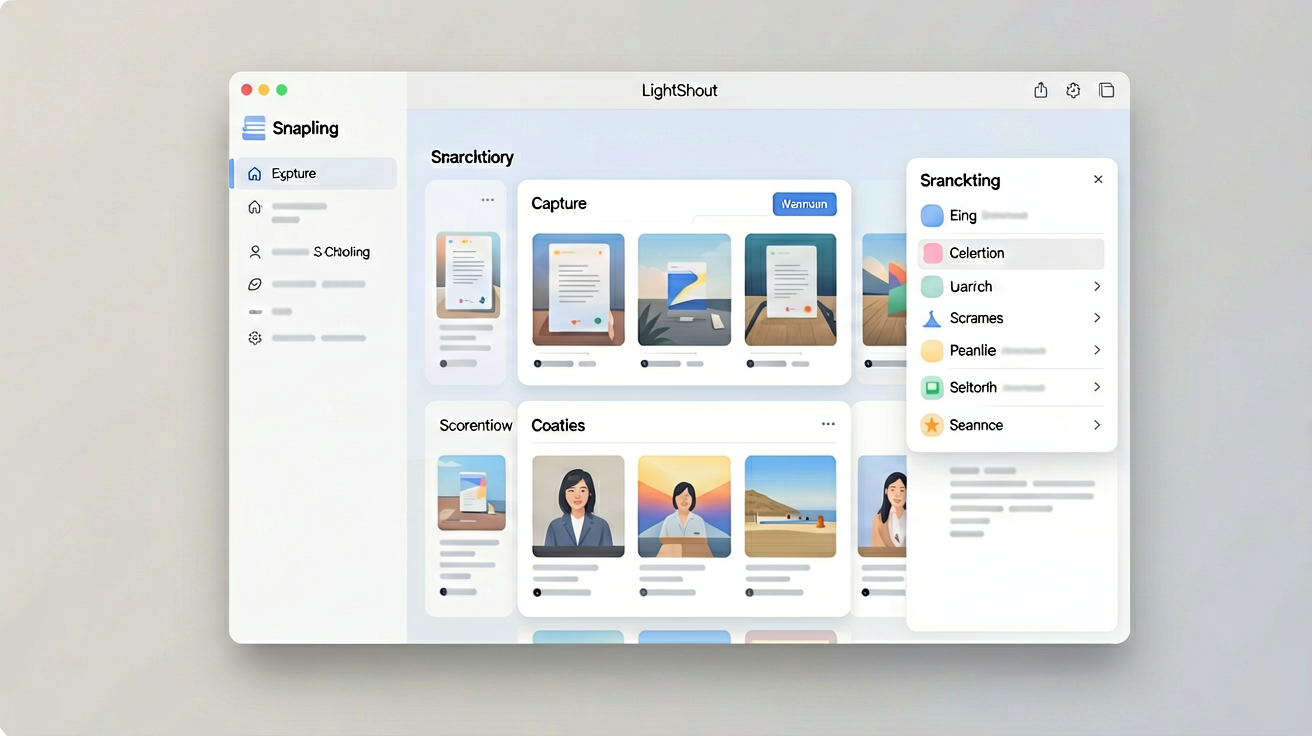
Replace Lightshot on Mac with a screenshot workflow that adds OCR search, screenshot history, and reusable capture context.
TL;DR
Replace Lightshot on Mac with an app that captures, OCRs, and stores screenshots locally, making them searchable and reusable.
Definition
Lightshot for Mac replacement: a screenshot tool that goes beyond one-time capture by providing local OCR, persistent history, and reuse capabilities.
What Lightshot for Mac does (and doesn't do)
Lightshot for Mac is a popular screenshot tool for quick captures and instant sharing. It offers a simple interface: press a hotkey, select an area, annotate, and upload to the cloud or save locally. For many users, that workflow is sufficient for one-off tasks like sending an error message or highlighting a design element.
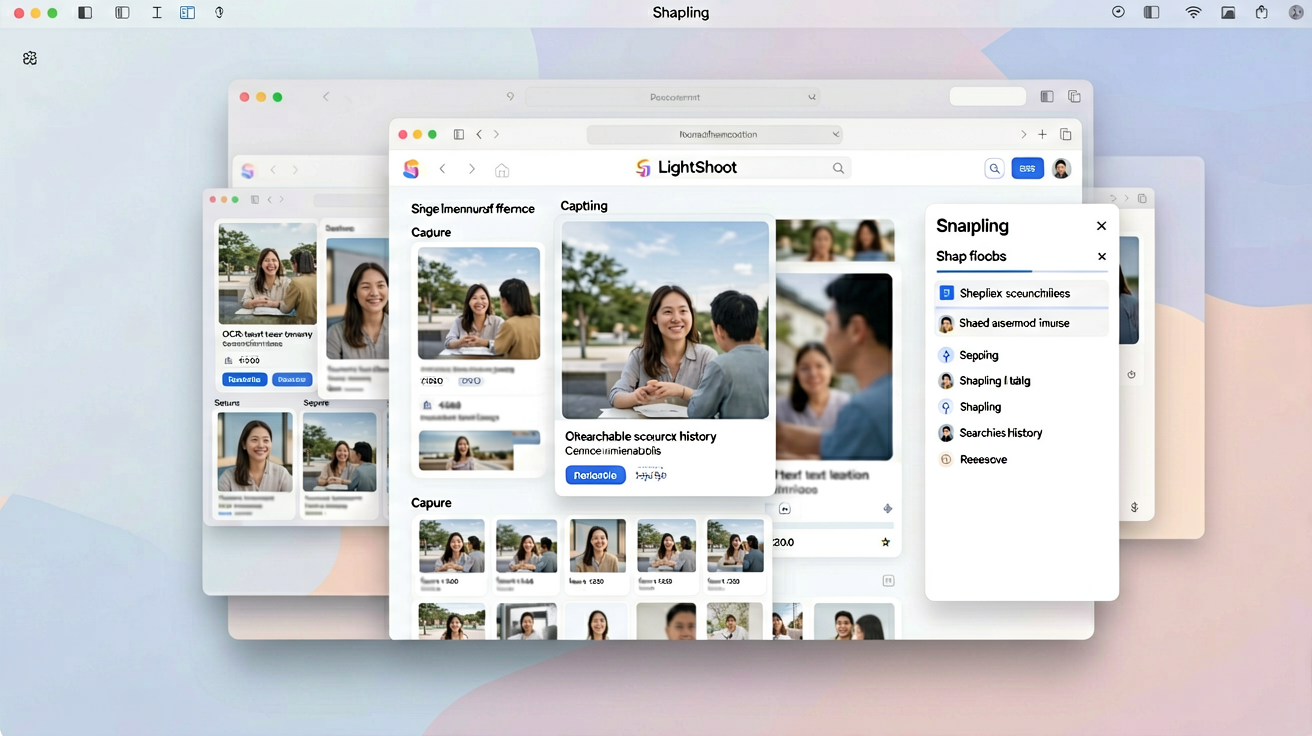
However, Lightshot has significant limitations on Mac. It lacks OCR (optical character recognition) to make text in screenshots searchable, offers no persistent history beyond the current session, and encourages a share-first mindset that treats each screenshot as disposable. Once you close the app or restart your Mac, those captures are gone unless you manually saved them—and even then, finding them later requires file hunting.
What to look for in a Lightshot alternative
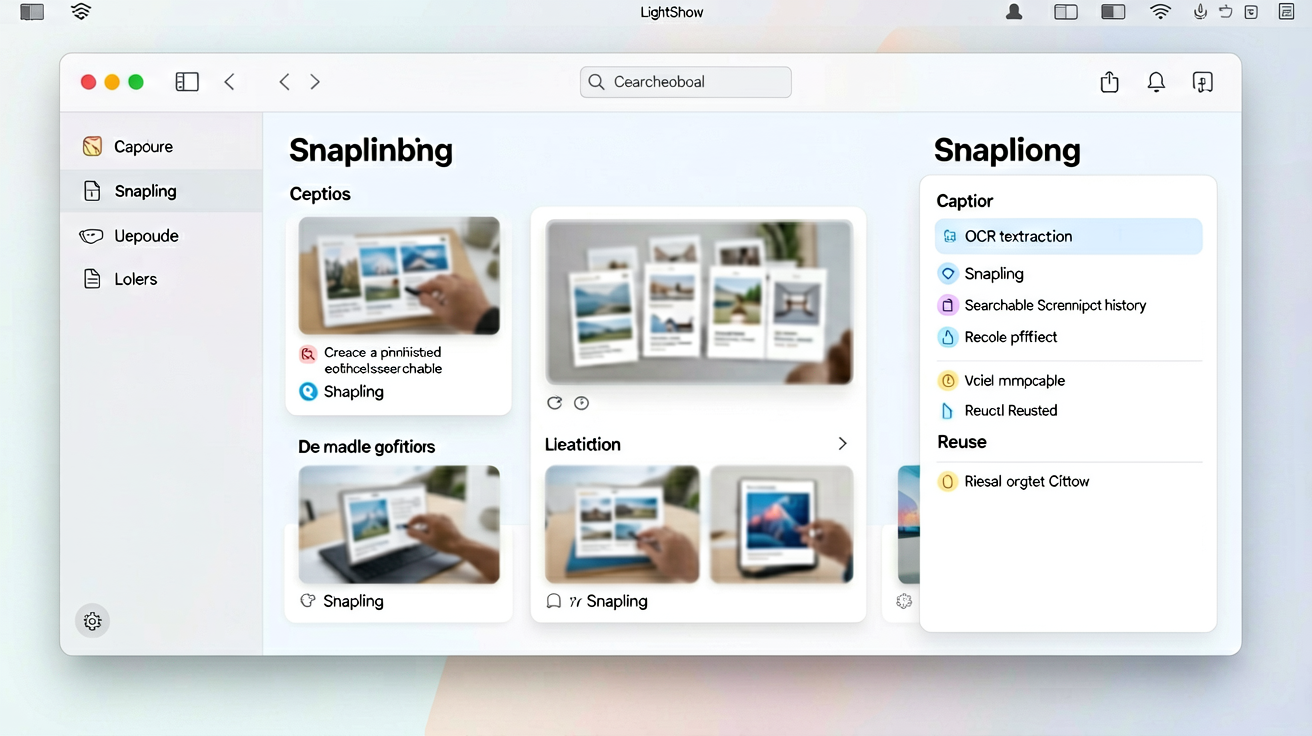
When replacing Lightshot, focus on features that solve its shortcomings. The ideal alternative should capture screenshots just as quickly but then make them useful long after the initial capture. Key capabilities include local-first storage (your screenshots stay on your Mac), OCR that indexes all visible text, a searchable history that works like your own visual memory, and annotation tools that don't force a cloud upload.
A tool like Snapling fits this profile. It runs in the menu bar, offers the same hotkey captures, but automatically OCRs every screenshot and stores them in a local library. You can search by text, date, or app source without ever leaving your Mac. This transforms screenshots from throwaway files into a reusable reference system.
Step-by-step: Replace Lightshot with a local-first screenshot tool
First, download and install Snapling from the official site. It works as a menu bar app and doesn't require signing in. After installation, set your preferred capture hotkeys (Cmd+Shift+9 by default). You can also import any existing screenshots you want to index using the drag-and-drop import feature.
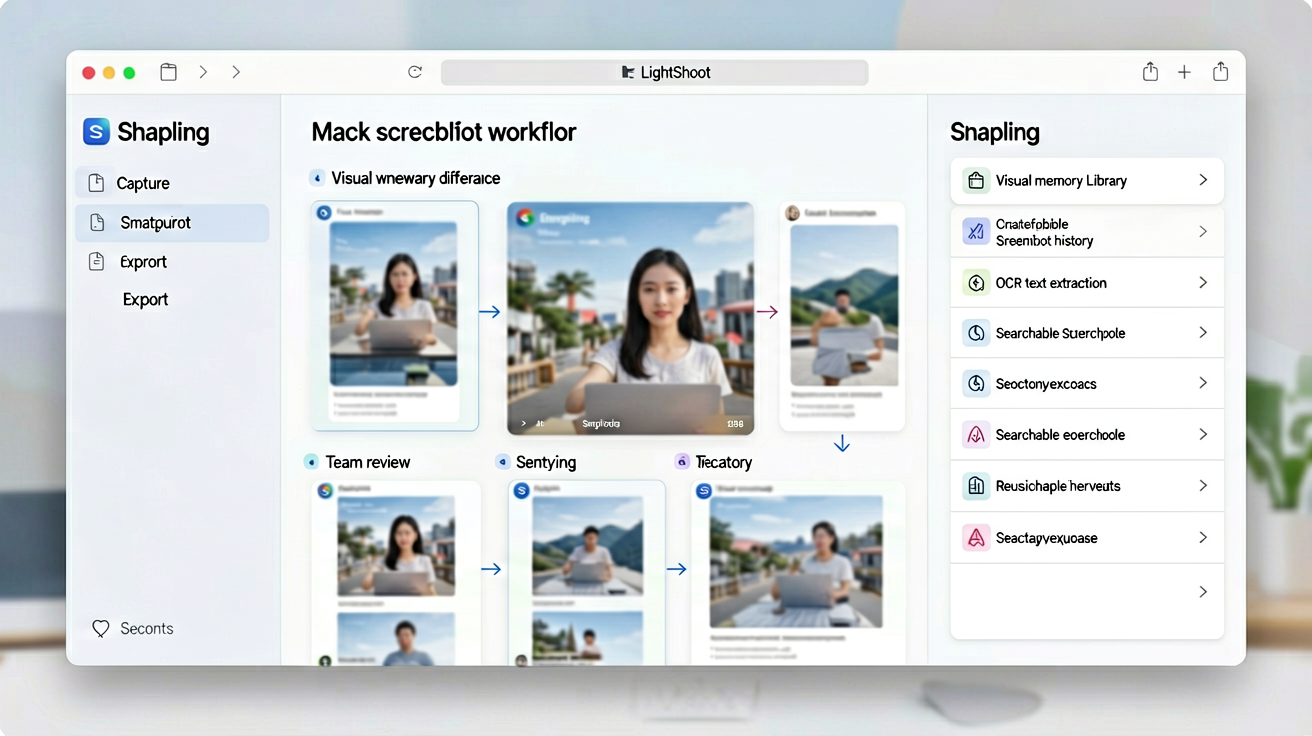
Next, adjust your workflow: instead of hitting Lightshot's upload button, let Snapling automatically save every capture to its local library. Use Snapling's annotation tools for quick arrows and highlights, then save. The screenshot is now OCR'd and searchable. To find it later, press a global hotkey to open the search bar and type any text that appears in the image. This replaces the manual folder-browsing you did with Lightshot. For a deeper dive into organizing your captures, check out our guide on how to search and organize screenshots on Mac.
How OCR search and history change your workflow
With OCR, every screenshot becomes a searchable document. Imagine you captured a pricing table from a competitor's site two weeks ago. Instead of scrolling through folders, you type Competitor A price into Snapling's search and instantly find it. This turns your screenshot library into a personal knowledge base that you can query as naturally as a search engine.
History also removes the fear of losing context. Lightshot's session-based approach meant you had to save everything or lose it. With a tool that keeps a permanent, local history, you can capture freely knowing you can always retrieve the exact screenshot you need later. This is especially valuable for designers, developers, and customer support agents who take dozens of screenshots daily.
Why reuse matters: From one-off captures to visual memory
Lightshot treats screenshots as ephemeral: capture, annotate, share, forget. But many screenshots contain information worth revisiting—error logs, design inspirations, meeting notes, or bug reports. By replacing Lightshot with a tool that prioritizes reuse, you shift from a disposable workflow to a cumulative one.
Snapling's library becomes your external visual memory. You can add tags, group related captures, and even export entire collections when needed. This is especially powerful for team workflows where screenshots are shared as references. Instead of re-capturing the same information repeatedly, you pull from your library. For a full comparison of Lightshot alternatives, see our main guide on the best Lightshot alternative for Mac.
Recommended next steps
Use these related Snapling guides when you want to go deeper into one part of the workflow.
How to search and organize screenshots on Mac
FAQ
Is there a Lightshot for Mac that supports OCR?
Lightshot itself does not have OCR on Mac. However, tools like Snapling offer full OCR support, making all text in your screenshots searchable.
Can I replace Lightshot with a free tool on Mac?
Yes, there are free alternatives, but they often lack OCR or persistent history. Snapling offers a generous free tier with core features, including OCR and local search, making it a strong free replacement.
Does Snapling work like Lightshot for Mac?
Snapling captures screenshots as quickly as Lightshot—using the same hotkey approach. The key difference is that Snapling saves every capture to a local, searchable library with OCR, while Lightshot focuses on immediate sharing.
How do I migrate from Lightshot to Snapling?
Download Snapling, set your capture hotkeys, and start using it as your default tool. You can also drag and drop existing screenshots into Snapling's library to index them for search.
Which Lightshot alternative is best for organizing screenshots?
For organizing screenshots, Snapling stands out with its automatic OCR indexing, searchable history, and local storage. It turns your captures into a reusable visual database.
Try the full workflow in Snapling
If you want this Lightshot alternative Mac workflow in one Mac workspace, download Snapling for Mac and try it with a screenshot you would normally need to find, copy, explain, or reuse.
Recommended next steps
Try the full workflow in Snapling
Capture the screenshot, keep the useful context, search it later, and reuse it when the work comes back.