

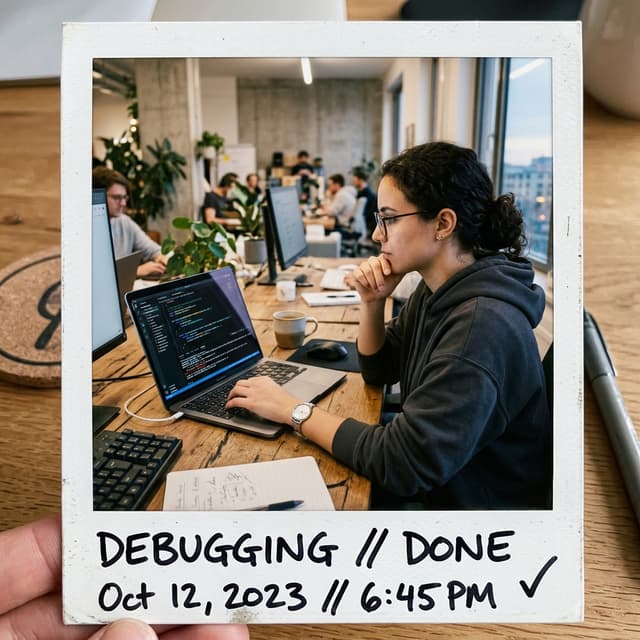

Bug Reporting & Code Review
Capture the broken state, mark exactly what's wrong, and paste it where the fix happens.
Snapling transforms isolated screenshots into a searchable, actionable Mac visual workspace — complete with instant hotkeys, AI OCR, GIF recording, and local clipboard memory.
macOS 13+ · Apple Silicon & Intel Native
FROM PIXELS TO PASTEBOARD
Press ⌘⇧4 — the capture frame is up before the thought finishes.
Drag a selection over anything on your screen.
Mark it up and send it to your clipboard in one click.

Roadmap
Updated 2h ago · Marketing · Engineering
Design
ShippedOwner · Maya Chen
12 tasks · 3 open
Beta
In reviewOwner · Jon Park
8 tasks · 2 open
Launch
Oct 12Owner · Sam Lee
16 tasks · 9 open
Roadmap
Updated 2h ago · Marketing · Engineering
Design
ShippedOwner · Maya Chen
12 tasks · 3 open
Beta
In reviewOwner · Jon Park
8 tasks · 2 open
Launch
Oct 12Owner · Sam Lee
16 tasks · 9 open
Go ahead, press Copy — it really copies.
KEEP — CLIPBOARD
Roadmap
Updated 2h ago · Marketing · Engineering
Design
ShippedOwner · Maya Chen
12 tasks · 3 open
Beta
In reviewOwner · Jon Park
8 tasks · 2 open
Launch
Oct 12Owner · Sam Lee
16 tasks · 9 open
Subject:Launch recap
Hi team,
quick recap from this morning —
Design systems help teams ship consistent UI faster…
Recent
Roadmap
Updated 2h ago · Marketing · Engineering
Design
ShippedOwner · Maya Chen
12 tasks · 3 open
Beta
In reviewOwner · Jon Park
8 tasks · 2 open
Launch
Oct 12Owner · Sam Lee
16 tasks · 9 open
Text
Design systems help teams ship consistent UI faster…

Link
Launch Roadmap — Acme Wiki
acme.wiki/launch-roadmap
Roadmap
Updated 2h ago · Marketing · Engineering
Design
ShippedOwner · Maya Chen
12 tasks · 3 open
Beta
In reviewOwner · Jon Park
8 tasks · 2 open
Launch
Oct 12Owner · Sam Lee
16 tasks · 9 open
Text
Design systems help teams ship consistent UI faster…
UNDERSTAND — OCR & TRANSLATE
Roadmap
Updated 2h ago · Marketing · Engineering
Design
ShippedOwner · Maya Chen
12 tasks · 3 open
Beta
In reviewOwner · Jon Park
8 tasks · 2 open
Launch
Oct 12Owner · Sam Lee
16 tasks · 9 open
English
The marketing site launch is scheduled for October 12.
Spanish
El lanzamiento del sitio de marketing está programado para el 12 de octubre.
French
Le lancement du site marketing est prévu pour le 12 octobre.
한국어
마케팅 사이트 출시는 10월 12일로 예정되어 있습니다.
中文(繁體)
行銷網站預定於 10 月 12 日上線。
CAPTURE MORE
Snapling
Snapling
CREATE — BACKGROUND CANVAS
Roadmap
Updated 2h ago · Marketing · Engineering
Design
ShippedOwner · Maya Chen
12 tasks · 3 open
Beta
In reviewOwner · Jon Park
8 tasks · 2 open
Launch
Oct 12Owner · Sam Lee
16 tasks · 9 open
Background
Style
Padding
Radius
Shadow
Canvas
VISUAL MEMORY
Screenshots, GIFs, copied images and text — kept together, searchable and ready to use again.
Snapling keeps the screenshots, GIFs, copied images and text that would normally disappear — and turns them into reusable visual memory.
Roadmap
Updated 2h ago · Marketing · Engineering
Design
ShippedOwner · Maya Chen
12 tasks · 3 open
Beta
In reviewOwner · Jon Park
8 tasks · 2 open
Launch
Oct 12Owner · Sam Lee
16 tasks · 9 open
Roadmap
Updated 2h ago · Marketing · Engineering
Design
ShippedOwner · Maya Chen
12 tasks · 3 open
Beta
In reviewOwner · Jon Park
8 tasks · 2 open
Launch
Oct 12Owner · Sam Lee
16 tasks · 9 open
Library
AllScreenshotsImagesGIFsTextTags
ResearchDesignProductRoadmap
Updated 2h ago · Marketing · Engineering
Design
ShippedOwner · Maya Chen
12 tasks · 3 open
Beta
In reviewOwner · Jon Park
8 tasks · 2 open
Launch
Oct 12Owner · Sam Lee
16 tasks · 9 open
Roadmap
Updated 2h ago · Marketing · Engineering
Design
ShippedOwner · Maya Chen
12 tasks · 3 open
Beta
In reviewOwner · Jon Park
8 tasks · 2 open
Launch
Oct 12Owner · Sam Lee
16 tasks · 9 open
It's time for a screenshot workspace that works as fast as your mind — instant hotkeys, precise annotations, on-device OCR, and pin-to-top floating windows.
Designed for Apple silicon and Intel-based Macs.
Screenshots, OCR text, and visual history stay on your Mac by default.
Capture, OCR, Translate, Pin, Record, Palette & History.
A screenshot shouldn't lose its value the second it lands on your desktop.
Snapling connects capture, understanding, expression, staging and long-term organization into one continuous visual workflow — capture what's on screen, pull the information out, keep it in view when you need it, shape it into clearer communication, and find and reuse it days or months later.
Roadmap
Updated 2h ago · Marketing · Engineering
Design
ShippedOwner · Maya Chen
12 tasks · 3 open
Beta
In reviewOwner · Jon Park
8 tasks · 2 open
Launch
Oct 12Owner · Sam Lee
16 tasks · 9 open
Regions, windows, scrolling pages and moving interactions are captured in seconds. Straight after the capture you annotate, copy, save or keep processing — without producing a file first and opening another tool.
From seeing it to keeping it — in as few steps as possible.
Snapling already presents the website in nine languages, so people can evaluate the Mac capture workflow in the language closest to their work — and beyond the interface, Snapling also translates the content inside your captures.
Bug reports, design reviews, tutorials and research all start with a capture — what happens next is where Snapling earns its keep.
Capture the broken state, mark exactly what's wrong, and paste it where the fix happens.
Pin the latest mock above your canvas while you build, and record micro-interactions as GIFs.
Images and text you copied stay one gesture away — no re-saving, no Downloads-folder archaeology.
Snip foreign-language material, read it in your language, and keep the evidence.
Snapling is a local-first Mac screenshot tool. Screenshots, scrolling captures, GIF recording, OCR, and translation should feel quiet, handy, and burden-free.
Perfect for trying it out
Try it first, no rush to pay.
One-time purchase
The complete Snapling workflow, with no subscription.
Limited to the first 500 members
Limited to the first 500 members. Includes all future paid AI features, new features, and cloud services.
Capture screenshots, scrolling pages, GIFs and clipboard content in one local-first Mac workflow.
Learn the Mac screenshot shortcuts, then see when OCR, scrolling capture and history are worth adding.
Compare Mac screenshot tools by OCR, GIFs, longshots, privacy, search and export workflow.
Know when built-in screenshot shortcuts are enough and when a fuller workflow is worth trying.
Quickly perform OCR on Mac when text is locked inside an image.
Extract text from screenshots and translate it within the same workflow.
A lighter way to record GIFs on Mac, perfect for demos and explanations.
Turn bugs, UI reviews and research screenshots into searchable visual memory.
Keep screenshots, OCR, GIFs and visual history local-first before you decide what to share.
Keep screenshots, GIFs, and copied content browsable after the capture moment passes.
Handle scrolling content in a cleaner way and save the result as a single image.
Use OCR, tags, pins, and visual browsing to find useful screenshots later.
Move screenshots, OCR text, and context into durable notes without losing the image.
Read practical articles about Mac screenshot workflows, OCR search, clipboard capture, Visual Memory, tool comparisons, and team use cases.
Follow new features, workflow improvements, and fixes in every release.
The most common questions users ask before downloading. Answers stay short, natural, and clear enough for search and answer engines.
Snapling is a snipping tool for Mac that brings screenshots, scrolling captures, GIF recording, OCR, clipboard capture, screenshot history, and Visual Memory into one local-first workflow.
Yes. Snapling is local-first and does not require an account. Captures, OCR text, clipboard content, and visual history are designed to stay close to your Mac unless you choose to export or share them.
Yes. Text recognition and translation run on your Mac, so screenshots and the text inside them don't need to be uploaded before you work with them.
Yes. The Free plan includes the core capture toolkit, OCR, translation, background canvas, and up to 50 Visual Memory items. Pro is a $29 one-time purchase, and Founding Edition is $69.
Yes. Snapling uses OCR so text inside Mac screenshots can be copied, searched, translated, and reused later instead of staying locked inside image files.
Basic screenshot apps usually stop after capture or sharing. Snapling connects screenshots with OCR, GIFs, clipboard content, tags, favorites, export, and a searchable Visual Memory Library.
Yes. Snapling covers scrolling screenshots and short GIF recording inside the same tool, so still images and motion explainers can stay in the same capture workflow.
Snapling is useful for product teams, support, research, documentation, tutorials, and anyone who needs screenshots to become searchable, reusable context rather than loose files on the desktop.
Capture screenshots, scrolling pages, GIFs, and clipboard context—then search, translate, and reuse them whenever the work comes back.
Mac · macOS 13+