
Mac Screenshot History & Clipboard for developer
Build a Mac screenshot history and clipboard workflow for developers who need reusable visual context after capture.
TL;DR
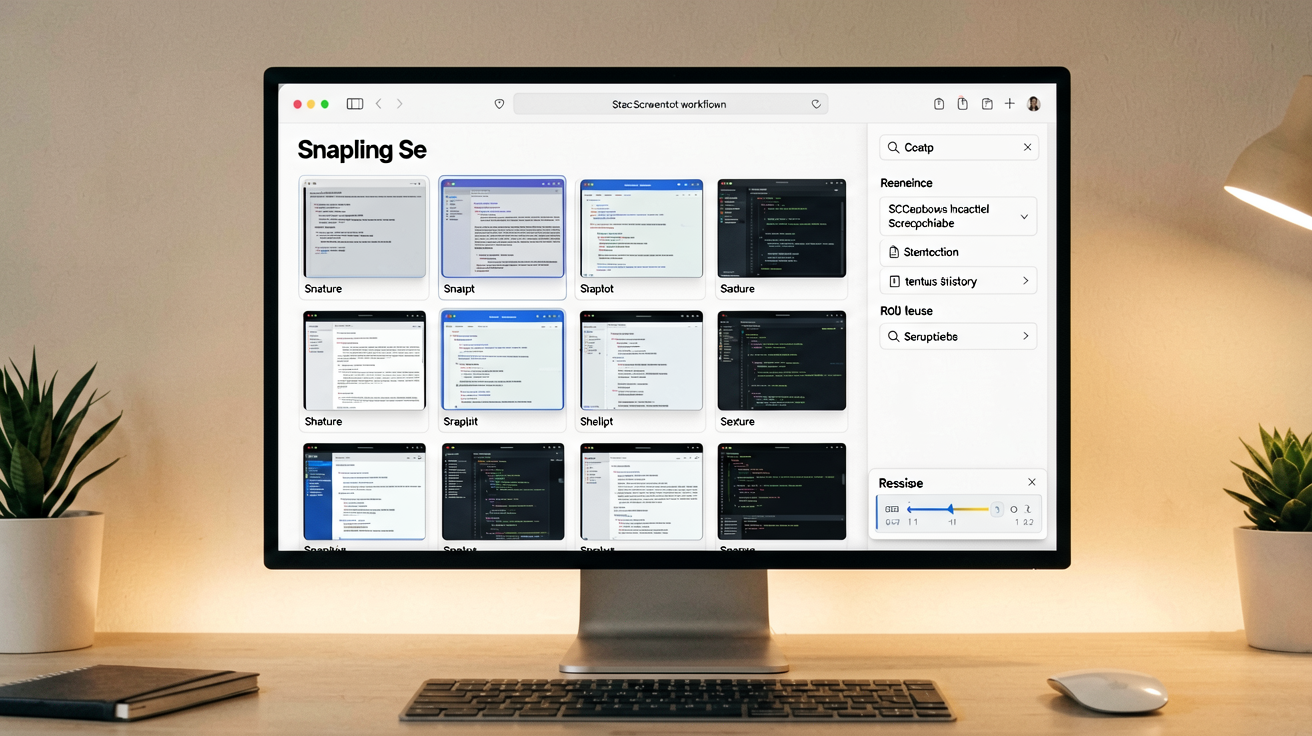
A screenshot history clipboard workflow keeps developer captures organized, searchable, and context-rich on Mac. Tools like Snapling ensure you never lose screenshots or overwrite important clipboard content.
Definition
A screenshot history clipboard workflow is a system that captures, stores, and organizes screenshots with associated clipboard context, making them searchable and reusable for ongoing tasks.
What is a Screenshot History Clipboard Workflow?
Developers use screenshots as working documents—error logs, UI states, code snippets—but macOS defaults to saving them on the Desktop with no history. This leads to clutter and lost context when clipboard content is overwritten.
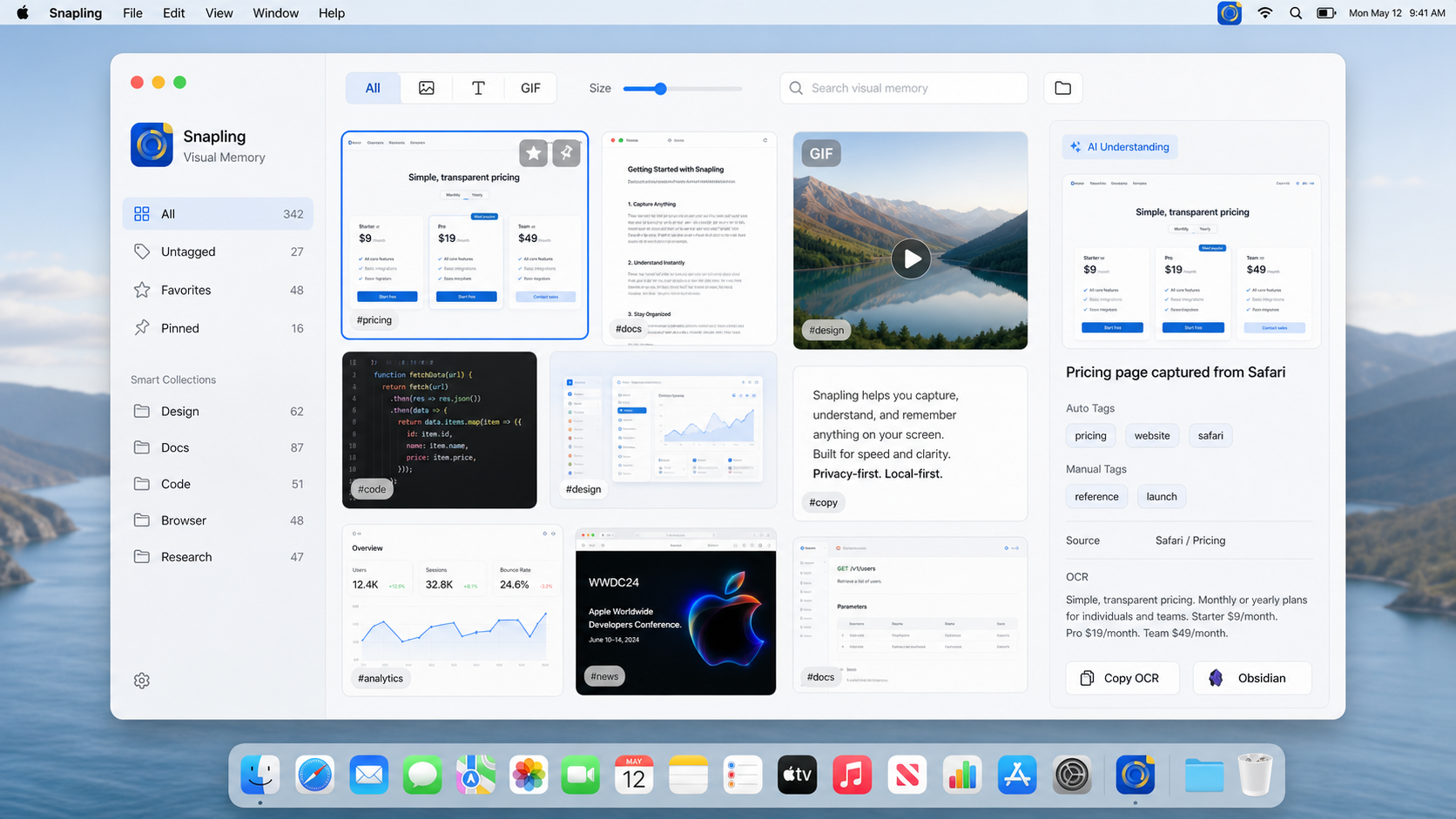
A structured workflow captures screenshots into a searchable history, links them to clipboard data, and preserves context. This allows developers to revisit and reuse visual information across sessions without re-capturing.
Why Default macOS Behavior Fails Developers
macOS saves every screenshot to the Desktop or a chosen folder, but without organization or search. The clipboard is constantly overwritten, losing text copied from screenshots or code snippets.
This scatters files and erases context, forcing developers to manually manage captures or lose them. It breaks the flow during debugging or documentation when quick access is needed.
Building a Screenshot History on Mac
Start by using a tool that automatically captures and stores screenshots in a central location. Organize them with tags, dates, or projects to avoid Desktop clutter.
Enable OCR to make screenshots searchable by text content. This allows developers to find specific error messages or code snippets quickly, turning static images into active resources.
Preserving Clipboard Context with Screenshots
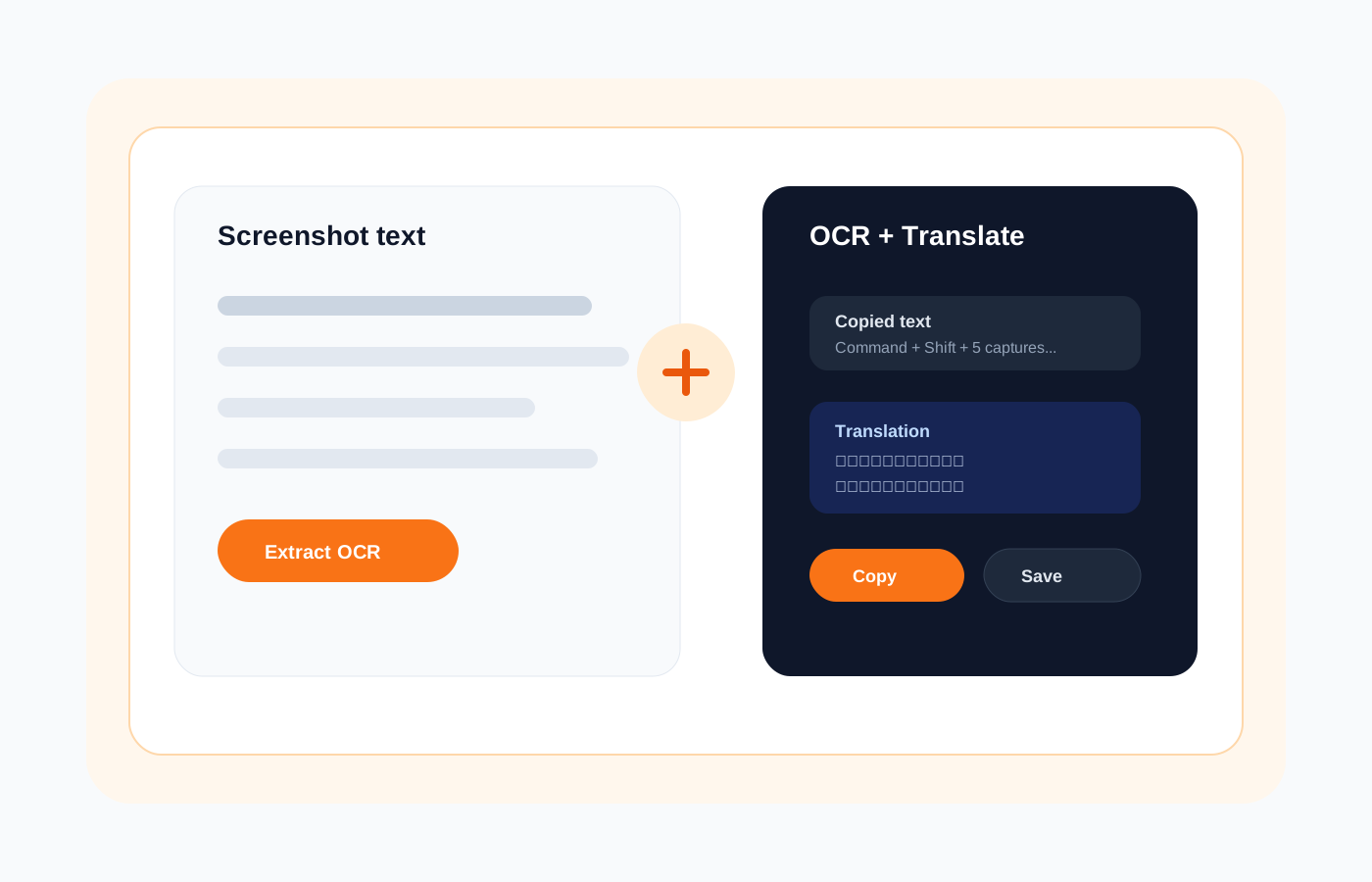
When you capture a screenshot, the clipboard often holds related text or code. A good workflow saves both the image and the clipboard state together.
Tools that pair screenshots with extracted text or copied content ensure that context isn't lost. This is crucial for developers who need to reference both visual and textual information.
Developer Use Cases: From Debugging to Documentation
In debugging, screenshots of error messages paired with logs speed up resolution. For code reviews, capturing UI states or API responses helps document issues.
Workflows like bug reporting benefit from annotated screenshots and GIFs. A history system allows revisiting past captures for patterns or recurring problems.
How Snapling Structures Screenshot History Differently
Snapling provides a local-first screenshot history with OCR search, keeping captures organized and accessible. It integrates clipboard context so images and text are stored together.
Unlike default macOS or simple tools, Snapling focuses on preserving visual memory. Features like annotations and GIF support enhance developer workflows without cluttering the system.
Recommended next steps
Use these related Snapling guides when you want to go deeper into one part of the workflow.
How to keep screenshot history on Mac
How to capture clipboard content on Mac
How to search and organize screenshots on Mac
FAQ
How do I view my screenshot history on a Mac?
On macOS, there's no built-in screenshot history. Use a third-party app like Snapling that maintains a searchable gallery of all your captures, organized by date and content.
Does macOS keep a clipboard history for screenshots?
No, macOS clipboard is temporary and overwritten with each copy. For persistent history, tools like Snapling save clipboard content alongside screenshots for later access.
How can developers search through old screenshots on Mac?
Search requires OCR to extract text from images. Snapling enables full-text search across screenshots, letting you find error messages or code snippets instantly.
What is the best way to keep screenshots organized on a Mac for technical work?
Adopt a screenshot manager that auto-captures, stores, and organizes with tags. Snapling offers history, OCR search, and context preservation for developer needs.
Try the full workflow in Snapling
If you want this Mac screenshot history and clipboard workflow for developers who need to capture, find, and reuse screen content without losing context workflow in one Mac workspace, download Snapling for Mac and try it with a screenshot you would normally need to find, copy, explain, or reuse.
Recommended next steps
Try the full workflow in Snapling
Capture the screenshot, keep the useful context, search it later, and reuse it when the work comes back.