
Private Screenshot App for Mac: Keep Your Captures Completely Local
Choose a private screenshot app for Mac that keeps OCR, screenshot history, and visual context useful without adding unnecessary cloud steps.
TL;DR
Learn what makes a screenshot app truly private—local storage, on-device processing, and no forced cloud uploads—and see how Snapling provides a complete private workflow for capturing, searching, and reusing your screenshots on Mac.
Definition
A private screenshot app for Mac keeps all your captures, history, and OCR text local on your device by default, never uploading content to the cloud unless you explicitly share it.
What does “private” really mean for a screenshot app?
When you take a screenshot on a Mac, the default tools save the file locally. But many third-party apps go a step further—they upload your captures to cloud servers for syncing, sharing, or even AI processing. That might be convenient, but it raises serious privacy concerns.
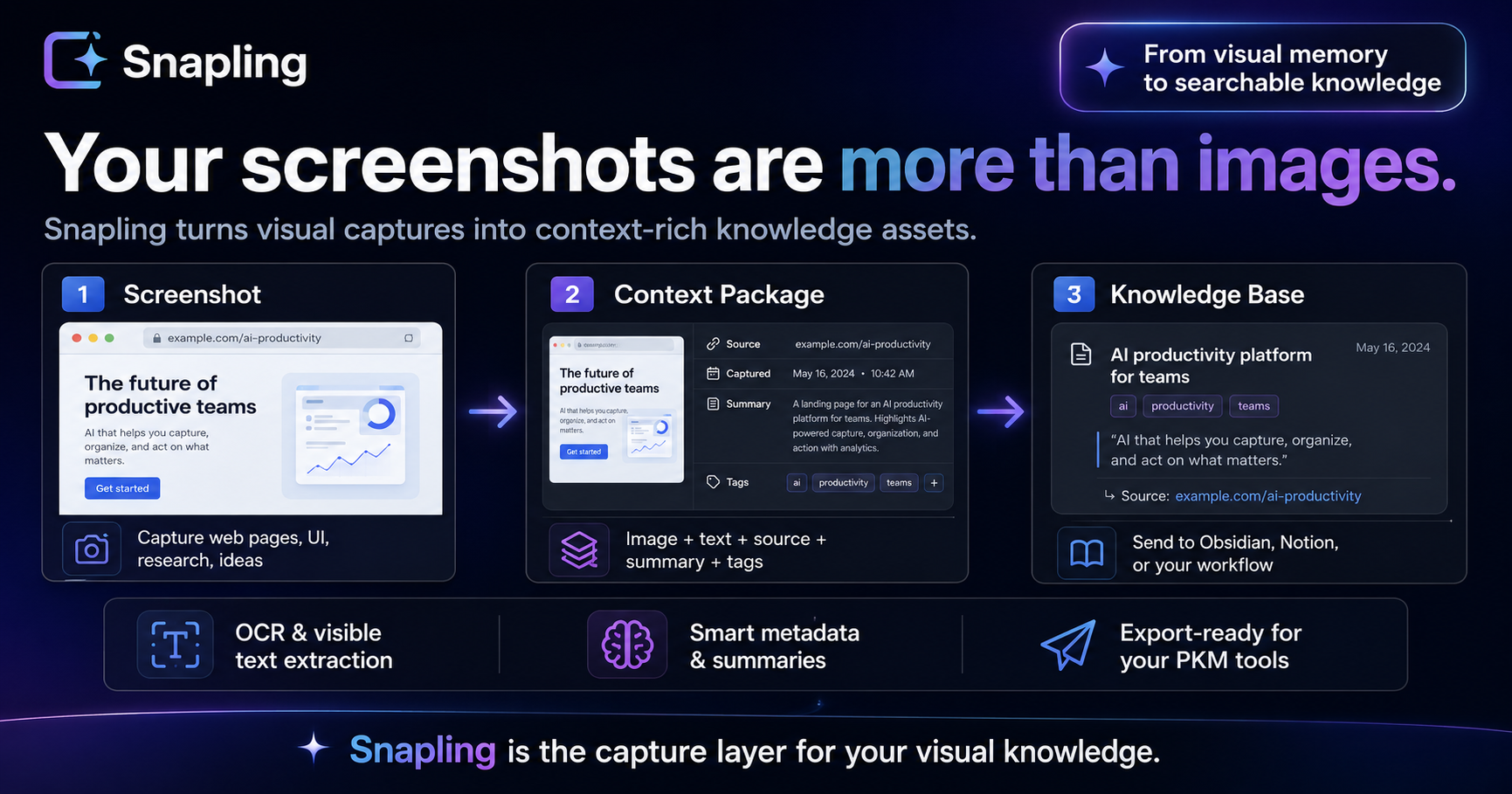
A truly private screenshot app for Mac means that everything stays on your device by default: captures are stored in a local library, any text extraction (OCR) happens on-device, and no data leaves your computer unless you choose to send it somewhere. This local-first approach ensures your personal, work, or confidential information isn't exposed to third parties or potential breaches.
For those evaluating their options, we've written a deeper guide on what to look for in a private screenshot app for Mac. But the short version is: privacy isn't just about encryption—it's about whether the app ever sees your data in the first place.
The privacy problem with cloud-based screenshot tools
Cloud-based screenshot and screen capture tools often upload your images without clear visibility. They may store your captures on their servers for processing, sync between devices, or even train their machine learning models. Terms of service can be vague about what they do with your data.
Even if the tool claims to be secure, you're trusting a company to handle your screenshots responsibly. In many cases, screenshots contain sensitive information: passwords, personal conversations, financial details, or confidential work documents. Sending those to someone else's computer defeats the purpose of a private workflow.
The alternative is a local-first tool. By processing everything on your Mac, you eliminate the risk of server-side data leaks, government requests, or accidental sharing. You stay in control.
5 must-have features for a truly private Mac screenshot app
Not all apps labeled 'private' live up to the name. When evaluating a screenshot tool for your Mac, look for these five essential privacy features.
First, all storage must be local-only—no forced cloud syncing. Second, any OCR must happen on-device; sending images to a server for text extraction is a privacy risk. Third, the app should not collect telemetry, analytics, or usage data. Fourth, you must retain full ownership of your data, with the ability to export or delete your entire library at any time. Fifth, the app should work completely offline; if it needs an internet connection, it's likely phoning home.
Snapling was designed with these principles at its core. Its library stays on your Mac, OCR runs offline, and there's no account required. You can learn more about how Snapling keeps your captures private on its features page.
How Snapling gives you a local-first private screenshot workflow
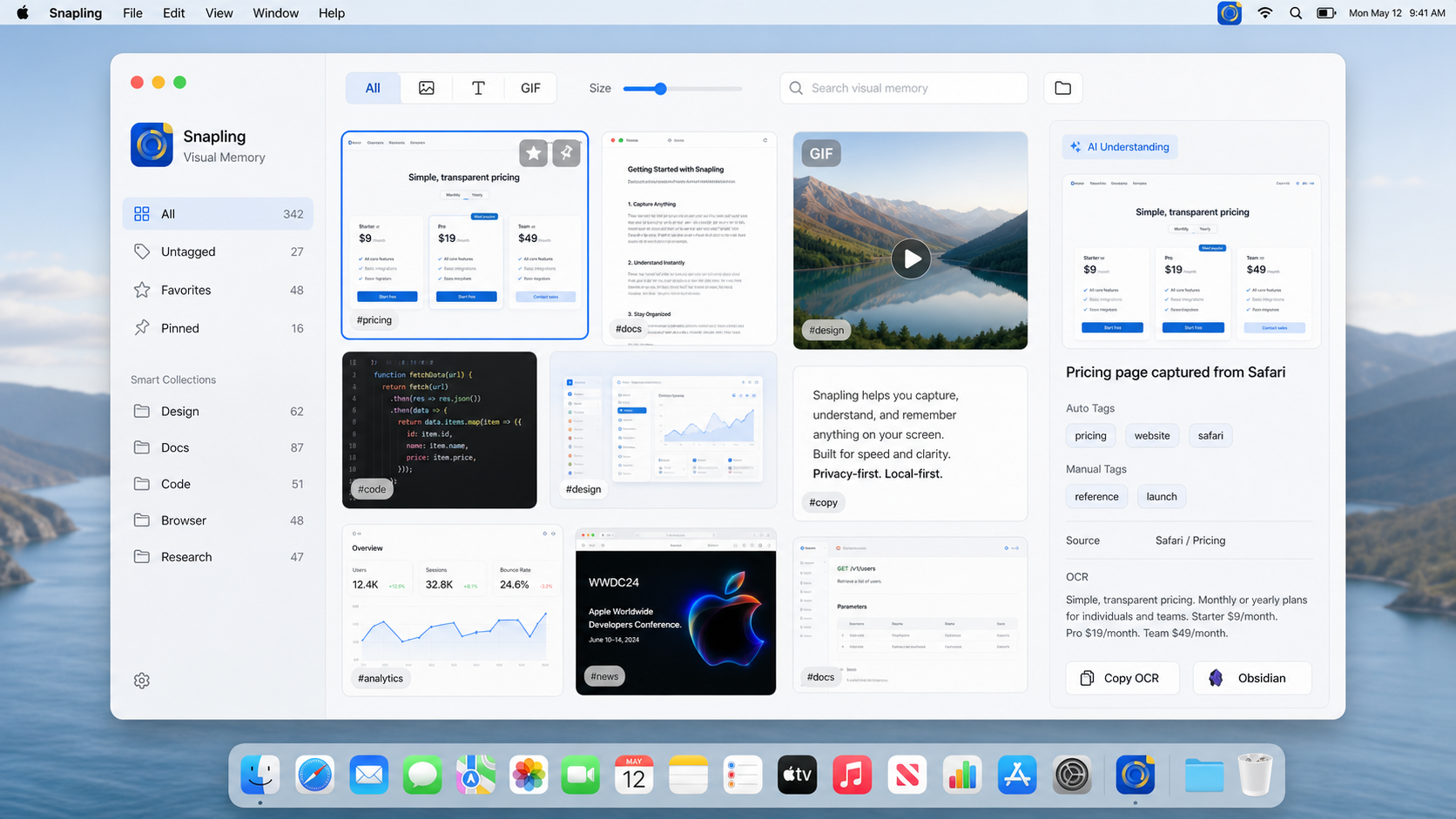
Snapling isn't just a capture button—it's a complete workspace for your screenshots that puts privacy first. Instead of uploading your captures, it keeps everything in a searchable local library. You can take screenshots, annotate them, create GIFs, or capture long scrolling pages, all without an internet connection.
The difference lies in how Snapling treats your screen content: as private visual context that only you should have access to. There's no 'sync to cloud' toggle hidden in preferences; by default, everything stays local. Even when you use advanced features like automatic text search or history glance, the processing happens right on your Mac.
This local-first approach means you can safely capture and organize sensitive information—like bank statements, medical records, or internal dashboards—without worrying about where your data ends up. And because Snapling doesn't rely on cloud servers, you're not at the mercy of subscription models or service outages.
Step-by-step: setting up a private screenshot library on Mac
Getting started with a private screenshot workflow on your Mac is straightforward with Snapling. First, download the app from the official website—it's a direct download, not a Mac App Store version, so you get the full local-first experience right away.
After installation, Snapling runs in the background and integrates with your system screenshot shortcuts or its own capture modes. Every screenshot you take gets saved into your local library automatically. You can organize captures into folders, add tags, or mark favorites—all of which stays on your device.
No need to create an account, sign in, or grant cloud permissions. Simply start capturing and let Snapling build your private visual knowledge base. You can even set custom storage locations if you prefer to keep your screenshots in a specific folder on your drive.
Private OCR: extract text from screenshots without sending data anywhere
A key reason people turn to third-party screenshot tools is optical character recognition (OCR): the ability to grab text from an image. But many OCR tools do this by uploading your screenshot to a cloud server, running the extraction there, and sending back the text—a privacy nightmare.
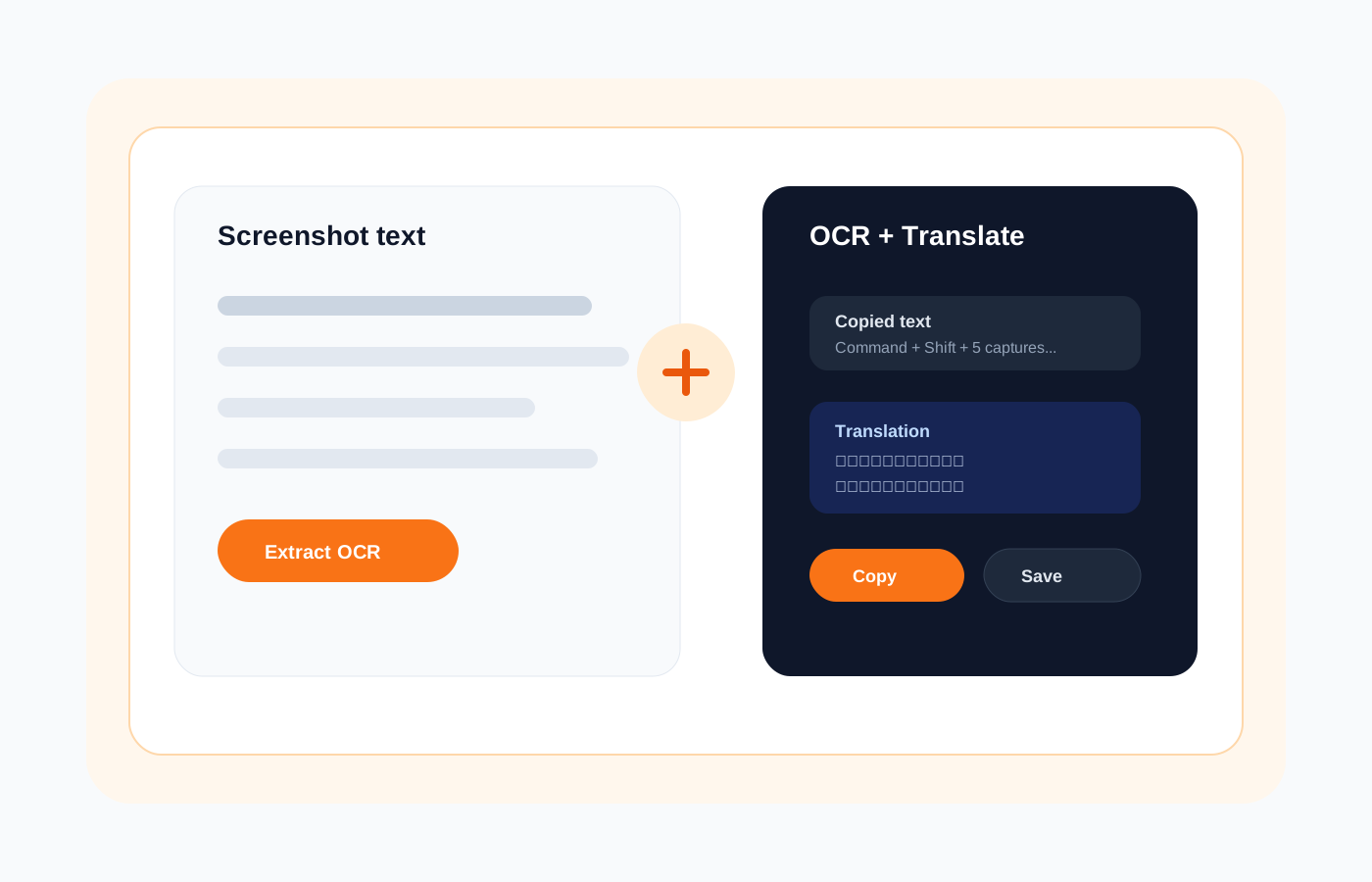
Snapling does OCR entirely on-device. Using your Mac's processing power, it reads text from any screenshot and makes it fully searchable. You can find old captures by typing keywords into the search bar, and it works even when you're offline. No internet required, and no data leaves your Mac.
This on-device OCR extends to screenshots of documents, presentations, or any image with embedded text. You can copy the text, search across your history, or export it without ever worrying about third-party access.
Keeping GIFs and long screenshots local
Privacy shouldn't come at the cost of functionality. With Snapling, you can record GIFs or capture full-page scrolling screenshots, and those stay completely local too. Unlike some tools that require cloud processing for these heavier tasks, Snapling handles them natively on your Mac.
GIF creation, for instance, uses your mouse clicks and screen activity to generate a looping preview right on your machine. Long screenshots stitch together scrollable content without needing an external service. This means you can document entire web pages, chat histories, or code files privately.
Every GIF and long capture is saved into your local library, searchable by text and date, just like any other screenshot. You maintain full control over these visual assets, without exporting them to a server for any step of the process.
Ready to go truly private with your Mac screenshots?
Choosing a private screenshot app for Mac isn't about sacrificing features—it's about choosing a tool that respects your data. Snapling gives you all the tools you need to capture, search, annotate, and reuse your screen content, without ever sending it to the cloud.
Download Snapling for free and set up your local-first screenshot workspace today. Once you experience the speed and privacy of an on-device library, you'll wonder why you ever trusted your captures to the cloud.
Recommended next steps
Use these related Snapling guides when you want to go deeper into one part of the workflow.
Private screenshot app for Mac: what to look for
FAQ
Is Snapling a private screenshot app for Mac?
Yes. Snapling is designed as a local-first screenshot workspace. It stores all your captures, OCR data, and annotations locally on your Mac by default. There is no mandatory cloud upload, and the app works completely offline.
Does Snapling ever upload my screenshots to the cloud?
No. Snapling does not upload your screenshots to any cloud server. All processing, including OCR and history search, happens on-device. If you choose to share a specific screenshot via a link or export, that's entirely under your control.
Can I search my screenshots privately with OCR?
Absolutely. Snapling includes on-device OCR technology that extracts text from your screenshots and makes them searchable—all without an internet connection. Your data never leaves your Mac during the OCR process.
How does Snapling's local history work?
Snapling saves every capture to a local library on your Mac. You can browse your history by date, search text within images, and organize captures with tags and folders. The history is fully local, so it's fast and private.
Can I use Snapling without an internet connection?
Yes. Snapling is built to work offline. From capturing to searching to watching GIFs, every feature operates without an internet connection. You only need internet if you choose to export or share something online.
What's the difference between Snapling and other private screenshot apps?
Snapling goes beyond basic capture by offering a full workflow: local library, on-device OCR, annotations, GIF creation, and long screenshot capture—all without cloud dependency. While other tools may claim privacy, Snapling's entire design philosophy centers on keeping you in control of your data.
Try the full workflow in Snapling
If you want this private screenshot app mac workflow in one Mac workspace, download Snapling for Mac and try it with a screenshot you would normally need to find, copy, explain, or reuse.
Recommended next steps
Try the full workflow in Snapling
Capture the screenshot, keep the useful context, search it later, and reuse it when the work comes back.