
Screenshot Tool for Designers on Mac 2026: Capture, Organize, and Reuse Visual References
Use a screenshot tool for designers on Mac to keep references, annotations, OCR text, and visual memory organized.
TL;DR
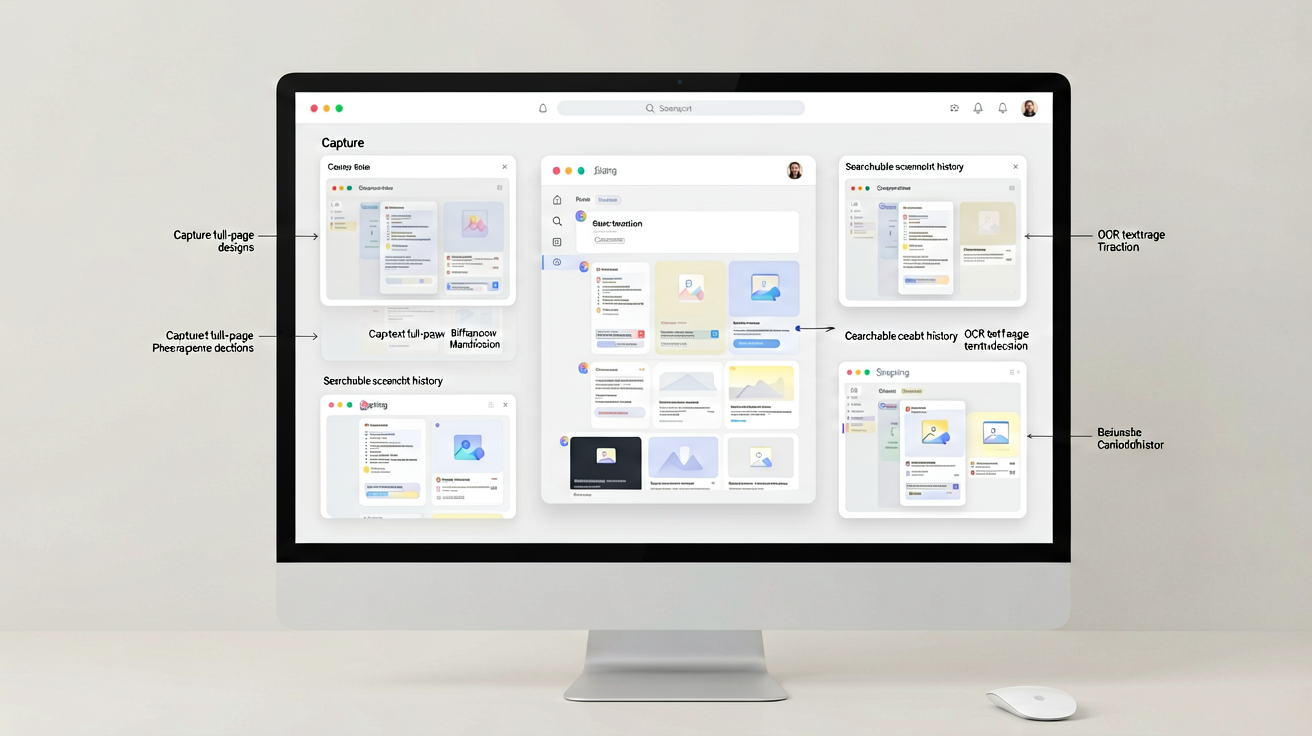
A dedicated screenshot tool for Mac designers captures, annotates, organizes, and searches visual references, turning scattered captures into a reusable visual library.
Definition
A screenshot tool for designers on Mac is a specialized app that captures, annotates, indexes (with OCR), and organizes visual references—like UI mockups, inspiration, and feedback—into a searchable, local-first library.
Why designers need more than a capture button
Designers live in a visual world. You constantly capture inspiration, competitor UIs, design mockups, and feedback. But a simple screenshot saves it to your desktop—disconnected from the source, hard to search, and easy to lose. Without context, that inspiring design fragment is just another file in an ever-growing folder. Over time, you waste hours scrolling through chaotic folders or relying on memory to find that one reference from last week.
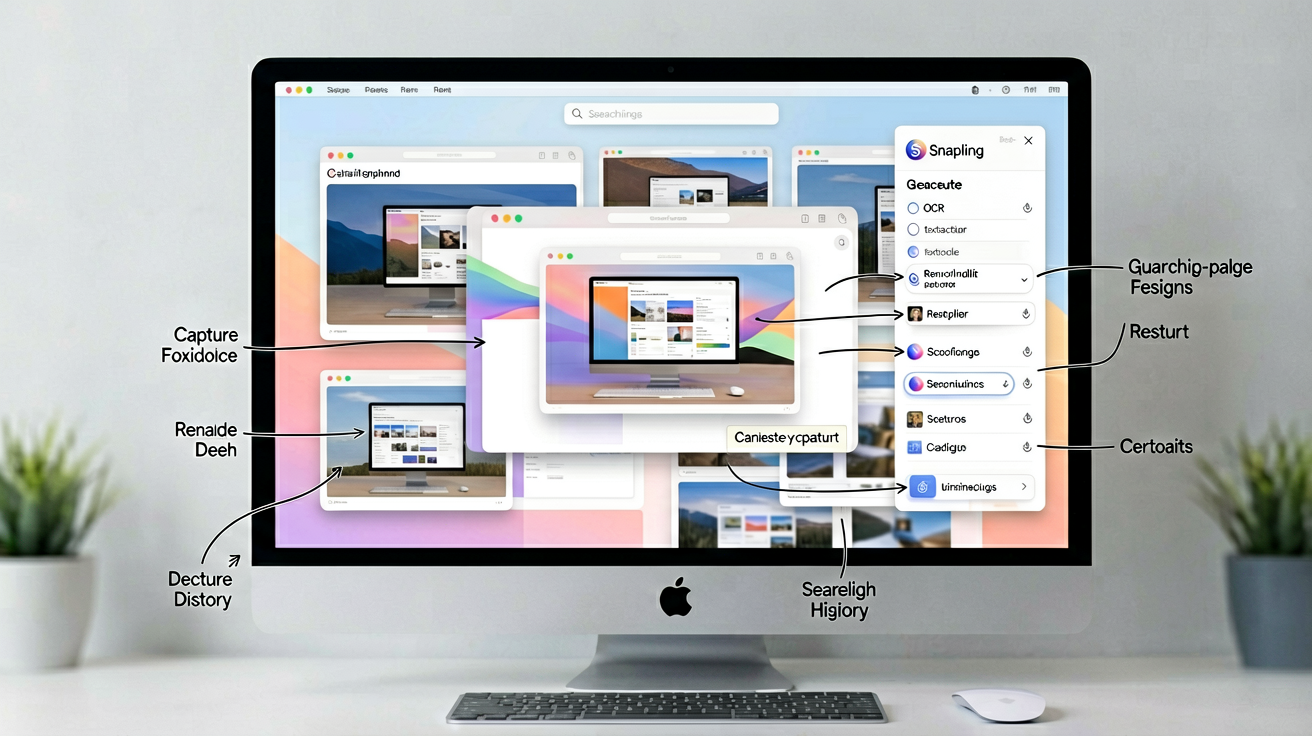
A dedicated screenshot tool changes this. Instead of treating captures as disposable files, it treats them as visual memories—preserving the source URL, timestamp, and even text inside the image. This workflow is called a visual memory library. Tools like Snapling are built for this: they capture with context, make every screenshot searchable via OCR, and keep everything organized in a local-first database. For designers, this means less time hunting and more time creating.
Step 1: Capture with context – shortcuts, long screenshots, and GIFs
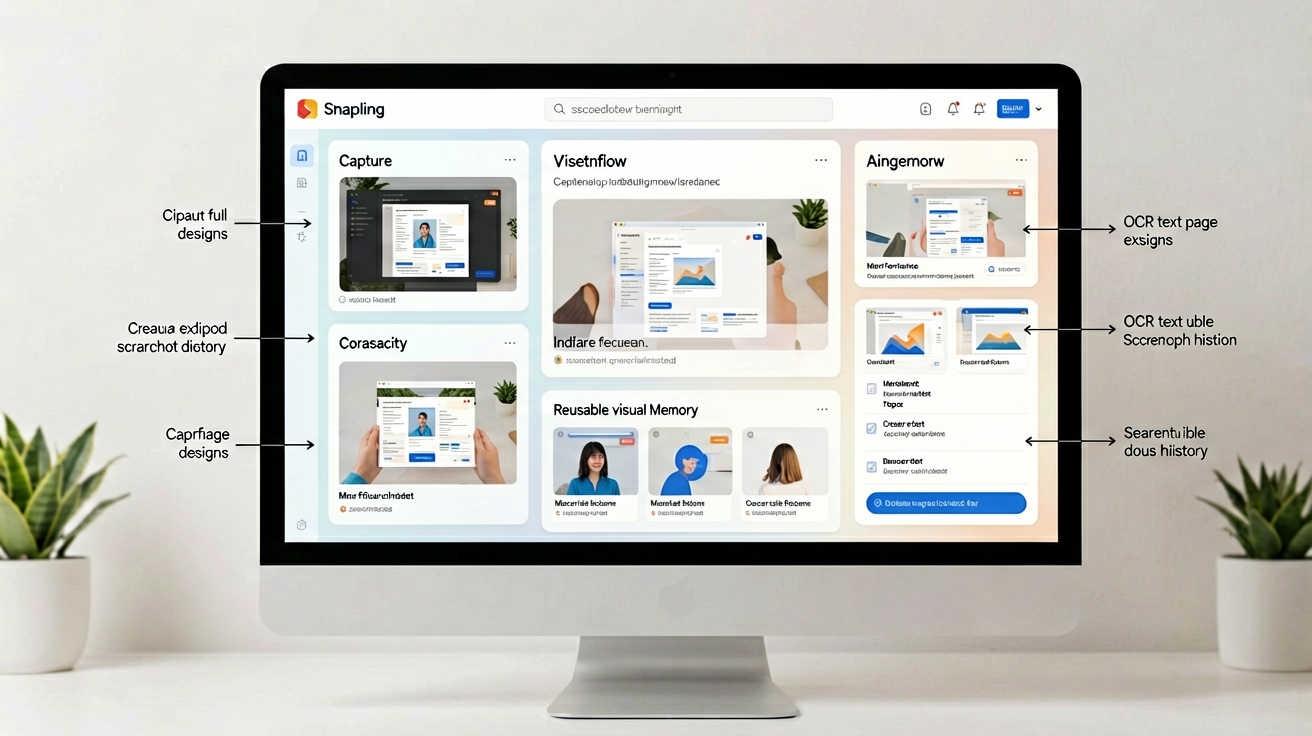
Start by capturing exactly what you need. A good screenshot tool offers multiple capture modes: region, window, full screen, and—especially for designers—long scrolling screenshots. Long screenshots let you capture full-page web designs, lengthy email threads, or entire mockup assets without stitching them manually. Learn how to take long screenshots on Mac without messy stitching in our dedicated guide.
Keyboard shortcuts make the process frictionless. Set shortcuts for each capture mode: one key for a region, another for a scrolling capture, and even a GIF or video recording for micro-interactions. Snapling assigns intuitive shortcuts and lets you customize them. When you capture, it automatically preserves the source URL (from the frontmost browser tab) and the timestamp. This context is crucial when you later want to recall where you saw a design or which version a feedback comment referred to.
Step 2: Annotate without leaving the capture flow
Annotations are part of a designer’s feedback loop. Whether you’re marking up a bug, highlighting a color palette, or adding a note to a competitor’s UI, you want to annotate immediately after capture—not open a separate app. A built-in annotation tool with arrows, rectangles, text, and blur lets you communicate your thoughts clearly.
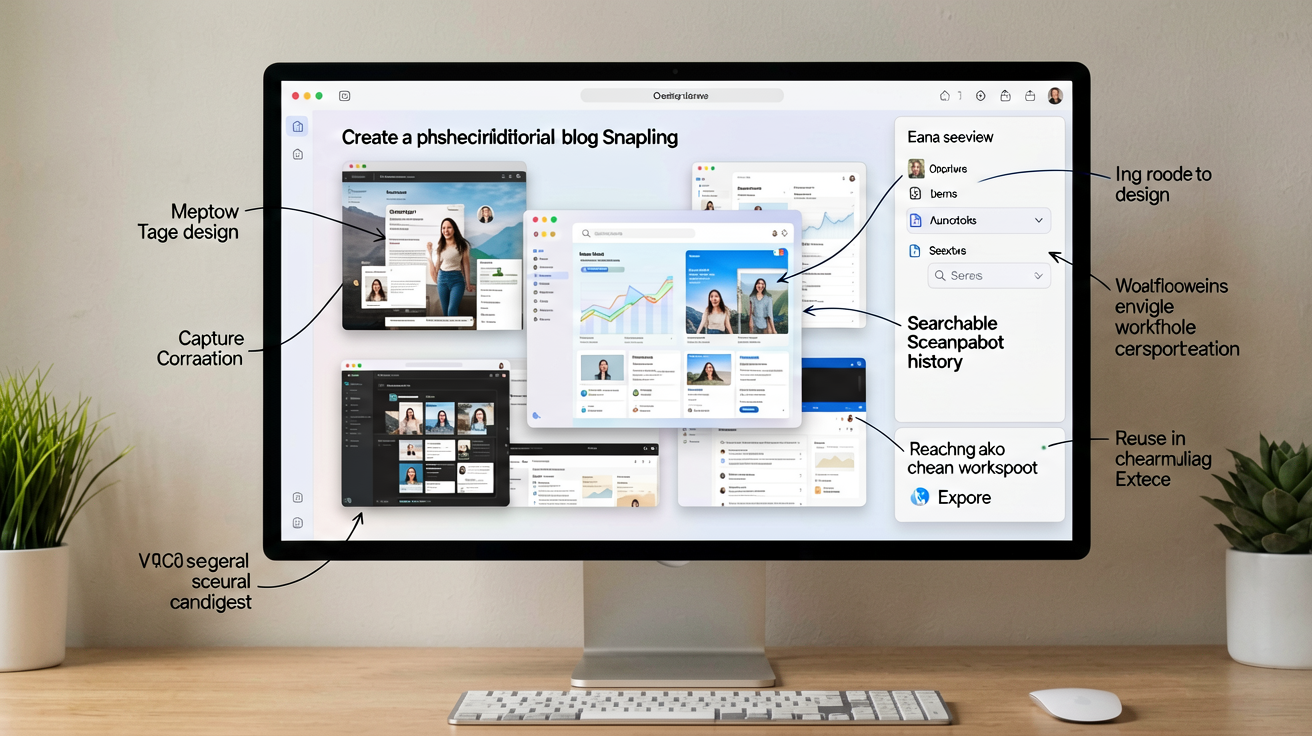
Snapling opens the annotation view right after the capture. You can add arrows, highlights, and text notes with a few clicks. The annotations remain editable and are saved as part of the screenshot record. This keeps feedback contextual: when you share a screenshot, the annotation is baked in. For a deeper dive into markup, check out our screenshot annotation tool for Mac guide.
Step 3: Keep visual history searchable with OCR
Over time, your screenshot library grows. Without search, it becomes a digital junk drawer. Optical Character Recognition (OCR) solves this by extracting text from every image—UI button labels, error messages, design specs—and making it searchable instantly. You can find that screenshot of a login flow by searching for the word ‘Sign in’ even though it wasn’t typed anywhere.
Snapling processes OCR locally on your Mac, so your data stays private and the search is lightning fast. No uploads to the cloud, no privacy concerns—just instant retrieval of any visual reference you’ve ever captured. This transforms your screenshot library into a personal search engine for visual memory. See how to build a visual memory library for Mac.
Step 4: Organize and retrieve captures for ongoing projects
Organization is key for designers juggling multiple projects. A flat list of screenshots doesn’t scale. Use tags, folders, or smart collections to group captures by project, client, or theme. For example, tag all screenshots for a redesign project as ‘App Redesign 2025’ and further segment by ‘inspiration’, ‘feedback’, ‘competitor’. Later, you can filter by these tags or search via OCR.
Snapling supports nested folders and auto-tagging rules. You can create a folder for each project and drag captures in, or use the search bar to find any screenshot in seconds. The organization structure is fully local and can be exported if needed. For a complete workflow, read our guide on how to search and organize screenshots on Mac.
How a visual memory workflow fits designer research and feedback
Visual memory isn’t just about capturing—it’s about reusing. During a design audit, you can pull up all screenshots tagged ‘competitor’ and compare UI patterns. During a feedback session, you can retrieve annotated bugs from the last sprint. This workflow integrates directly into design research and iterative feedback loops.
For product teams, this becomes collaborative. You can share a snapshot of a design decision along with its context (source URL, annotations) with developers or stakeholders. Snapling’s local-first approach means you control data access—no accidental leaks of proprietary designs. Explore how this fits into a screenshot workflow for product teams.
Choosing the right screenshot tool for your design process
Not all screenshot tools are built for designers. Generic tools focus on quick capture and sharing, but they ignore the after-capture lifecycle: search, organization, and context. As a designer, you need a tool that treats captures as long-term references—not ephemeral files. That’s where Snapling stands out: it’s a visual memory library, not just a capture button.
If your workflow involves multiple references per project, heavy annotation, or privacy concerns (client work, early concepts), a tool like Snapling is the better fit. It’s built for the full lifecycle of screen content. Try it free today and turn your scattered captures into a reusable design archive. Download Snapling for Mac.
Recommended next steps
Use these related Snapling guides when you want to go deeper into one part of the workflow.
Screenshot workflow for product teams on Mac
Visual Memory Library for Mac screenshots
Screenshot annotation tool for Mac: mark up captures faster
How to take long screenshots on Mac without messy stitching
FAQ
What makes a screenshot tool good for designers?
A good screenshot tool for designers goes beyond capture: it preserves context (source URL, timestamp), offers built-in annotation, supports long screenshots and GIFs, provides OCR search to find text inside images, and organizes captures into a private, searchable library. This saves time when retrieving references and keeps feedback loops tight.
How do I organize screenshots for design research on Mac?
Use a tool that lets you create folders or tags by project, client, or theme. For example, group all inspiration shots in one folder and bug reports in another. Add descriptive tags like ‘mobile UI’, ‘onboarding flow’, or ‘feedback’. With OCR search, you can also find screenshots by any text that appears in them, making retrieval instant even without tagging.
Can I search text inside designer screenshots?
Yes, if your screenshot tool supports OCR (Optical Character Recognition). It extracts text from every image—like button labels, error messages, or design specs—and indexes it for search. In Snapling, OCR runs locally on your Mac, so you can search by any word inside the screenshot, and your data stays private.
How do I capture long web pages for design inspiration?
Use a screenshot tool with a long (scrolling) capture mode. Trigger it, then scroll through the web page automatically; the tool stitches the content into a single image. Snapling supports long screenshots without manual stitching, preserving the full design in one capture. See our guide on long screenshots for more details.
Is there a screenshot tool that keeps my work private and local?
Yes, Snapling processes everything locally on your Mac—captures, OCR, and search—without uploading to the cloud. Your designs remain on your machine, which is critical for client work or early-stage concepts. There are no cloud servers involved, ensuring full privacy.
Try the full workflow in Snapling
If you want this screenshot tool for designers Mac workflow in one Mac workspace, download Snapling for Mac and try it with a screenshot you would normally need to find, copy, explain, or reuse.
Recommended next steps
Try the full workflow in Snapling
Capture the screenshot, keep the useful context, search it later, and reuse it when the work comes back.