
How to Take a Scrolling Screenshot on Mac: Automatic Stitching with Snapling
Capture scrolling screenshots on Mac automatically with Snapling. No manual stitching. OCR searchable. Keeps visual context. Download free for Mac.
TL;DR
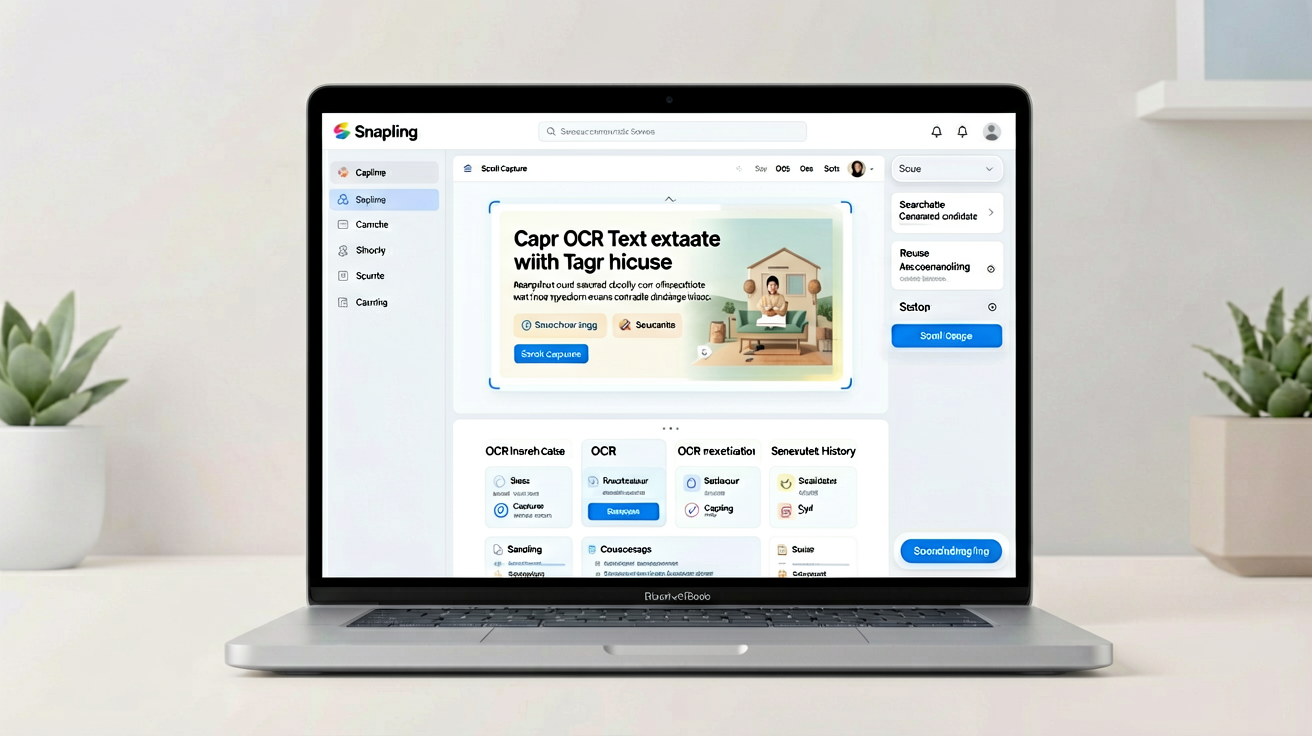
Snapling captures scrolling screenshots on Mac automatically, stitches them in real time, OCRs the text for search, and stores them locally. No manual assembly needed.
Definition
A scrolling screenshot (or long screenshot) captures content that extends beyond your screen, such as a full webpage, document, or chat thread, and stitches it into one continuous image. Snapling simplifies this with auto-stitch and OCR.
What is a Scrolling Screenshot and When to Use It
A scrolling screenshot captures content that extends beyond your visible screen—like a full web page, a long document, a chat thread, or an error log—and stitches it into a single, continuous image. Unlike a standard screenshot that only grabs what's on screen, a scrolling screenshot preserves the entire context in one file, making it ideal for sharing comprehensive information without multiple images.
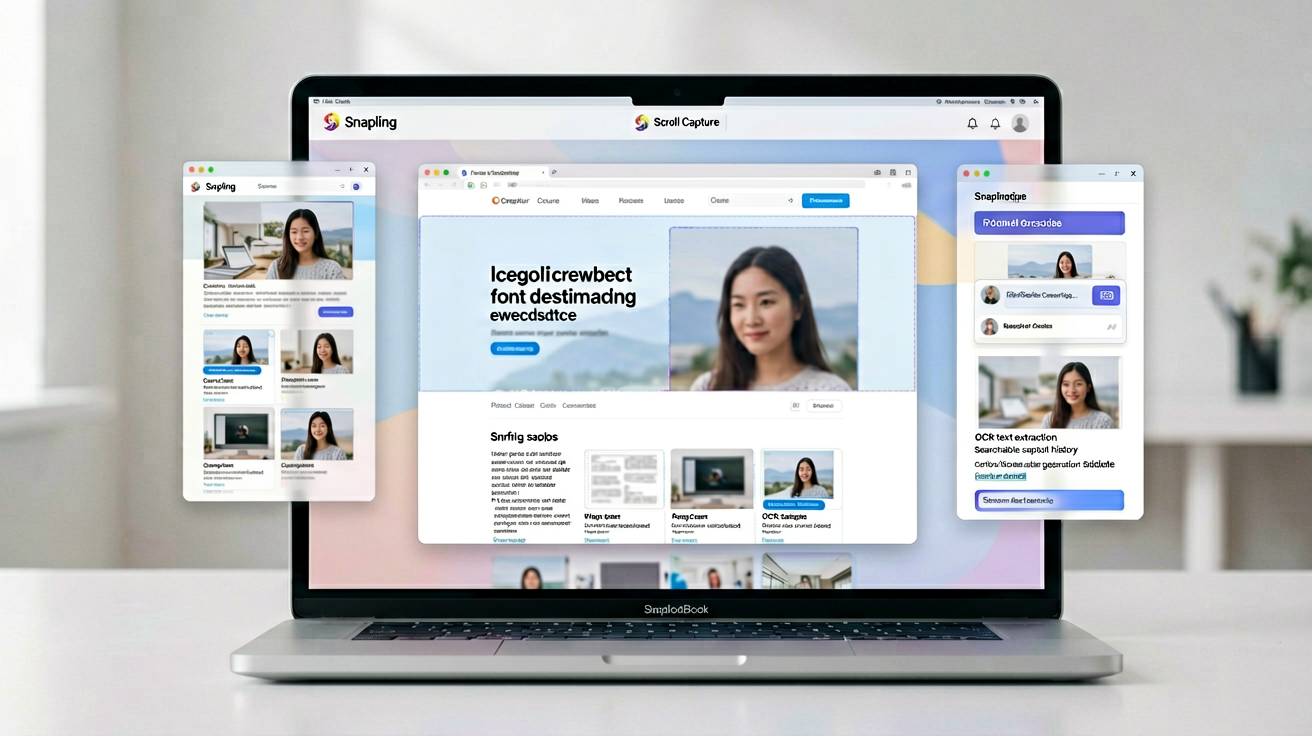
Common use cases include capturing full product pages for design inspiration, saving entire articles for offline reading, documenting bug reports with complete console logs, or archiving chat conversations. Whether you're a developer, designer, researcher, or just someone who wants to keep a complete record of online content, scrolling screenshots save time and avoid confusion.
Why Built-in Mac Scrolling Capture Falls Short
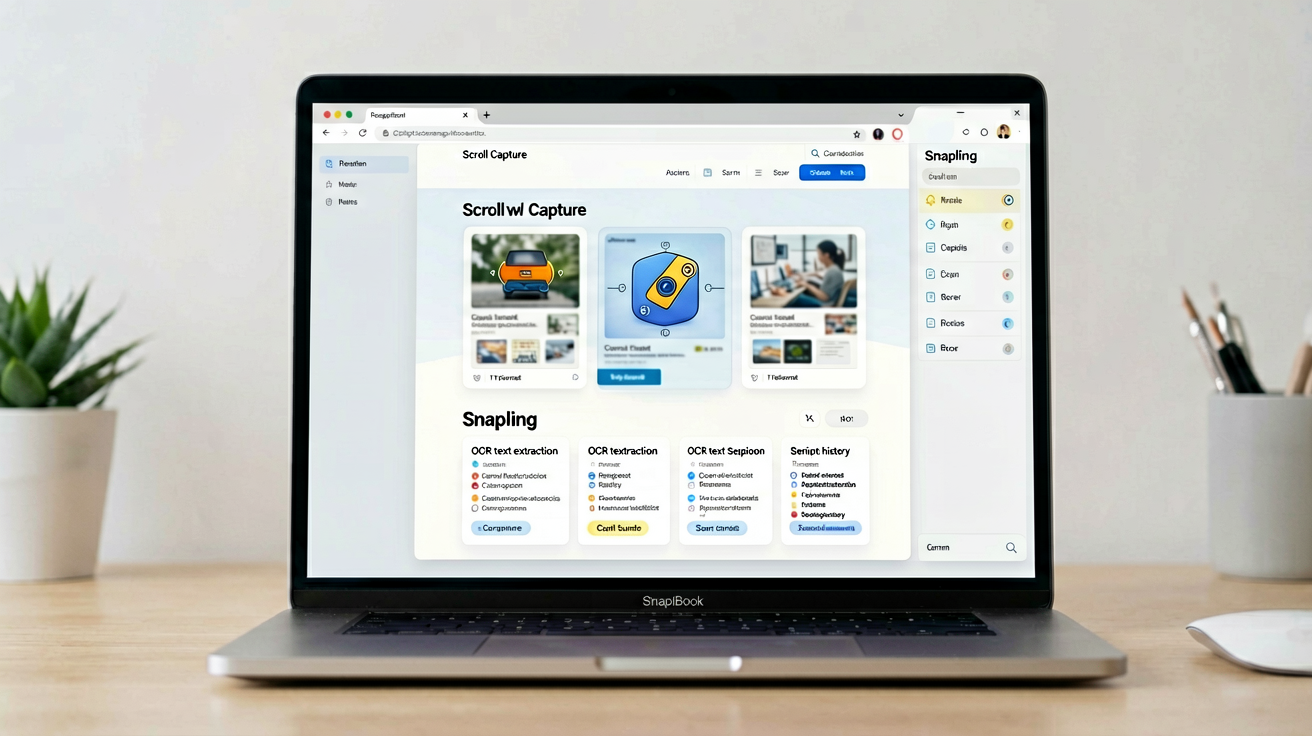
MacOS does not offer a native scrolling screenshot feature. The built-in screenshot tool (Cmd+Shift+4 or Cmd+Shift+5) captures only the visible portion of your screen. To capture a full page, users typically resort to manual workarounds: taking multiple screenshots and stitching them together in an image editor, using browser extensions that work only in web browsers, or relying on third-party apps that lack OCR or search capabilities.
Manual stitching is time-consuming and error-prone. The seams between images can look unprofessional, and aligning content is tedious. Moreover, without OCR, the text in your scrolling screenshots remains locked in images—you can't search, copy, or reuse it. Snapling addresses these pain points by automating the entire workflow.
How to Take a Scrolling Screenshot with Snapling (Step-by-Step)
Snapling makes scrolling screenshots effortless. Here's how: First, open Snapling from your menu bar. Select 'Scroll Capture' from the capture menu. (You can also set a global shortcut like Option+Shift+5.) Then, click and drag to select the region you want to capture—the area that contains the scrollable content. Snapling will automatically start scrolling and stitching the content in real time.
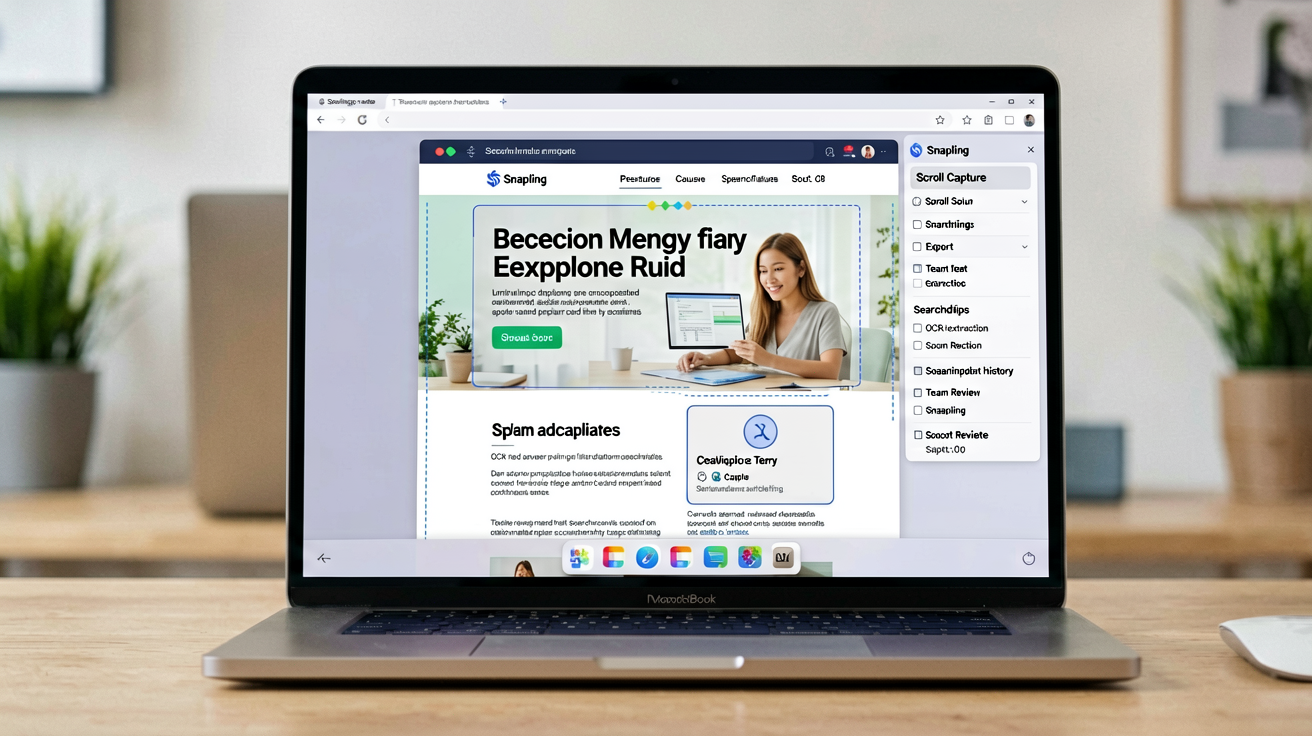
As you scroll (or as Snapling scrolls for you in supported apps), the tool seamlessly combines each section into one continuous image. Once you've scrolled through the entire content, click 'Stop' or let Snapling detect the end. The final image appears in the Snapling editor, where you can review it immediately. No manual alignment or cropping needed—Snapling handles the stitching automatically.
Review, Annotate, and Search Your Scrolling Capture
After capturing, the scrolling screenshot opens in Snapling's annotation workspace. You can add arrows, text, highlights, blur sensitive information, or draw freehand. Annotations are non-destructive, so you can always revert to the original. This is especially helpful for bug reports or instructional guides where you need to point out specific elements.
Snapling automatically runs OCR on every screenshot, including scrolling captures. That means you can search for any word or phrase within the image using Snapling's built-in search. For example, if you captured a full article, you can later find it by searching for a key term. All screenshots are stored in a searchable, local history – no cloud dependency. You can also copy text directly from the image.
Export or Reuse Your Long Screenshot in Documentation, Bug Reports, or Notes
Once your scrolling screenshot is perfect, Snapling offers several ways to use it. You can export as PNG, JPG, or PDF, or simply drag the image from Snapling into an email, Slack, Notion, or any other app. For developers, copying to clipboard or saving directly to a folder streamlines bug reporting workflows.
Because Snapling keeps the visual context and makes it searchable, you're not just taking a screenshot—you're building a reusable knowledge base. Need to reference that documentation later? Search for it in Snapling's history. Want to share the full page with a colleague? Export and share in seconds. It's a complete screenshot lifecycle tool, not just a capture button.
Recommended next steps
Use these related Snapling guides when you want to go deeper into one part of the workflow.
How to take long screenshots on Mac without messy stitching
Screenshot annotation tool for Mac: mark up captures faster
How to search and organize screenshots on Mac
FAQ
Can I take a scrolling screenshot on Mac without third-party software?
No, macOS does not include a native scrolling screenshot feature. You would need to manually take multiple screenshots and stitch them together, or use a third-party app like Snapling that automates the process.
How does Snapling automatically stitch scrolling screenshots?
When you select the scroll capture region, Snapling captures frames as you scroll and intelligently merges them pixel by pixel, removing duplicates and creating a seamless single image. It works in most apps and browsers.
Can I search text inside my scrolling screenshots with Snapling?
Yes. Snapling runs OCR on every screenshot, including scrolling captures. You can search for any word or phrase across your entire screenshot library, making it easy to find and reuse content from long captures.
Is my scrolling screenshot stored locally on Mac?
Absolutely. Snapling stores all screenshots locally on your Mac. There is no automatic cloud upload; you control where and when to share or sync. Privacy is built in.
Can I take a scrolling screenshot of an entire webpage in Safari?
Yes. Snapling works with Safari and most other Mac apps. Just select the scrollable area of the webpage, and Snapling will capture and stitch the entire page automatically.
Does Snapling support scrolling screenshots in any app?
Snapling works with any app that has a scrollable view, including browsers, text editors, PDF readers, chat apps, and more. As long as the content scrolls, Snapling can capture it.
Try the full workflow in Snapling
If you want this How to Take a Scrolling Screenshot on Mac workflow in one Mac workspace, download Snapling for Mac and try it with a screenshot you would normally need to find, copy, explain, or reuse.
Try the full workflow in Snapling
Capture the screenshot, keep the useful context, search it later, and reuse it when the work comes back.