
Best free snipping tool for Mac: what to look for
The best free snipping tool for Mac depends on whether you only need a quick crop or a workflow that keeps captures useful after the first save.
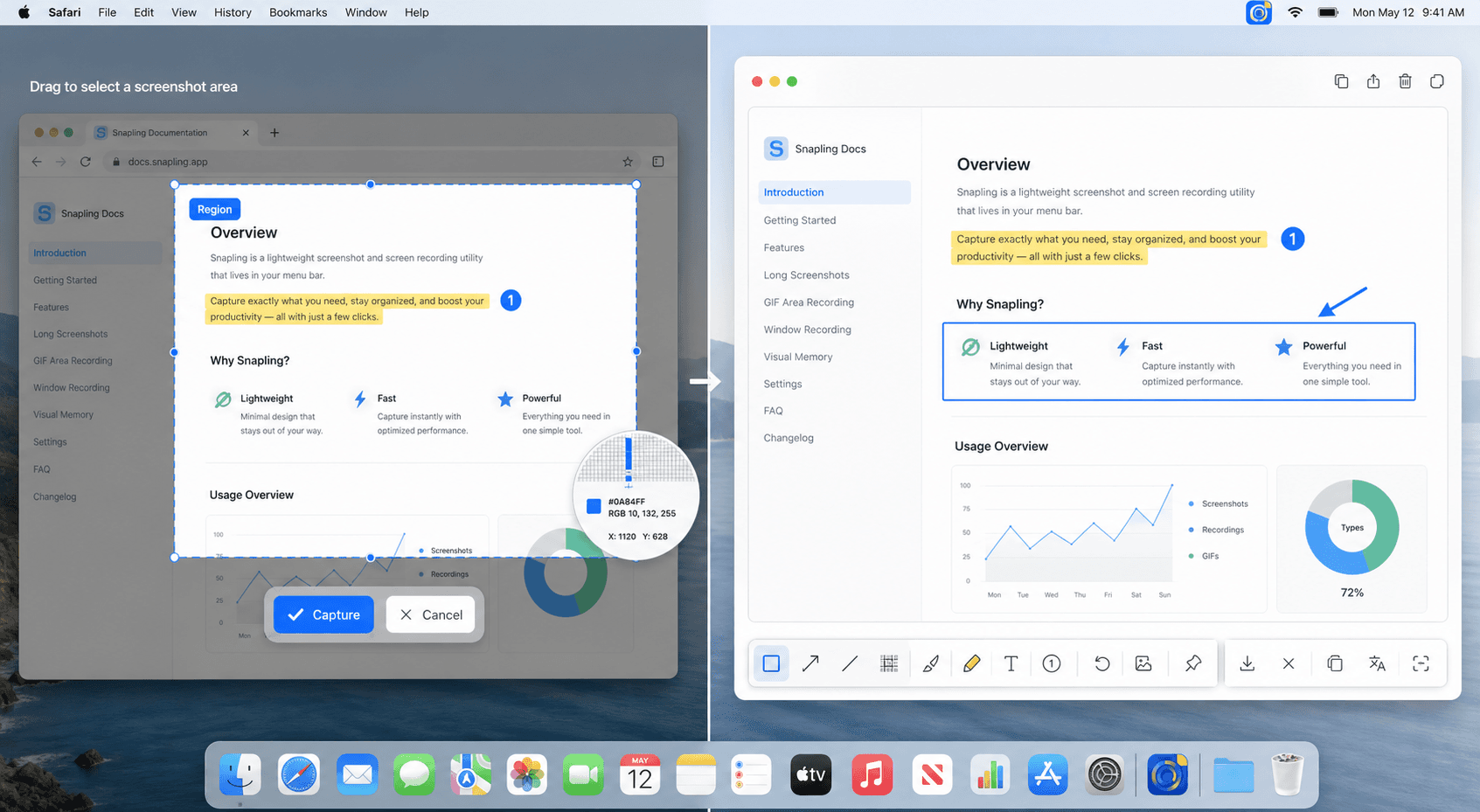
A good free Mac snipping tool should make partial screenshots fast, but the better workflow also considers scrolling capture, OCR, annotation, GIFs, screenshot history and privacy. Snapling is useful to try when the built-in macOS screenshot shortcut is no longer enough.
A free snipping tool for Mac is a no-cost or free-to-try capture workflow for grabbing, marking up and reusing screen content on macOS.
Compare free Mac snipping tool workflows for screenshots, OCR, scrolling capture, GIFs, annotation and local-first history.
What a free Mac snipping tool should cover
At minimum, it should capture a selected area, a window and a full screen without slowing you down. Those basics matter because screenshots are often taken in the middle of another task.
For modern work, the next layer is just as important: scrolling screenshots, quick annotation, OCR and a clean way to find captures again later.
Where free tools usually fall short
The built-in macOS screenshot tools are reliable for one-off images, but they leave most post-capture work to other apps or folders.
That is where free utilities can feel limited. You may still need another tool for OCR, another for GIFs, another for translation and another place to organize the results.
Why post-capture work matters
Screenshots often contain information you need to reuse: error messages, interface copy, research snippets, receipts, settings and support evidence.
A snipping tool becomes more valuable when it keeps that content searchable and organized instead of saving one more image to the desktop.
How Snapling fits a free-to-try workflow
Snapling is worth trying if your screenshot workflow now includes OCR, GIF recording, scrolling pages, clipboard content or a need to find old captures quickly.
Use the free-to-try period to test real jobs rather than feature lists: capture a long page, extract text, record a short GIF and search your screenshot history.
| Need | Built-in Mac screenshot shortcuts | Snapling |
|---|---|---|
| Quick area capture | Good for simple one-off screenshots | Good for capture plus follow-up work |
| Annotation workflow | Requires extra steps or another app | Keeps markup close to capture |
| OCR and search | Limited as a screenshot workflow | Designed for OCR and searchable visual memory |
| GIF and scrolling context | Not part of the default shortcut flow | Supports still, scrolling and motion capture paths |
A few clear answers before you leave.
Is there a free snipping tool for Mac?
Yes. macOS includes basic screenshot shortcuts, and many third-party tools offer free or free-to-try workflows for more advanced capture needs.
Is the built-in Mac screenshot tool enough?
It is enough for quick one-off screenshots, but it is limited if you need OCR, scrolling screenshots, GIFs, annotation, translation or searchable history.
What should a free Mac snipping tool include?
Look for fast area capture, window capture, annotation, scrolling capture, OCR, easy export and a private way to organize screenshots.
Do free screenshot tools include OCR?
Some do, but OCR quality and workflow vary. The best setup keeps OCR close to the original screenshot so text is easy to copy and find later.
When should I move beyond the built-in tool?
Move beyond the built-in tool when screenshots become part of product work, research, tutorials, support, localization or knowledge-base workflows.
Related guides
Snipping Tool for Mac
Capture screenshots, scrolling pages, GIFs and clipboard content. Annotate, translate, search and organize visual memory privately on Mac.
Best Mac screenshot apps for teams and creators
What to compare when choosing the best screenshot app for Mac, especially if you need OCR, GIFs, longshots and a local-first workflow.
How to copy text from screenshots on Mac
Use OCR on Mac screenshots to copy text from images and keep your screenshot workflow fast and reusable.
Try the free-to-start workflow before you settle for shortcuts.
Use Snapling when the built-in Mac screenshot shortcut is fast enough to start, but not enough to annotate, OCR, search and reuse captures.