
Private screenshot app for Mac: what to look for
Screenshots often capture more than the thing you meant to save. A private screenshot workflow helps keep product drafts, customer data, messages, credentials and research context from becoming accidental cloud files.
A private screenshot app for Mac should keep capture, OCR, annotation, GIFs, clipboard content and screenshot history local-first by default. Snapling is built for users who want visual memory without automatically turning every screen capture into an uploaded asset.
A private screenshot app for Mac is a capture workflow that reduces unnecessary upload, keeps sensitive visual context close to the device and makes old screenshots searchable without exposing them by default.
Choose a private screenshot app for Mac by comparing local-first history, OCR, GIFs, clipboard capture, annotation and cloud upload behavior.
Why screenshot privacy matters
Screenshots can include customer names, private messages, unreleased UI, access tokens, internal dashboards, financial details or personal notes.
Even if the capture target is harmless, surrounding windows and browser tabs can carry sensitive context. That makes privacy a workflow issue, not just a storage setting.
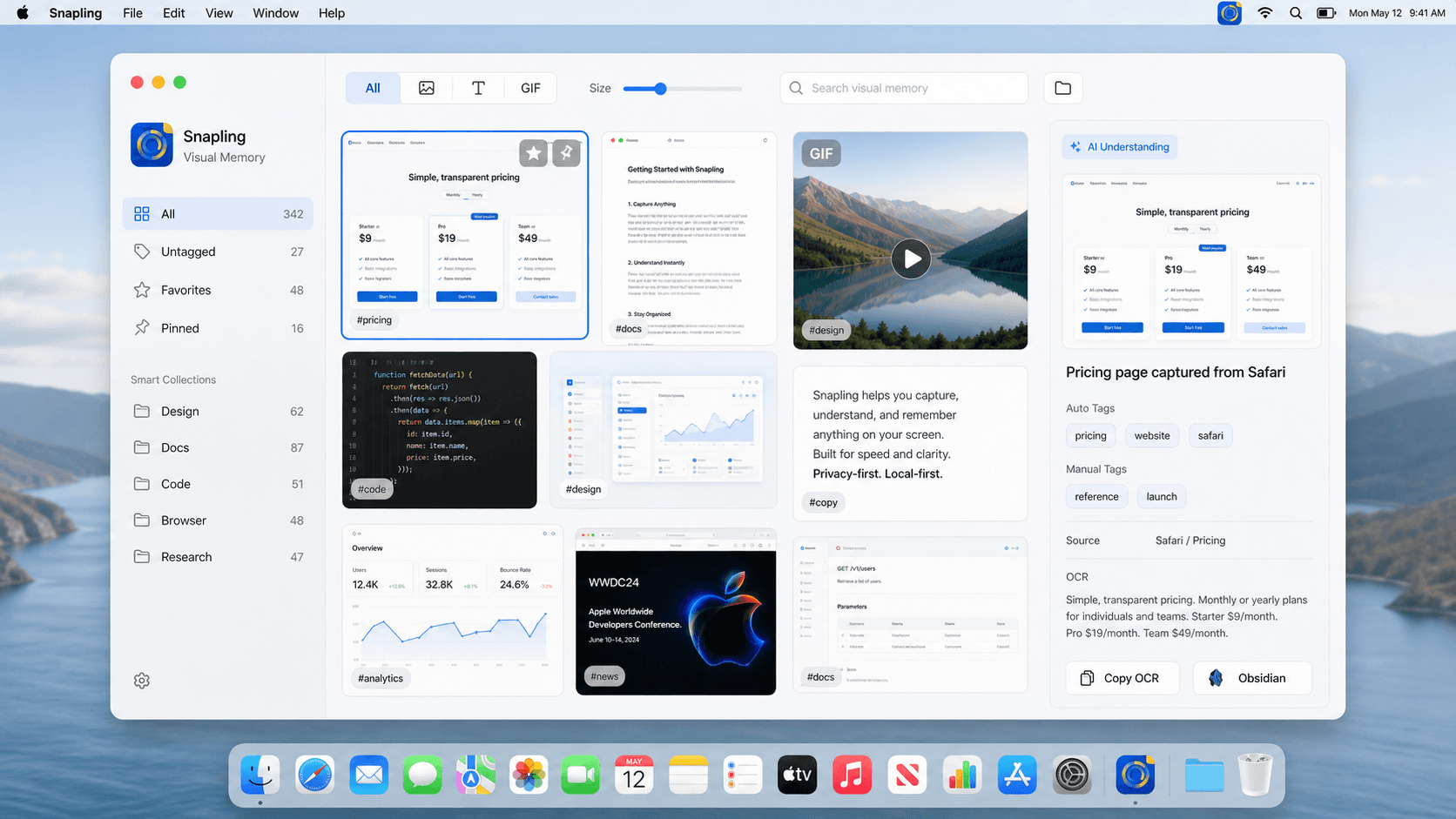
Prefer local-first history by default
A private screenshot app should not require every capture to become a cloud link. Local-first history gives you recall and search while reducing the number of places a sensitive image can travel.
Cloud sharing can still be useful, but it should be an intentional action instead of the default path for every screenshot.
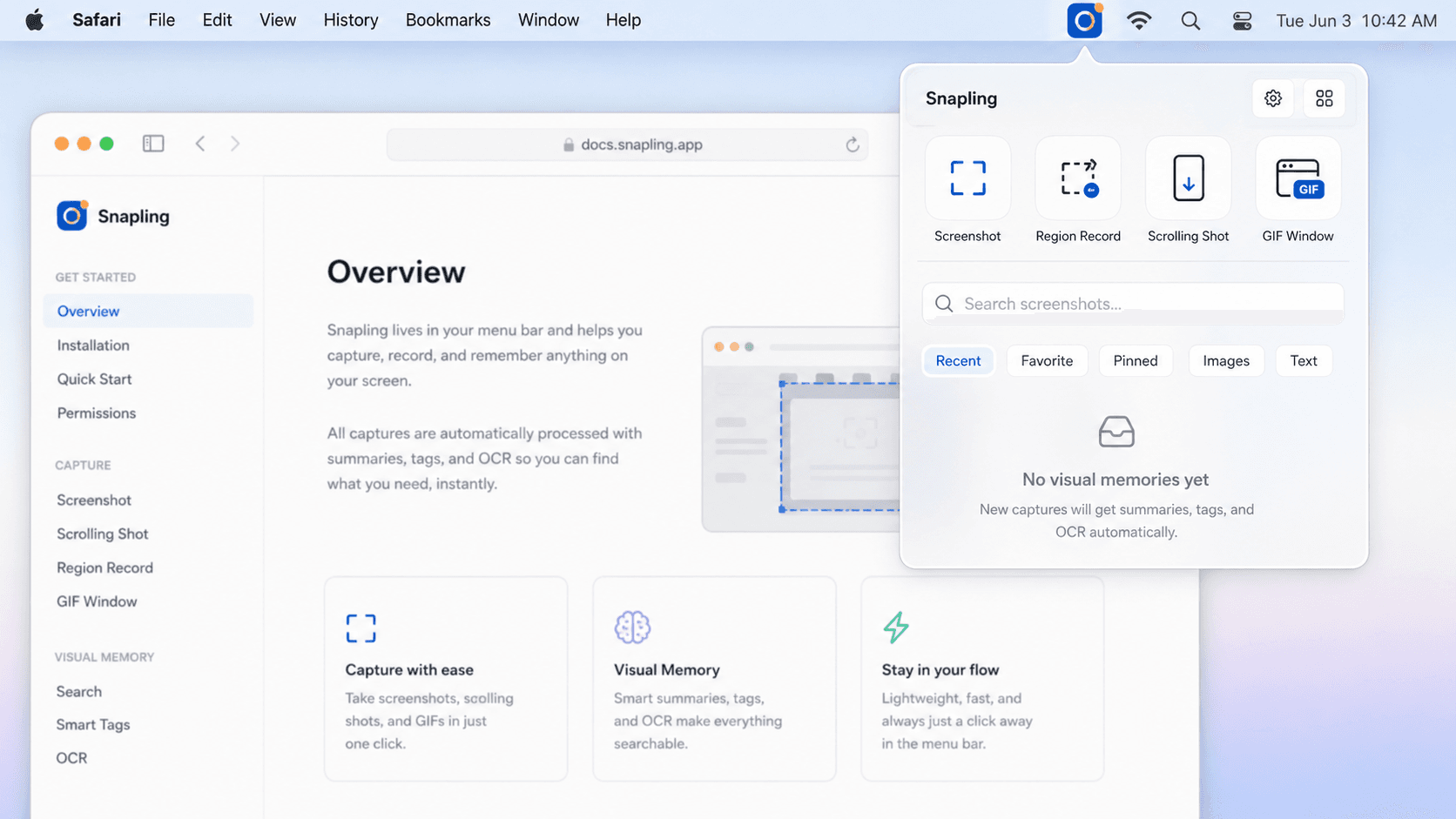
Watch OCR, GIFs and clipboard capture
OCR can expose the most sensitive part of a screenshot: the text inside it. GIFs can reveal sequences, messages or transitions that a single image would miss.
Clipboard capture is also sensitive because copied text and images often include work-in-progress or private references. These features are valuable, but they should live in a workflow you trust.
Use privacy controls during capture
Good privacy does not mean never sharing. It means cropping carefully, blurring private areas, annotating only what matters and choosing when something leaves your Mac.
A private screenshot workflow should make those steps easy enough that they happen before export, not after a sensitive image has already been shared.
How Snapling fits a private Mac workflow
Snapling combines screenshots, scrolling capture, GIFs, OCR, translation, clipboard content and screenshot history around a local-first visual memory model.
That makes it a fit for product teams, researchers, creators and privacy-conscious Mac users who need captured context to stay useful without defaulting to upload-first habits.
| Privacy question | Upload-first capture habit | Snapling local-first habit |
|---|---|---|
| Where captures go first | Often straight to a cloud link | Stay in a Mac visual memory workflow |
| OCR text | May be processed away from the source | Kept close to the original screenshot |
| Sharing | Easy to share before review | Review, crop, annotate or blur before export |
| Old screenshots | Scattered or account-dependent | Searchable local history with tags and OCR |
A few clear answers before you leave.
What makes a screenshot app private?
A private screenshot app keeps captures local by default, limits unnecessary upload, supports careful redaction and makes sharing an intentional step.
Are screenshots sensitive?
They can be. Screenshots often include internal UI, customer information, messages, credentials, personal notes or surrounding browser context.
Is local-first screenshot history safer?
Local-first history is a safer default because captures remain on your Mac unless you choose to export or share them.
Can OCR create privacy risk?
Yes. OCR extracts text from images, so it should be handled with the same care as the screenshot itself.
Who needs a private screenshot app for Mac?
Product teams, researchers, creators, support teams and anyone capturing private or work-related screens should consider a private screenshot workflow.
Related guides
How to keep screenshot history on Mac
A practical workflow for keeping Mac screenshot history useful, searchable and private without relying on scattered desktop files.
Visual Memory Library for Mac screenshots
Learn how a Visual Memory Library helps Mac users browse, keep and reuse screenshots, GIFs and captured screen content.
Snipping Tool for Mac
Capture screenshots, scrolling pages, GIFs and clipboard content. Annotate, translate, search and organize visual memory privately on Mac.
Try a private screenshot workflow before you share.
Use Snapling to capture, OCR, tag and search screenshots locally, then choose what actually leaves your Mac.