
Screenshot workflow for product teams on Mac
Product teams take screenshots for bugs, feedback, design review, customer context and release notes. The problem is rarely capture speed alone. The harder part is keeping visual evidence useful after the moment passes.
A strong screenshot workflow for product teams should capture fast, preserve context, support annotation, extract text with OCR, record short GIFs and keep everything searchable. Snapling helps Mac teams turn screenshots into local-first visual memory instead of loose files spread across chats and folders.
A screenshot workflow for product teams is the repeatable process for capturing, explaining, organizing and reusing visual product context.
Build a faster Mac screenshot workflow for product feedback, bug reports, UI reviews, documentation, OCR, GIFs and local-first visual memory.
Why product teams need more than quick screenshots
Product work creates a constant stream of visual evidence: edge cases, UI states, copy issues, customer examples, release details and broken flows.
A basic screenshot shortcut captures the image, but it does not explain why the capture mattered or help the team find it again when the conversation moves on.
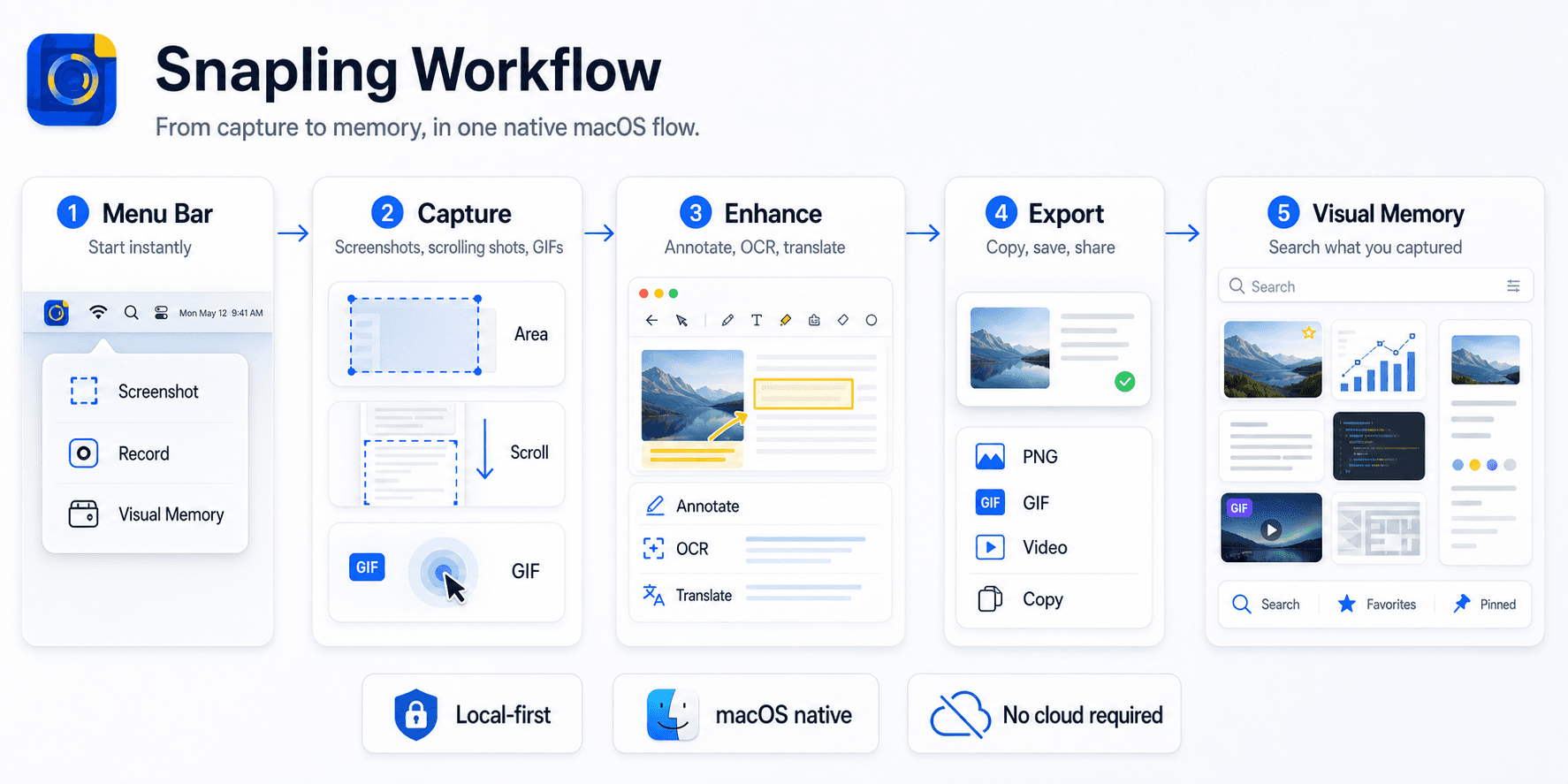
Capture the smallest useful context
Good product screenshots are specific. Capture the field, flow or state that matters, but keep enough surrounding context for someone else to understand the issue without another meeting.
For long settings pages, support threads or product surfaces, scrolling capture is often better than a pile of disconnected images.
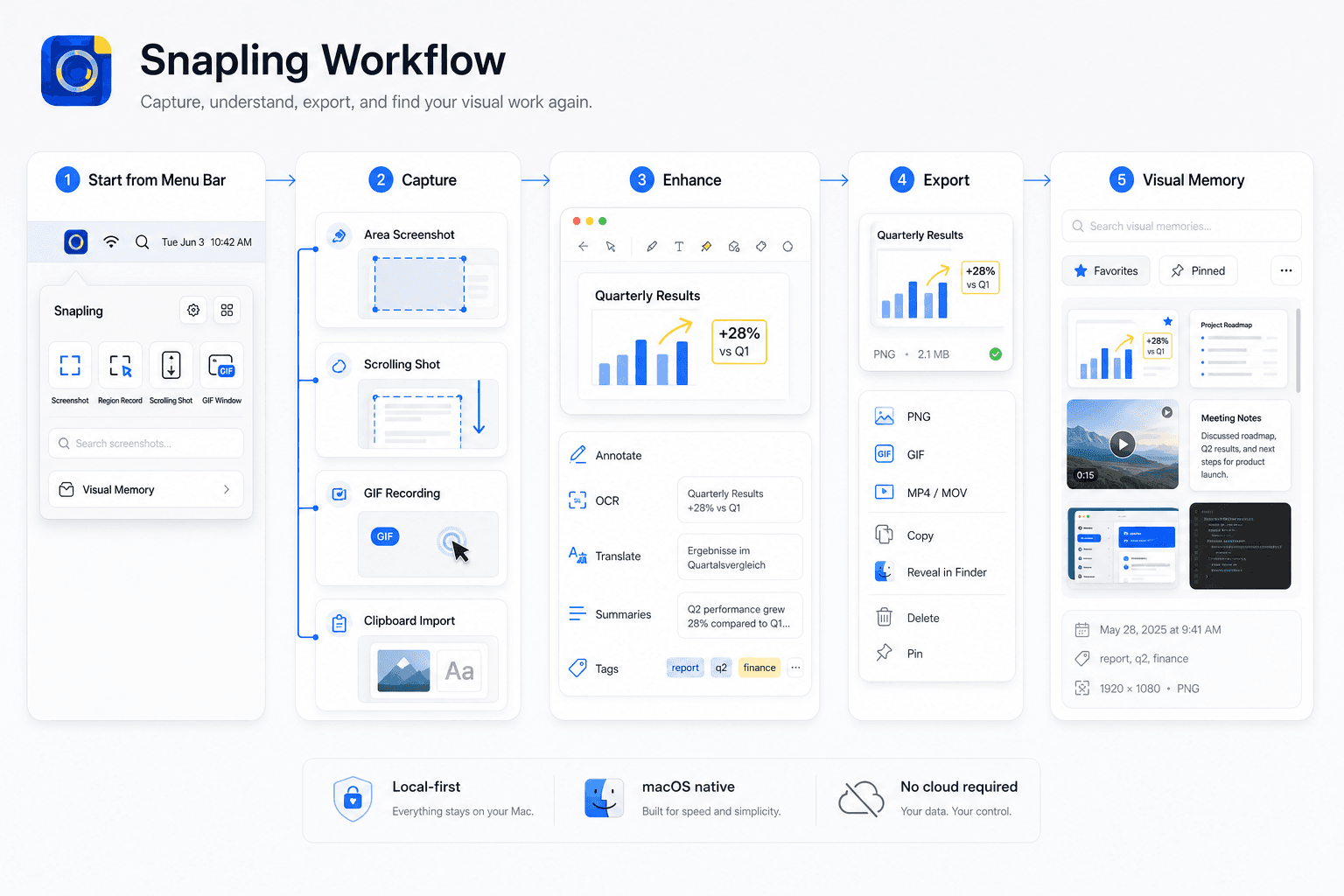
Make explanation part of the capture loop
Annotation, arrows, highlights, blur and background canvas should happen close to capture. When markup happens later, details are easier to forget and files are easier to misplace.
For motion, a short GIF is often clearer than three static screenshots. It can show hover states, transitions, loading behavior or reproduction steps without requiring a full video workflow.
Keep text and visual evidence together
Product screenshots often contain text that matters: error messages, labels, user-facing copy, table values or translated UI. OCR keeps that text searchable and reusable.
The best workflow connects the original image, extracted text, annotation, clipboard snippets and related captures so the evidence remains understandable later.
Turn screenshots into local-first visual memory
A product screenshot library should be searchable by what the screenshot contains, not just by filename or date. That is what turns scattered captures into reusable product memory.
Snapling is built for this kind of Mac workflow: screenshots, GIFs, OCR, translation, clipboard content and history stay close together and private by default.
| Team need | Loose screenshot files | Snapling workflow |
|---|---|---|
| Bug evidence | Hard to recover after the ticket moves on | Stored with OCR, GIFs and visual history |
| UI review | Context gets split across chats and folders | Capture, annotate and revisit from one place |
| Research reuse | Depends on manual filenames and notes | Search by visual memory, tags and recognized text |
| Privacy | Easy to overshare by default | Local-first workflow before export or sharing |
A few clear answers before you leave.
What is a good screenshot workflow for product teams?
A good workflow captures the right context quickly, adds explanation close to capture, extracts useful text and keeps screenshots searchable for later product decisions.
Should product teams use GIFs or screenshots?
Use screenshots for static states and GIFs for motion, timing, hover states, reproduction steps or short flows that a single image cannot explain.
Why does OCR matter for product screenshots?
OCR makes error messages, UI copy, settings and customer-visible text searchable and easier to reuse in tickets, docs and release notes.
How should teams organize product screenshots?
Organize screenshots around searchable history, visual context, tags, OCR text and related captures instead of relying only on folders.
Is local-first screenshot history useful for teams?
Yes. Product screenshots may contain internal UI, customer details or unreleased work, so local-first history is a safer default.
Related guides
Snipping Tool for Mac
Capture screenshots, scrolling pages, GIFs and clipboard content. Annotate, translate, search and organize visual memory privately on Mac.
How to take better bug report screenshots on Mac
Create clearer bug report screenshots on Mac with annotation, GIFs, OCR, scrolling capture and local-first screenshot history.
Visual Memory Library for Mac screenshots
Learn how a Visual Memory Library helps Mac users browse, keep and reuse screenshots, GIFs and captured screen content.
Build this product screenshot workflow on your Mac.
Use Snapling to capture bugs, UI states, GIFs, OCR text and research evidence, then find them again when the team needs context.