
Best Snipping Tool for Mac: A Workflow-Focused Comparison
Compare the best snipping tool for Mac options by workflow depth: clipboard reuse, OCR, visual memory, and fast download.
TL;DR
Most Mac snipping tools prioritize capture speed, but the best option depends on what happens after the screenshot — whether you need searchable history, built-in OCR, and local privacy. Snapling is designed as a full visual memory workspace, making it the strongest choice for users who reuse and reference screenshots over time.
Definition
A snipping tool for Mac is a utility that captures portions or all of your screen, but the best options also preserve context through features like screenshot history, OCR-powered search, and organized storage for long-term reuse.
Why Workflow Matters More Than Capture Speed
Most snipping tool comparisons focus on hotkey responsiveness or annotation variety. Those features matter, but they answer only half the question: capturing a screenshot is the easy part. The real bottleneck is what happens days or weeks later when you need to find, reuse, or reference that content.
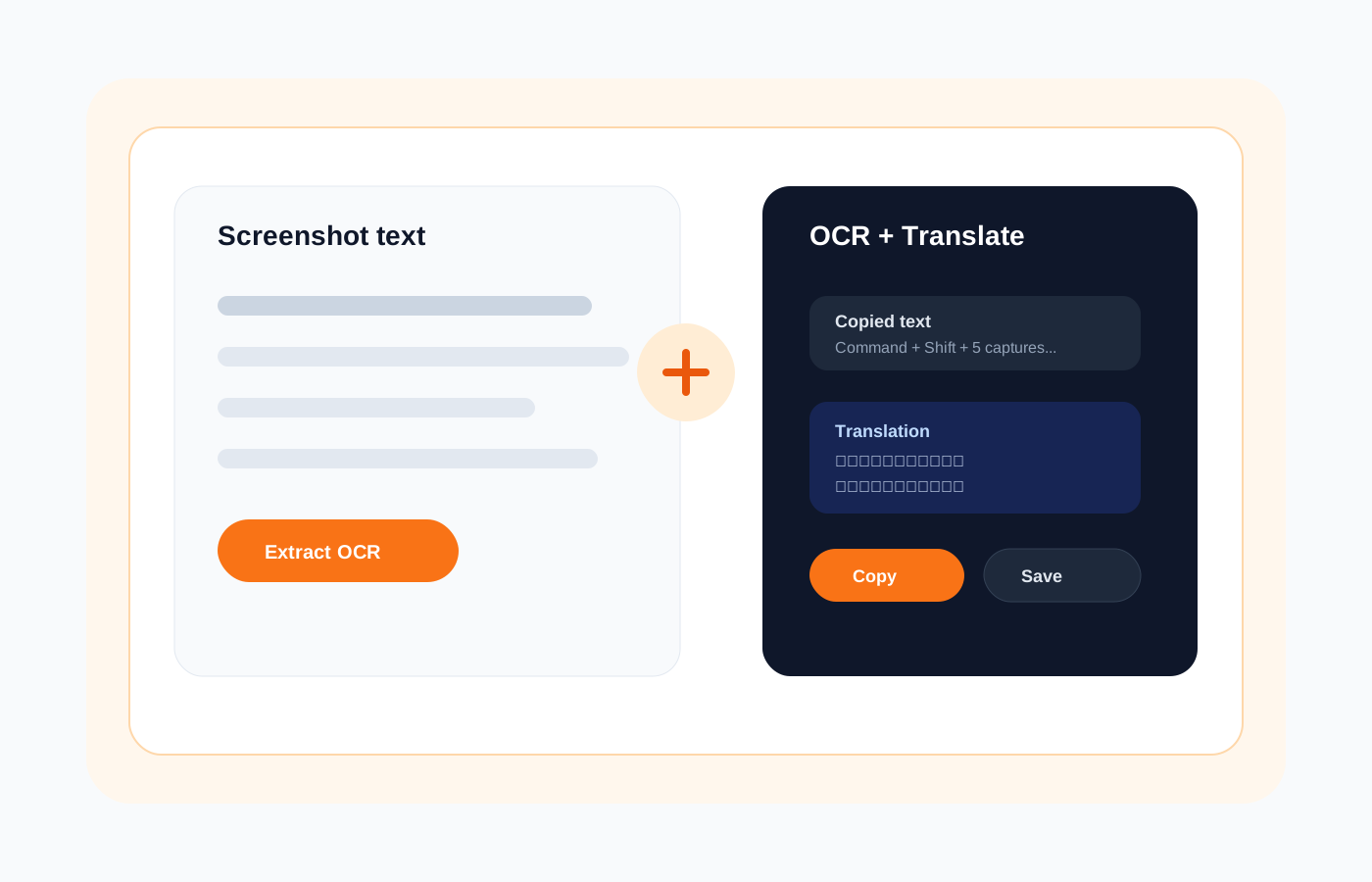
A workflow-first evaluation asks different questions: Can you search text inside screenshots? Does the tool keep a browsable history? Is your data stored locally or sent to the cloud? These factors determine whether a snipping tool becomes part of your daily productivity or just another forgotten utility.
Comparison Criteria: What Actually Matters After Capture
When evaluating Mac snipping tools, we focused on five workflow dimensions: capture flexibility, built-in OCR, screenshot history and organization, privacy posture, and export options. Capture flexibility covers standard area grabs, scrolling captures, and GIF recording — the baseline any modern tool should meet.
OCR and searchable history are where tools diverge sharply. A snipping tool that extracts text from images lets you search weeks of screenshots by keyword. Privacy matters too: tools that upload every capture to external servers create risk for sensitive work content like financial data, client information, or proprietary designs.
How Popular Mac Snipping Tools Stack Up
macOS ships with built-in Screenshot utility (Shift+Cmd+5), which handles basic capture well but offers no history, no OCR, and no organization. It saves files to a folder and that's the end of its job. For occasional use, this is fine — but it leaves visual context unmanaged after capture.
Third-party tools like CleanShot X, Shottr, and Monosnap each bring stronger capture features. CleanShot X excels at annotations and cloud sharing. Shottr is fast and free with pixel measurement tools. Monosnap adds cloud storage. However, most prioritize share-first workflows over searchable visual memory, which limits long-term reuse.
Where Snapling Is Different: The Visual Memory Workflow
Snapling treats screenshots not as disposable images but as searchable visual notes. Every capture enters a persistent library where OCR runs automatically, making the text inside your screenshots findable through keyword search. This transforms screenshots from static files into a personal visual knowledge base you can query at any time.
Beyond search, Snapling keeps context attached to captures — window titles, URLs, timestamps — so you can trace back where information came from. The tool also supports GIF recording and long scrolling screenshots, but these features serve the larger goal: preserving usable visual context, not just creating shareable files. See how this compares at our Mac screenshot tools comparison guide.
Privacy and Local-First Storage
Many screenshot tools default to cloud uploads for convenience, which raises concerns for professionals handling confidential material. Whether it's a legal document, a client's private data, or internal financial reports, every auto-uploaded screenshot is a potential exposure point. Users searching for the best screenshot tool for privacy on Mac should prioritize local-first architecture.
Snapling stores screenshots locally on your Mac by default. Your captures, OCR data, and search index stay on your machine. No account is required to start using it, and nothing is synced externally unless you explicitly choose to share. This makes it suitable for privacy-sensitive work in legal, healthcare, finance, and research contexts.
When Snapling Is the Right Choice
Choose Snapling when your work involves accumulating and referencing visual information over time — research, design iteration, bug documentation, meeting notes, or online reference gathering. If you regularly think "I know I screenshotted that somewhere," a searchable history with OCR is the fix, and that's Snapling's core strength.
If you primarily need quick annotation-and-share workflows for social media or one-off support tickets, a simpler tool like CleanShot X or Shottr may suffice. But if you want screenshots to function like notes you can search, revisit, and build on, Snapling's workflow-first approach delivers lasting value. Explore the full feature set at Snapling Features.
Getting Started with a Smarter Screenshot Workflow
Switching to a workflow-first snipping tool doesn't require changing your entire setup. You can keep macOS shortcuts for quick captures while routing important screenshots into Snapling's searchable library. The goal is to stop losing visual context, not to replace every capture method you already use.
Start by downloading Snapling and capturing a few days' worth of screenshots. Then test the search: type a keyword from something you remember seeing on screen. That moment of finding it instantly is the workflow shift. Download Snapling to experience searchable visual memory on your Mac.
Recommended next steps
Use these related Snapling guides when you want to go deeper into one part of the workflow.
Best Mac screenshot apps for OCR, GIFs and screenshot history
FAQ
What is the best free snipping tool for Mac?
macOS includes a built-in screenshot tool (Shift+Cmd+5) that is free and handles basic captures. For free third-party options, Shottr offers fast capture with annotations at no cost. However, free tools typically lack OCR search and screenshot history — features that matter if you reuse screenshots regularly.
How does screenshot history improve productivity on Mac?
Screenshot history lets you browse, search, and retrieve past captures without digging through folders of unnamed files. Combined with OCR, you can find a screenshot by typing a word that appeared on screen. This eliminates re-capturing content you've already seen and preserves visual context for future reference.
Can I search text inside screenshots on Mac?
Yes, with a tool that includes OCR (optical character recognition). Snapling automatically extracts text from every screenshot and indexes it, so you can search your capture library by keyword. This works for text in apps, websites, PDFs, error messages, and any on-screen content that was visible when you captured it.
Is Snapling suitable for privacy-sensitive work on Mac?
Yes. Snapling stores all screenshots, OCR data, and search indexes locally on your Mac. No captures are uploaded to external servers, and no account is required. This local-first approach makes it appropriate for handling confidential content in professional settings like legal, healthcare, finance, and research work.
How do I export screenshots from Snapling to notes or documents?
Snapling lets you copy or drag screenshots out of your library into any app — note-taking tools, documents, emails, or messaging platforms. Because screenshots are stored as standard image files locally, you can also access them directly from the file system and import them into any application that accepts images.
Try the full workflow in Snapling
If you want this best snipping tool for mac workflow in one Mac workspace, download Snapling for Mac and try it with a screenshot you would normally need to find, copy, explain, or reuse.
Recommended next steps
Try the full workflow in Snapling
Capture the screenshot, keep the useful context, search it later, and reuse it when the work comes back.