
Best Mac screenshot apps in 2026
The best Mac screenshot app depends on what happens after the capture. CleanShot, Shottr, Snagit, Xnapper, Lightshot, Monosnap and Apple's Screenshot utility all solve different jobs. Snapling is the better fit when screenshots need to become searchable OCR text, clipboard context, GIFs, long screenshots and reusable Visual Memory instead of loose files.
For one-off captures, Apple's built-in Screenshot utility is enough. For polished sharing, compare CleanShot. For lightweight OCR, compare Shottr. For documentation-heavy teams, compare Snagit. For a complete Mac screenshot workflow with OCR search, clipboard capture, GIFs, long screenshots, screenshot history and Visual Memory management, compare Snapling.
A Mac screenshot app is a capture workflow for saving, explaining and reusing screen content on macOS.
Compare the best Mac screenshot apps in 2026 by capture speed, OCR, GIFs, long screenshots, clipboard capture, screenshot history, privacy and team workflows.
Quick picks: best Mac screenshot apps by use case
Best overall screenshot workflow: Snapling, because it connects capture, OCR, GIFs, long screenshots, clipboard content, screenshot history, export and Visual Memory management in one Mac workflow.
Best polished one-off sharing: CleanShot X. Best lightweight capture and OCR utility: Shottr. Best heavy documentation suite: Snagit. Best beautiful social screenshots: Xnapper. Best simple built-in option: Apple's Screenshot utility.
For a related step, see snipping tool for Mac workflow to choose a capture or organization workflow that fits.
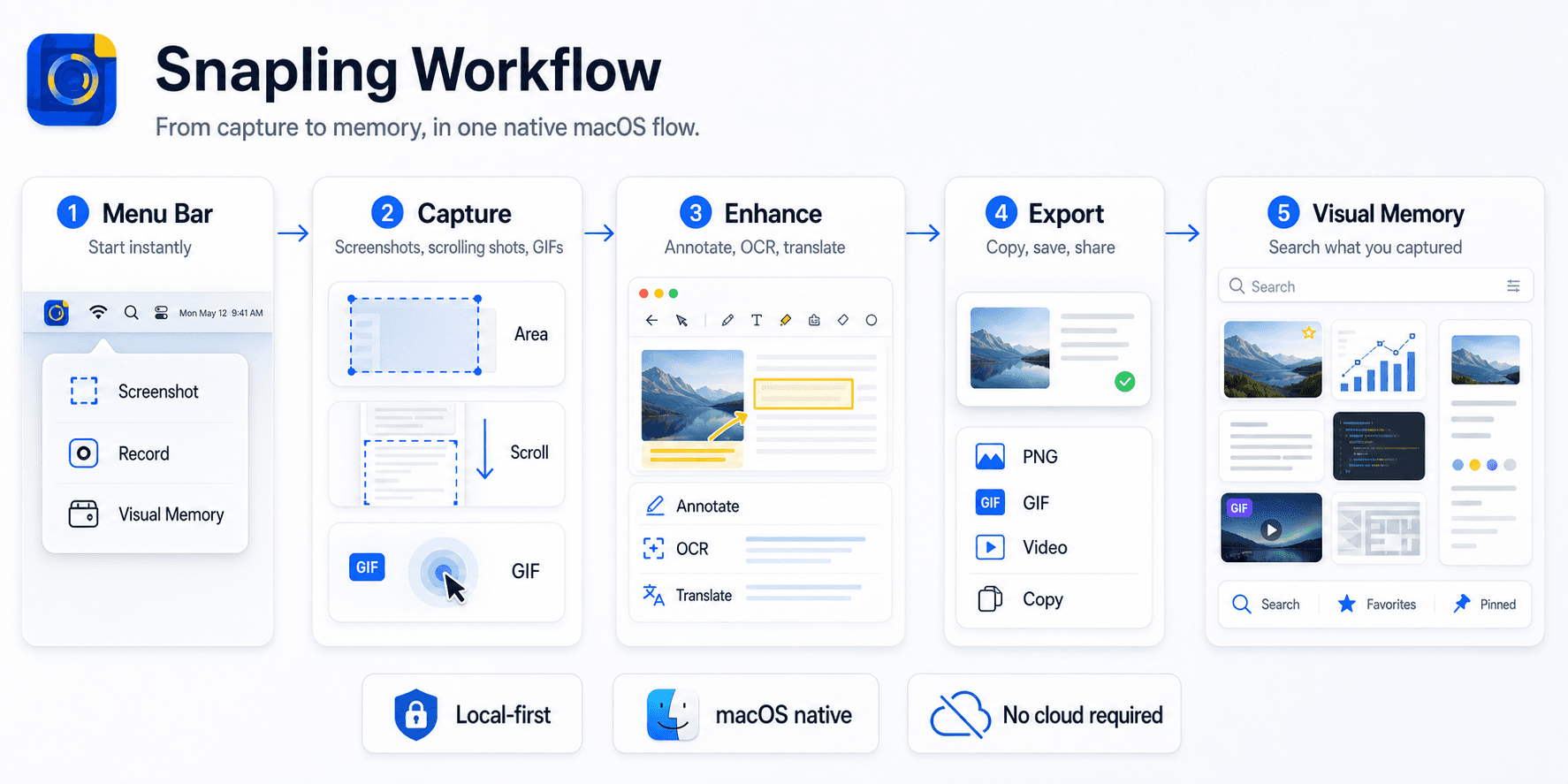
What matters beyond the basic screenshot
Teams and creators often need more than a static capture. Long screenshots, GIF recording, OCR, translation and annotation all change how useful a screenshot app becomes over time.
That is why the best screenshot app for Mac is usually the one that handles the follow-up work with the least friction.
For a related step, see Mac screenshot shortcuts to choose a capture or organization workflow that fits.
Best Mac screenshot apps by job
If you only need a one-off image, Apple's built-in Screenshot utility may be enough. If you need polished quick sharing, CleanShot-style workflows are strong. If you need lightweight capture and OCR, Shottr-style tools are worth comparing. If screenshots feed team documentation, support evidence, clipboard capture, OCR search and reusable visual context, Snapling is built around that complete workflow.
Use the job-to-be-done as the first filter. A screenshot app for bug reports, research notes, support replies and product reviews should keep the capture findable after the first paste.
For a related step, see free snipping tool features and limits to choose a capture or organization workflow that fits.
How Snapling compares with CleanShot, Shottr and Snagit
CleanShot, Shottr and Snagit are common alternatives because each owns a different part of the screenshot market: polished sharing, lightweight Mac capture, or heavier documentation workflows. Snapling is different because it treats screenshots, copied text, copied images, OCR output and old captures as reusable screen memory, not just files to send.
If your main search is for a CleanShot alternative, Shottr alternative or Snagit alternative for Mac, start with the comparison below, then check whether clipboard context and Visual Memory management matter to your daily workflow.
Where Snapling is different from normal screenshot apps
Most Mac screenshot apps optimize the first few seconds: capture the screen, annotate it and share or save the result. Snapling is built around the next few days of work: finding the capture again, copying text from it, remembering the surrounding clipboard context and turning it into reusable product or research memory.
That difference matters for product managers, support teams, researchers and documentation writers. A normal screenshot history tells you what you captured. Snapling's Visual Memory Library helps keep screenshots, GIFs, OCR text, clipboard items, tags and favorites connected to the work they came from.
Why local-first is worth paying attention to
A local-first screenshot app keeps sensitive captures close to the device and reduces the need for account setup or upload-based workflows.
For product teams, researchers and creators, that can make the difference between a quick utility and a tool you are comfortable using every day.
A simple comparison lens
Compare tools by asking four questions: Is capture fast? Can it handle long pages and short GIFs? Does it extract and reuse text well? Does it stay out of the way after the capture is done?
If the answer is yes across all four, the tool is likely a better long-term fit than one that only looks good in the first screenshot.
Use real workflows as the test
Before switching tools, run the same tasks you repeat every week: capture a product issue, record a short GIF, extract text from a screenshot, export a clean image and find an old reference.
Snapling is strongest when those steps belong together instead of being split across several Mac utilities.
Check Snapling free and Pro pricing for included features and screenshot history limits.
| App | Best for | OCR | GIF | Long screenshots | Clipboard | Visual Memory | Local-first fit |
|---|---|---|---|---|---|---|---|
| Snapling | Complete screenshot workflow, product research, support and documentation | Yes, searchable | Yes | Yes | Text and image context | Screenshots, GIFs, OCR, tags and favorites together | Strong |
| CleanShot X | Polished capture, annotation and fast sharing | Yes, on-device text recognition | Yes | Yes | Not the main job | Share and capture history focus | Medium |
| Shottr | Lightweight Mac screenshots and quick OCR | Yes | No dedicated full workflow | Yes | Not the main job | Utility-style history | Strong |
| Snagit | Documentation, training and heavier capture workflows | Yes | Yes | Yes | Not the main job | Project/documentation workflow | Medium |
| Xnapper | Beautiful screenshots for social posts and launches | Not the main job | No | Not the main job | Not the main job | Design/export focus | Medium |
| Lightshot / Monosnap | Simple capture and lightweight sharing | Limited | Limited | Limited | Not the main job | File/share focus | Low to medium |
| Apple Screenshot | Free built-in one-off screenshots and screen recordings | No dedicated OCR workflow | Screen recording, not GIF workflow | No native scrolling capture | System clipboard only | No screenshot library workflow | Strong |
A few clear answers before you leave.
What is the best screenshot app for Mac?
The best screenshot app for Mac depends on the job. Apple's Screenshot utility is enough for basic capture, CleanShot is strong for polished sharing, Shottr is lightweight for OCR, Snagit fits heavier documentation, and Snapling is strongest when you need OCR search, clipboard capture, GIFs, long screenshots, screenshot history and Visual Memory in one workflow.
Which Mac screenshot app is best for searchable screenshot history?
Snapling is built for searchable screenshot history because screenshots, OCR text, GIFs, clipboard context, tags and favorites live in the same Visual Memory workflow instead of becoming scattered files.
Why would a team choose a dedicated screenshot app?
A dedicated app is useful when screenshots are part of bug reporting, tutorials, feedback or research and the work continues after the first capture.
Do I need OCR in a Mac screenshot app?
OCR is worth having if you often copy errors, product text, slides, settings or translated content from screenshots.
Is a local-first screenshot workflow better for teams?
Local-first capture is useful when screenshots may contain customer data, internal UI, credentials, drafts or research that should not be uploaded by default.
Related guides
Snipping Tool Mac: The Easy Guide to Daily Captures, Copy-Paste, and Better Tools
Looking for a snipping tool Mac solution? Discover how to use the snip tool on Mac and MacBook, master copy and paste workflows, and explore modern alternatives.
How to Screenshot on Mac: Shortcuts, Snips, and Section Captures (2026)
Learn the Mac screenshot shortcuts for full screen, windows and selected areas, then see when to use a snipping tool with OCR and history.
Best free snipping tool for Mac: free tiers and trials compared
Compare Flameshot, Shottr, Monosnap and Snapling by free features, OCR, scrolling capture and limits. Separate ongoing free tiers from Pro trials.
CleanShot X alternative for Mac: current facts and workflow differences
Compare CleanShot X and Snapling using current pricing, macOS requirements, on-device OCR, optional cloud sharing and screenshot workflow differences.
Shottr alternative for OCR screenshots and visual memory on Mac
Compare Shottr alternatives for Mac users who need OCR, screenshot history, long screenshots, GIF recording and local-first organization.
Snagit alternative for Mac teams that want a lighter capture workflow
Compare Snagit alternatives for Mac teams that need screenshots, GIFs, OCR, longshots and a simpler local-first workflow.
Sources
- Take a screenshot on Mac — Apple Support
- CleanShot X features — CleanShot
- CleanShot X pricing — CleanShot
- Shottr URL schemes and capture features — Shottr
- Snagit screen capture and editing features — TechSmith
- Snapling pricing — Snapling
Test Snapling against your current screenshot app.
Use the workflow above to compare capture speed, OCR, GIFs, export and visual memory before choosing your Mac screenshot tool.