
Skitch Alternative for Mac: Why Snapling Replaces Skitch's Annotation + OCR Workflow
Compare Skitch alternatives for Mac with annotation, screenshot history, OCR, and reusable visual context.
TL;DR
Snapling is the modern Skitch replacement for Mac that adds OCR, searchable history, and local-first storage, turning one-off screenshots into a reusable visual memory.
Definition
Snapling is a Mac screenshot workspace that replaces Skitch by offering annotation, OCR, searchable history, and local-first storage for capturing, preserving, and reusing screen content.
Why Skitch users are looking for an alternative
Skitch was once the go-to screenshot annotation tool for Mac, beloved for its simplicity and quick arrow-highlight workflow. But Skitch’s development has stalled; it no longer receives meaningful updates, and its integration with Evernote has become clunky for users who want local-first storage. Many Mac users now find themselves searching for a Skitch replacement that keeps their captures organized and searchable.
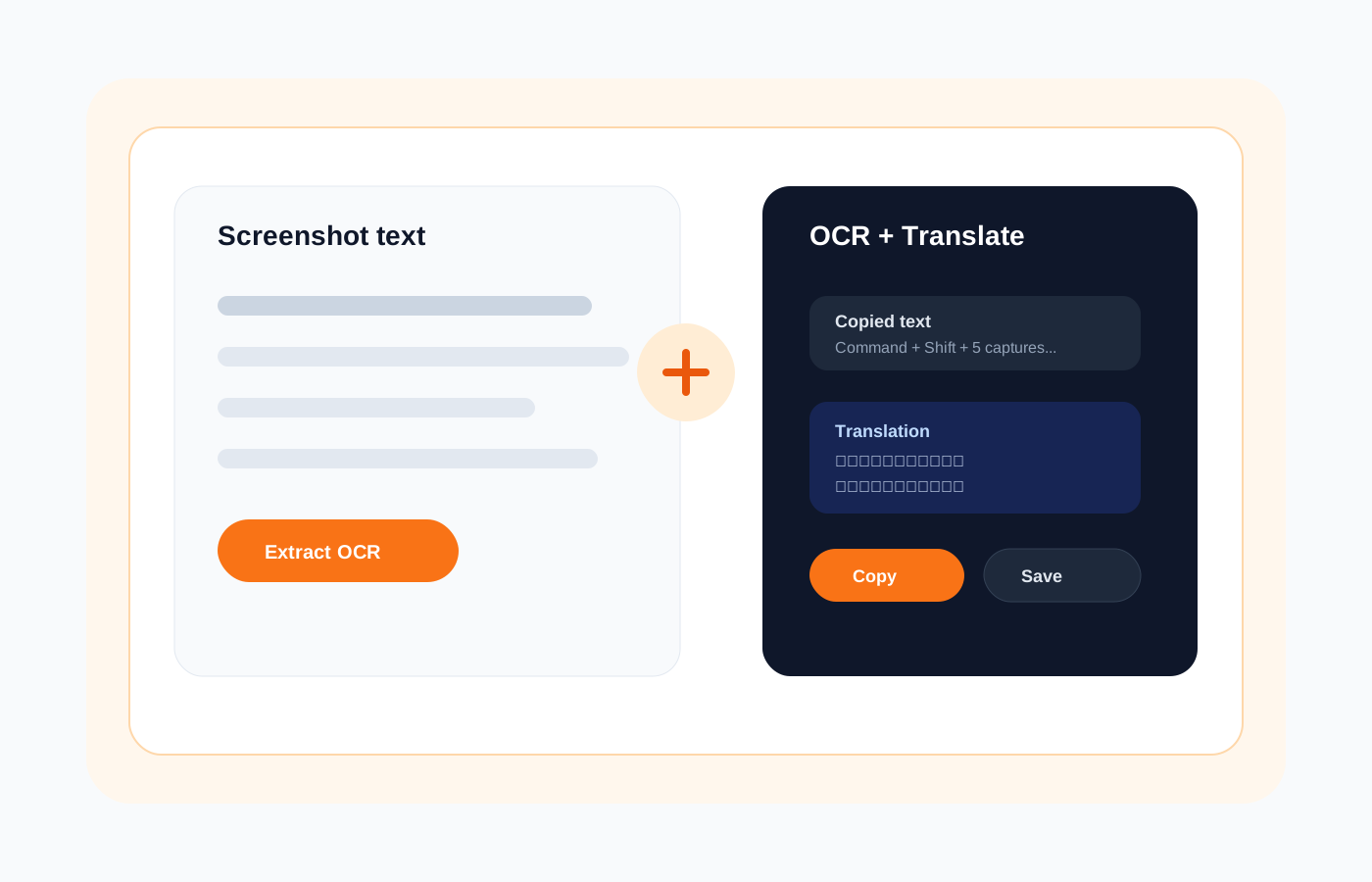
The core problem: Skitch treats every screenshot as a one-off disposable image. You annotate, share, and then it's lost in a folder or cloud. Modern workflows demand more—like OCR to extract text, history to revisit past captures, and the ability to search across your entire visual memory. That’s where Snapling comes in as the better Skitch alternative.
What to look for in a Skitch replacement
When evaluating a Skitch alternative for Mac, consider these key features: annotation tools (arrows, shapes, text, highlights), but also OCR (optical character recognition) to make text in images searchable, a searchable history so you never lose a screenshot, local-first storage for privacy and speed, and export options including sharing. A good replacement should not only capture and annotate but also preserve context and enable reuse.
Snapling delivers all of this in a single workspace. It's not just a Skitch clone—it's an evolution that turns your screenshots into a living library. For a deeper look at how Snapling compares to other snipping tools, check out our guide on the <a href="/guides/snipping-tool-for-mac">snipping tool for Mac with OCR, GIFs & screenshot history</a>.
Snapling: annotation, OCR, and visual memory
Snapling matches Skitch’s annotation capabilities—quick arrows, shapes, text, and highlights—and goes much further. Every capture is automatically OCR’d, making all text in your screenshots searchable. You can find a specific error message or quote from months ago instantly. The local-first history stores every screenshot you’ve ever taken, organized by date and searchable by content or app origin.
Unlike Skitch, which leans on Evernote for storage, Snapling keeps everything on your Mac by default. You choose what to share or export, not the other way around. Annotation tools are available both during and after capture, and you can edit non-destructively. For a detailed look at annotation features, see our guide on the <a href="/guides/screenshot-annotation-tool-for-mac">screenshot annotation tool for Mac</a>.
Step-by-step: how to switch from Skitch to Snapling
- Download and install Snapling from the official website. It launches from the menu bar and works with system-wide shortcuts. 2. Import your existing Skitch screenshots by dragging them into Snapling’s library. OCR is applied automatically on import. 3. Set up your capture preferences: choose between region, window, full screen, or timed captures. Enable automatic OCR and local history. 4. Start annotating with Snapling’s toolbar—arrows, boxes, text, highlights, blur, and more. 5. Search your library using keywords or phrases from screenshots. Export or share only when needed.
You don’t have to change your workflow overnight. Use Snapling alongside Skitch for a transition period, but you’ll quickly appreciate not having to manually save files or search folders. Snapling becomes your visual memory, not just a capture tool.
Comparison table: Skitch vs Snapling vs other alternatives
Below is a quick comparison of key features across Skitch, Snapling, and other popular tools. Skitch offers basic annotation and Evernote integration but lacks OCR, searchable history, and local-first storage. Snapling provides annotation, OCR, full history, search, local-first storage, and export controls. Other alternatives like CleanShot X or Monosnap may offer similar features, but Snapling’s focus on preserving context and reuse sets it apart.
For Mac users who need a Skitch replacement that prioritizes privacy and workflow efficiency, Snapling is the clear choice. It’s not just an annotator—it’s a screenshot workspace that evolves with your needs.
Recommended next steps
Use these related Snapling guides when you want to go deeper into one part of the workflow.
Snipping Tool for Mac with OCR, GIFs & Screenshot History
Screenshot annotation tool for Mac: mark up captures faster
FAQ
Is Skitch still supported on Mac?
Skitch is no longer actively developed by Evernote. It may still run on older macOS versions, but it lacks updates, new features, and compatibility with recent Mac hardware and software.
Does Snapling have the same annotation tools as Skitch?
Yes, Snapling covers all the basics: arrows, rectangles, ellipses, text, highlights, and blur. It also adds non-destructive editing, so you can adjust annotations after creation.
Can I import my Skitch screenshots into Snapling?
Yes. You can drag your existing Skitch images into Snapling’s library. OCR is applied automatically, making them searchable by any text they contain.
Does Snapling work with Evernote?
Snapling is designed to be local-first and independent of Evernote. You can still export captures to Evernote or any other app, but it doesn’t require a cloud account.
Is Snapling free?
Snapling offers a free trial with full features. A one-time purchase or subscription unlocks unlimited use, depending on your needs. Check the pricing page for details.
How does Snapling's OCR compare to Skitch's text recognition?
Skitch never had built-in OCR. Snapling’s OCR is fast, works offline, and supports multiple languages. It automatically indexes text in every screenshot, making them searchable instantly.
Try the full workflow in Snapling
If you want this Skitch alternative Mac workflow in one Mac workspace, download Snapling for Mac and try it with a screenshot you would normally need to find, copy, explain, or reuse.
Recommended next steps
Try the full workflow in Snapling
Capture the screenshot, keep the useful context, search it later, and reuse it when the work comes back.