
Snipping Tool Mac: The Easy Guide to Daily Captures, Copy-Paste, and Better Tools
Whether you are saving an online receipt, grabbing class notes, copying an address from an image, or sharing something funny with a friend, having a reliable snipping tool on your Mac makes everyday computer use effortless. While macOS does not come with an official app named 'Snipping Tool', Mac and MacBook users have great options—ranging from quick built-in shortcuts to modern tools that do much more than basic rectangle cropping. Today's best snipping tool for Mac helps with daily tasks: capturing full scrolling pages without awkward stitching, copying text directly from pictures, recording quick GIFs to show someone how to do something, and keeping past snips easy to find. In this guide, we walk through how to use the built-in Mac snipping tool features, solve common frustrations like copy-paste and desktop clutter, and explore the best tools for everyday life, study, and work.
Need a fast snipping tool for your Mac or MacBook? For simple, quick captures, press Shift-Command-4. If you want to snip long web pages, copy text straight from images, make quick GIFs, and actually find your past captures without cluttering your desktop, modern tools like Snapling make everyday snipping much easier.
A snipping tool for Mac is an everyday visual utility designed to help you capture, annotate, copy text from, and effortlessly organize screen content on macOS.
Looking for a snipping tool Mac solution? Discover how to use the snip tool on Mac and MacBook, master copy and paste workflows, and explore modern alternatives.
Is There a Snipping Tool for Mac or MacBook? (The Direct Answer)
If you are asking 'is there a snipping tool for mac', wondering 'is there a snipping tool on mac', or asking 'does a macbook have a snipping tool', here is the straight answer: Apple does not include an app with that specific name. However, whether users search for 'snipping tool mac', query 'snipping.tool.mac', search for a 'snipping tool for macbook', or look for a handy 'snippet tool for mac', macOS includes built-in shortcuts that handle everyday screen grabs, while modern third-party apps provide a much more complete experience.
Taking a quick snippet on Mac is something almost everyone does daily. You might want to save a confirmation number while shopping online, capture a snippet of a recipe, grab a slide during a remote lecture, or send a funny meme to a friend. You need a snip tool mac solution that makes capturing fast and makes using that image simple.
For a related step, see Mac screenshot shortcuts to choose a capture or organization workflow that fits.
Snapling vs Shift-Command-4: the same task, two workflows
Three things Shift-Command-4 does not do on its own: follow a page while it scrolls, record an interaction directly as a GIF, and keep local OCR searchable across past captures. macOS offers screen recording and Live Text through separate workflows.
We captured the same Malala Fund page at the same image width. The first image shows the visible page area; the second is a Snapling Scrolling Shot that follows the page below the fold into one long image.
Shift-Command-4 is useful when you only need the area currently on screen. Saving this whole page with the built-in tools would mean capturing multiple sections and assembling them yourself. Snapling's Scrolling Shot keeps the page together in a single capture.
These screenshots show the captured area and page continuity. They do not measure capture speed or represent results on every website.
For a related step, see free snipping tool features and limits to choose a capture or organization workflow that fits.


How to Use Snipping Tool on Mac & MacBook (Everyday Setup & Shortcuts)
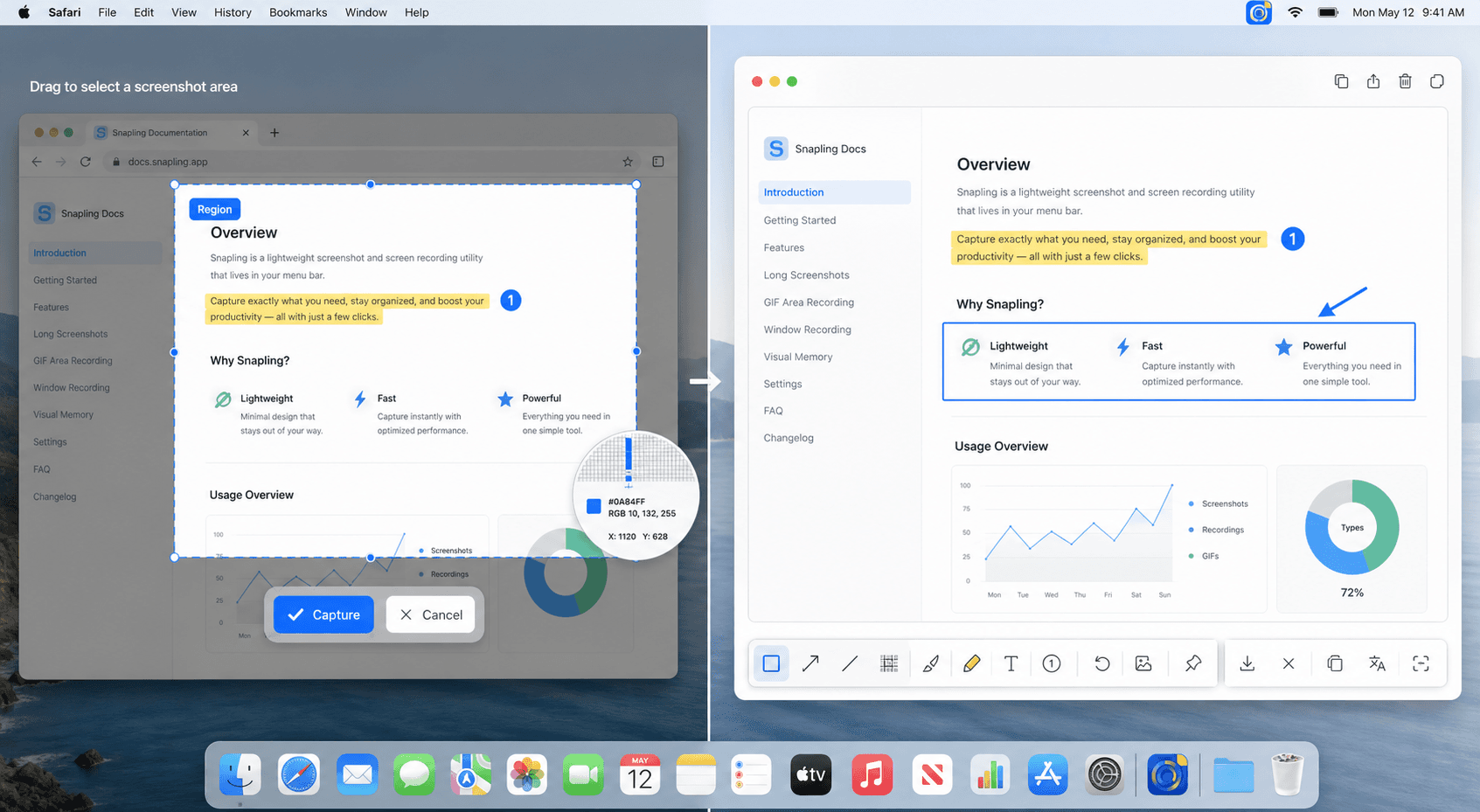
If you want to know how to use snipping tool on mac or how to use snipping tool macbook, macOS includes built-in shortcuts that serve as a default macos snipping tool. Pressing Shift-Command-3 captures your entire screen. Pressing Shift-Command-4 gives you a crosshair to drag a rectangular snip over any part of your screen (or tap the Spacebar to cleanly capture an open window). Pressing Shift-Command-5 brings up the on-screen capture toolbar with options for timers and screen recording.
These shortcuts answer how to do snipping tool on mac and explain how to snipping tool on mac for quick, everyday grabs. If you ever wonder 'how do I use the snipping tool on a Mac' or 'how do you use snipping tool on a Mac' without installing extra software, these built-in keys are your starting point. However, this basic snip tool for mac cannot take scrolling screenshots of long pages, cannot record lightweight GIFs, and requires opening files in Preview to copy text. For detailed shortcut customization, visit our shortcuts guide.
For a related step, see Mac screenshot tools comparison to choose a capture or organization workflow that fits.
How to screenshot on Mac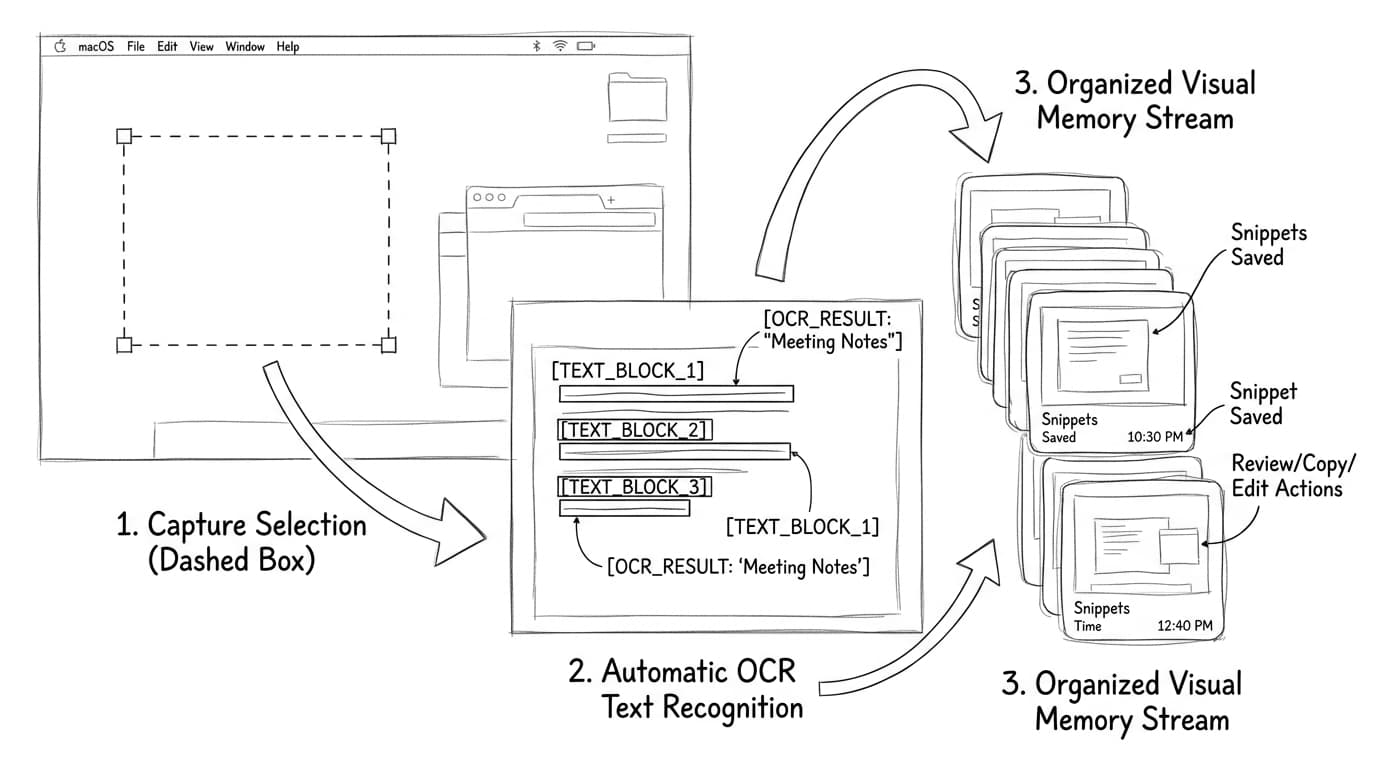
Snipping Tool for Mac Copy and Paste: Moving from Capture to Action
One of the biggest everyday annoyances is 'snipping tool for mac copy and paste'. When you take a screenshot, 9 times out of 10 you simply want to paste it into a chat, email, or document. By default, macOS drops the capture as a file onto your Desktop instead of putting it on your clipboard. To copy directly to clipboard with native tools, you must hold the Control key while capturing (Control-Shift-Command-4), then press Command-V to paste.
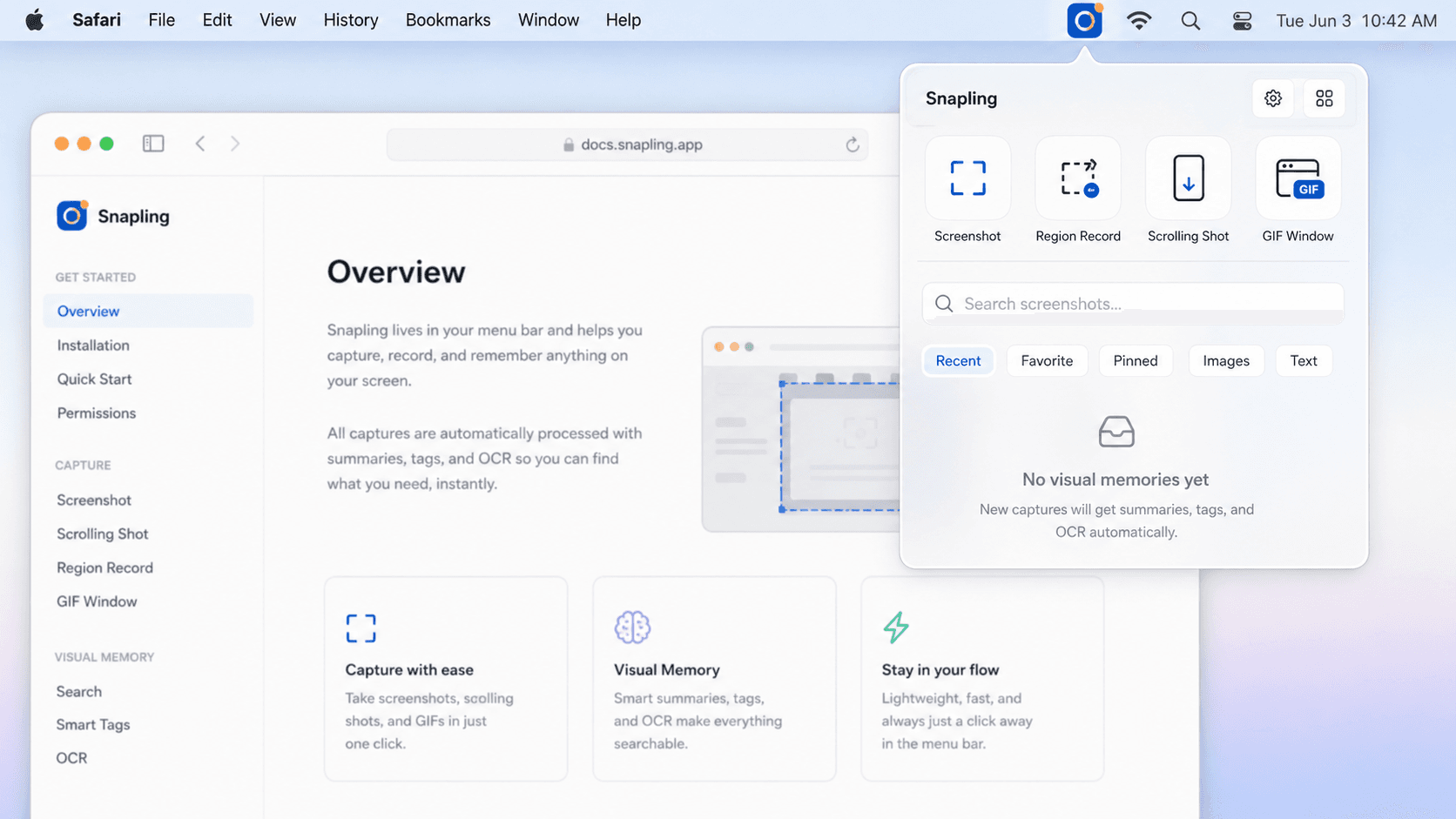
Modern snip tools for mac make this much smoother. With tools like Snapling, every snip automatically copies to your clipboard while running instant on-device OCR. This means you can paste the screenshot as an image, or paste the text trapped inside the image (like a tracking code, address, or phone number) without typing it out manually or cluttering your desktop.
Extract text from screenshots on Mac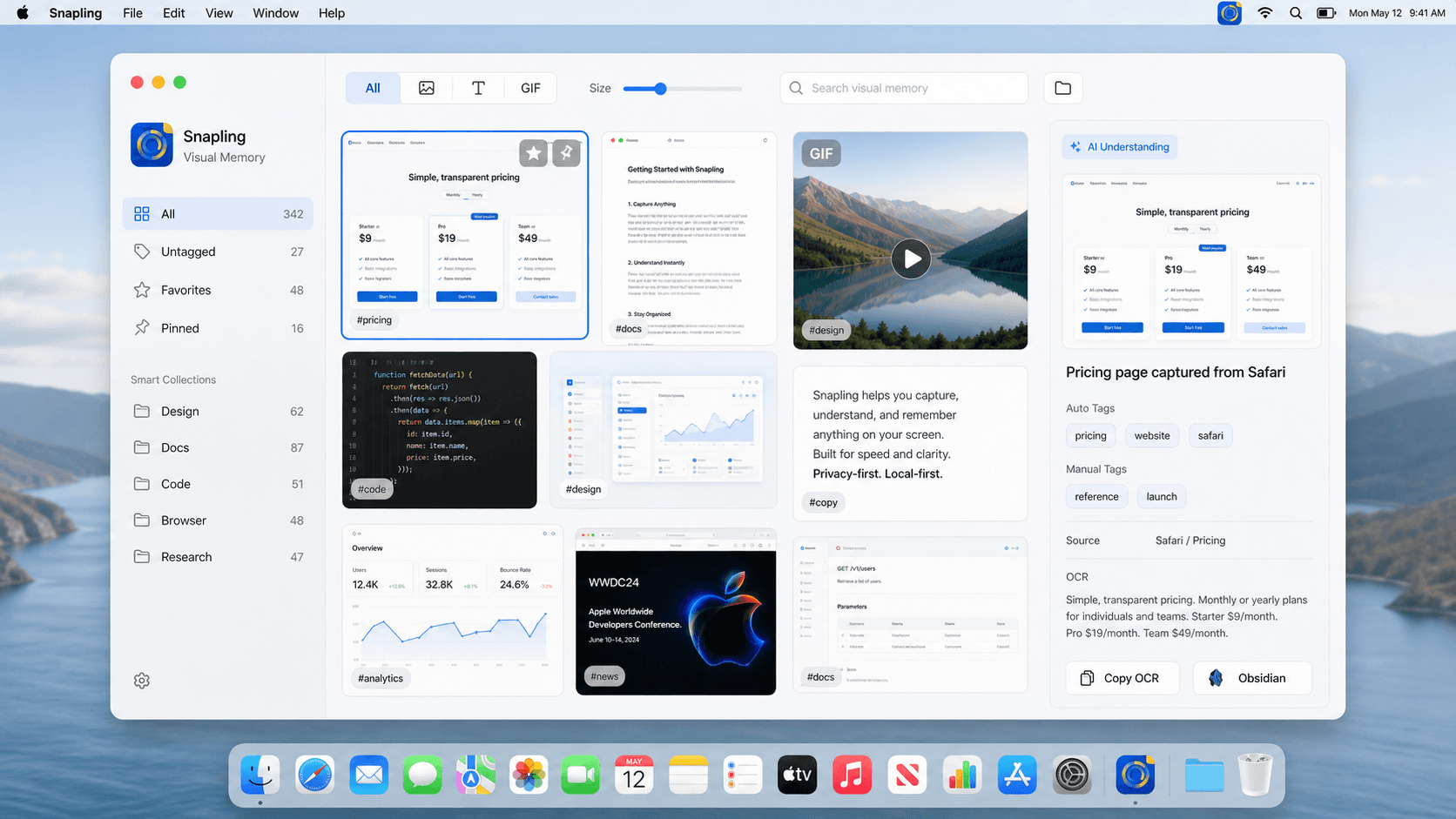
How to Find Your Snip Photos on Mac (and Stop Desktop Clutter)
A very common frustration among everyday users is 'how to find your snip photos on mac'. By default, macOS dumps every capture onto your Desktop with generic names like 'Screen Shot 2026-09-17 at 17.30.00.png'. Within a week or two, your desktop looks messy, and finding a receipt or chat snippet you took a few days ago means opening dozens of mystery image files one by one.
This is why the best snipping tool for mac must help you organize effortlessly. Rather than letting every snippet on Mac get lost in cluttered folders, Snapling features Visual Memory: a private, local-first library that automatically indexes every capture using local OCR. Instead of hunting through Finder, you simply search for the words inside the image—like an airline name, an error message, or an ingredient—and the exact snip photo appears instantly.
From Daily Snipping to Deep Work: 5 Features That Make Life Easier
What makes a modern utility the best snipping tool for Mac? It should make daily tasks effortless for everyday users, while providing the power needed for school and work across five core areas.
First, flexible capture: grabbing a selected area, capturing long scrolling pages (like an entire recipe or chat thread) without manual stitching, and recording short, lightweight GIFs to show someone how to do something. Second, clear annotations: drawing helpful arrows, highlighting text, numbering steps, and blurring out private details like addresses or phone numbers. Third, pin-to-screen: keeping an image floating on top so you can easily reference it while typing. Fourth, instant text extraction: copying text from images or translating foreign websites on the fly. Fifth, searchable memory: being able to find any past screenshot in seconds.
How to take long screenshots on MacChoosing the Right Snip Tool for Mac: Which One Fits Your Needs?
When looking across different snip tools for mac, the right choice depends on your daily habits. Apple's built-in shortcuts are perfect if you only take occasional, disposable screen grabs and do not mind sorting through desktop files. Shottr is a popular choice for users who want a lightweight tool with pixel measurements and basic annotations.
CleanShot X suits creators and remote professionals who frequently share captures through public cloud links. Flameshot provides a free open-source option for users comfortable with technical setups. Meanwhile, Snapling is designed for everyday Mac users, students, and professionals alike who want hassle-free copy-paste, instant text extraction, scrolling captures, and an organized Visual Memory that keeps their desktop permanently clean. To compare them in detail, see our comparison guide.
Mac screenshot tools comparisonHow to Download Snipping Tool on Mac & MacBook Safely
If you are looking to download snipping tool on Mac, a quick word of caution: beware of low-quality copycat apps on the Mac App Store that use that exact name to attract searches. Because Apple has never published an official app called Snipping Tool, these third-party clones are often unmaintained or packed with ads.
For a safe and reliable experience, download modern macOS snipping tools directly from verified developer websites like Snapling. After downloading, simply grant the required screen recording permission in macOS System Settings under Privacy & Security, set your favorite shortcut keys, and enjoy seamless snipping from your menu bar every day.
Check Snapling free and Pro pricing for included features and screenshot history limits.
| Tool / Solution | Everyday & Pro Fit | Capture Spectrum | Annotation & Privacy | Text Copying & OCR | Finding Past Snips | Privacy & Storage | Pricing Model |
|---|---|---|---|---|---|---|---|
| Snapling | Great for everyday users, students & professionals | Region, window, long scrolling capture & quick GIFs | Arrows, step numbers, blur & clean background padding | Instant on-device OCR & in-place screen translation | Searchable Visual Memory; find snips by text inside | 100% Local-first; private on Mac, no forced cloud | Free core tier + 30-day Pro trial / One-time license |
| CleanShot X | Tailored for creators, designers & remote teams | Region, window, scrolling, GIF & full video recording | Polished visual arrows, shapes & background canvas | Built-in OCR; no native screen translation | Floating thumbnail history & cloud dashboard | Local app; optional CleanShot Cloud for upload and sharing | Basic $35 once; Pro $10/user/month billed annually |
| Shottr | Ideal for developers, engineers & minimalist users | Region, window & scrolling capture; no native GIF | Pixel ruler, color picker, erase, blur & basic arrows | Fast local OCR; no in-place translation | Session history only; no searchable visual database | 100% Local-first; lightweight on system resources | Free tier with purchase reminders / $8-12 license |
| Flameshot | Geared toward Linux & technical open-source users | Basic region & window capture; no scroll; no GIF | Standard technical arrows, circles, boxes & blur | No native OCR or translation capabilities | No history library; saves directly to file or clipboard | 100% Local-first & open-source | 100% Free (GPLv3 Open Source) |
| Apple Screenshot | Basic built-in capture for quick disposable grabs | Full screen, window & region; basic MOV recording | Basic Preview / Quick Look markup pen tools | Live Text via Preview (requires extra manual steps) | None; dumps loose files onto the macOS Desktop | 100% Local-first; pre-installed on every Mac | Free (Included with macOS) |
A few clear answers before you leave.
Is there a snipping tool for Mac or MacBook?
Apple does not include an official app named Snipping Tool on macOS or MacBook hardware. However, macOS includes built-in shortcuts (like Shift-Command-4), while modern third-party apps like Snapling provide the complete snipping tool Mac experience with scrolling capture, OCR, and visual history.
How to use snipping tool on Mac with copy and paste?
To copy a native Mac snip directly to your clipboard, press Control-Shift-Command-4, select the area, and press Command-V to paste. Advanced tools like Snapling automatically copy both the image and the extracted OCR text to your clipboard without needing extra modifier keys.
How to find your snip photos on Mac after capturing?
By default, macOS saves snip photos to your Desktop with names like 'Screen Shot [Date] at [Time].png'. If you use Snapling, every snip is automatically saved in your local Visual Memory library, allowing you to search past snip photos instantly by the text inside them.
What is the best snipping tool for Mac in 2026?
The best snipping tool for Mac depends on your workflow. Apple's native shortcuts are best for quick disposable grabs, CleanShot X is ideal for creators needing cloud links, Shottr excels at lightweight pixel measurements, and Snapling is the premier choice for knowledge workers needing scrolling captures, local OCR, and searchable Visual Memory.
How do you use snipping tool on a Mac for scrolling captures and OCR?
Native macOS shortcuts cannot capture scrolling content or extract text instantly. Dedicated Mac snip tools like Snapling include automated scrolling capture that scrolls and stitches long pages into one image, alongside instant on-device OCR that copies text directly to your clipboard.
Related guides
How to Screenshot on Mac: Shortcuts, Snips, and Section Captures (2026)
Learn the Mac screenshot shortcuts for full screen, windows and selected areas, then see when to use a snipping tool with OCR and history.
Best free snipping tool for Mac: free tiers and trials compared
Compare Flameshot, Shottr, Monosnap and Snapling by free features, OCR, scrolling capture and limits. Separate ongoing free tiers from Pro trials.
Best Mac screenshot apps in 2026
Compare the best Mac screenshot apps in 2026 by capture speed, OCR, GIFs, long screenshots, clipboard capture, screenshot history, privacy and team workflows.
How to copy text from screenshots on Mac
Use OCR on Mac screenshots to copy text from images and keep your screenshot workflow fast and reusable.
Sources
- Take a screenshot on Mac — Apple Support
- CleanShot X features — CleanShot
- CleanShot X pricing — CleanShot
- Shottr URL schemes and capture features — Shottr
- Snapling pricing — Snapling
Experience the Best Snipping Tool for Mac
Download Snapling to unite precision screen capture, scrolling shots, GIFs, instant OCR, and private Visual Memory in one seamless workflow.