
How to copy text from screenshots on Mac
Text often ends up trapped in screenshots: product copy, terminal output, settings values, subtitles or details inside a bug report. OCR turns those screenshots back into usable text so you can keep moving.
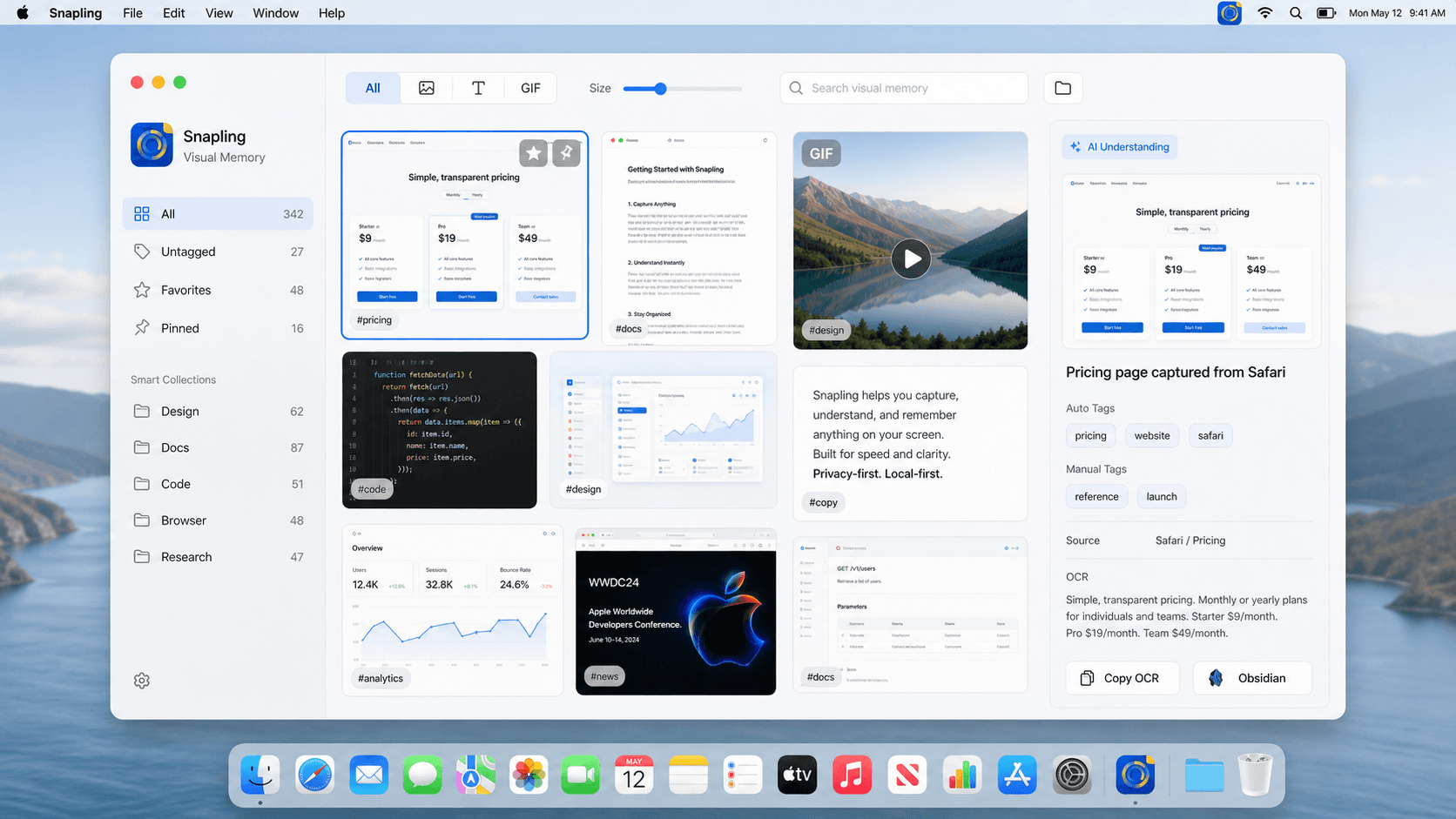
To copy text from screenshots on Mac, capture the screen and run OCR close to the screenshot instead of exporting the image to a separate tool. Snapling keeps OCR, translation, screenshot history and Visual Memory in one local-first workflow.
OCR screenshot extraction turns text inside a screenshot into selectable, searchable and reusable text.
Use OCR on Mac screenshots to copy text from images and keep your screenshot workflow fast and reusable.
Why OCR matters in screenshot workflows
Without OCR, a screenshot becomes a dead end. You can look at it, but you cannot search it, copy it or translate it easily.
OCR screenshot Mac workflows matter because they turn reference images back into working material instead of static archives.
For a related step, see snipping tool for Mac workflow to choose a capture or organization workflow that fits.
What to look for in a good OCR tool
The best OCR flow is close to the capture itself. You should not have to export the image, upload it somewhere else, wait for processing and then copy the result from another interface.
Good OCR on Mac should feel like a continuation of the screenshot workflow, not a completely separate job.
For a related step, see Mac screenshot shortcuts to choose a capture or organization workflow that fits.
Typical use cases
Copying error messages from screenshots, grabbing copy from design references, extracting notes from slides and pulling text from multilingual UI are all common reasons to use OCR.
If you collect screenshots for work, OCR makes those captures easier to reuse later.
For a related step, see translating screenshots to choose a capture or organization workflow that fits.
Turn OCR into searchable history
The best OCR workflow does not end at copying one line of text. It also indexes the screenshot so the same capture can be found again.
Snapling uses OCR as part of Visual Memory, connecting extracted text with screenshot history, tags and related clipboard content.
Check Snapling free and Pro pricing for included features and screenshot history limits.
| OCR workflow | Separate OCR utility | Snapling |
|---|---|---|
| Capture context | Often loses the original visual source | Keeps OCR attached to the screenshot |
| Privacy posture | May require extra upload steps | Designed around a local-first Mac workflow |
| Finding text later | Usually depends on copied notes | Searches screenshot history by recognized text |
| Next action | Copy text, then switch tools | Copy OCR, translate, tag or export from the same place |
A few clear answers before you leave.
Can I copy text from a screenshot on Mac?
Yes. With OCR, you can extract text from a screenshot on Mac and copy it like regular text.
Why use OCR in a screenshot app?
OCR inside a screenshot app keeps the workflow short because the text is available right after capture instead of after an extra export or upload step.
Can I search screenshots by text on Mac?
Yes. If OCR text is indexed with your screenshots, you can search for words inside the image instead of relying on filenames.
Is screenshot OCR private?
It can be. A local-first OCR workflow keeps screenshot text on your Mac by default rather than uploading every image for processing.
Can OCR help translate screenshots?
Yes. OCR extracts the text first, then translation can happen while the original screenshot remains available for context.
Related guides
How to Screenshot on Mac: Shortcuts, Snips, and Section Captures (2026)
Learn the Mac screenshot shortcuts for full screen, windows and selected areas, then see when to use a snipping tool with OCR and history.
Snipping Tool Mac: The Easy Guide to Daily Captures, Copy-Paste, and Better Tools
Looking for a snipping tool Mac solution? Discover how to use the snip tool on Mac and MacBook, master copy and paste workflows, and explore modern alternatives.
How to translate screenshots on Mac
Translate screenshots on Mac by extracting text first, then keeping the translation workflow close to the original capture.
How to search and organize screenshots on Mac
Organize Mac screenshots with OCR, tags, favorites and visual browsing so useful captures are easier to find later.
Sources
- Use Live Text to interact with text in a photo on Mac — Apple Support
- Interact with text in a photo using Live Text in Preview on Mac — Apple Support
Try OCR that stays attached to the screenshot.
Use Snapling to capture a screenshot, extract text, search it later and keep the original visual context on your Mac.