
Best free snipping tool for Mac: free tiers and trials compared
Start by deciding whether you need ongoing free features, open-source software or a trial of paid features. Flameshot, Shottr, Monosnap and Snapling offer different free-use models, so compare both the workflow and its limits.
Flameshot offers free, open-source capture and annotation. Most Shottr features remain free, with purchase prompts and paid features. Monosnap has a limited free plan. Snapling has free core features and a 30-day Pro trial; its free Visual Memory keeps the latest 50 items.
A free snipping tool for Mac lets you use its included capture features without purchasing a license. An ongoing free tier is different from a time-limited trial and does not imply that every advanced feature is free.
Compare Flameshot, Shottr, Monosnap and Snapling by free features, OCR, scrolling capture and limits. Separate ongoing free tiers from Pro trials.
Choose by free-use model
Flameshot is a free, open-source cross-platform capture and annotation tool for region snips, arrows and text labels. Follow its official macOS permission setup before testing.
Shottr's website says most features can be used free indefinitely, with purchase prompts and a more complete activated experience. It is useful for lightweight annotation, measurement, OCR and scrolling capture.
Monosnap separates free and paid plans with usage, storage and sharing limits. Check the current terms for team or commercial use. Snapling lists its ongoing free core features separately from the Pro trial.
For a related step, see snipping tool for Mac workflow to choose a capture or organization workflow that fits.
Check whether the built-in Mac tools are enough
The macOS Screenshot app already offers selected-area and window capture, a timer and thumbnail Markup. Preview can copy supported image text with Live Text. These features may be enough for occasional screenshots.
Consider third-party tools when you need additional capture modes or centralized retrieval. The dedicated shortcut guide below covers Apple's keyboard workflow.
For a related step, see Mac screenshot shortcuts to choose a capture or organization workflow that fits.
How to screenshot on MacCompare the free versions with the same tasks
Capture an error message, add an arrow and a text label, then paste it into a chat or document. Check image clarity, shortcut conflicts and where the file is saved.
If you need OCR or scrolling capture, test your own multilingual screenshots, long pages or code documents. A feature name alone does not establish its quality or free-tier limits.
For a related step, see Mac screenshot tools comparison to choose a capture or organization workflow that fits.
Check history, licensing and sharing limits
Look for limits on saved captures, search, tags, uploads and commercial use. Open-source licensing does not mean non-commercial use only; a free plan does not necessarily include every paid feature.
Local saving and cloud sharing are separate choices. Review sharing and sync settings before using private screenshots, and enable online features only when you need them.
Snapling's free tier and Pro trial
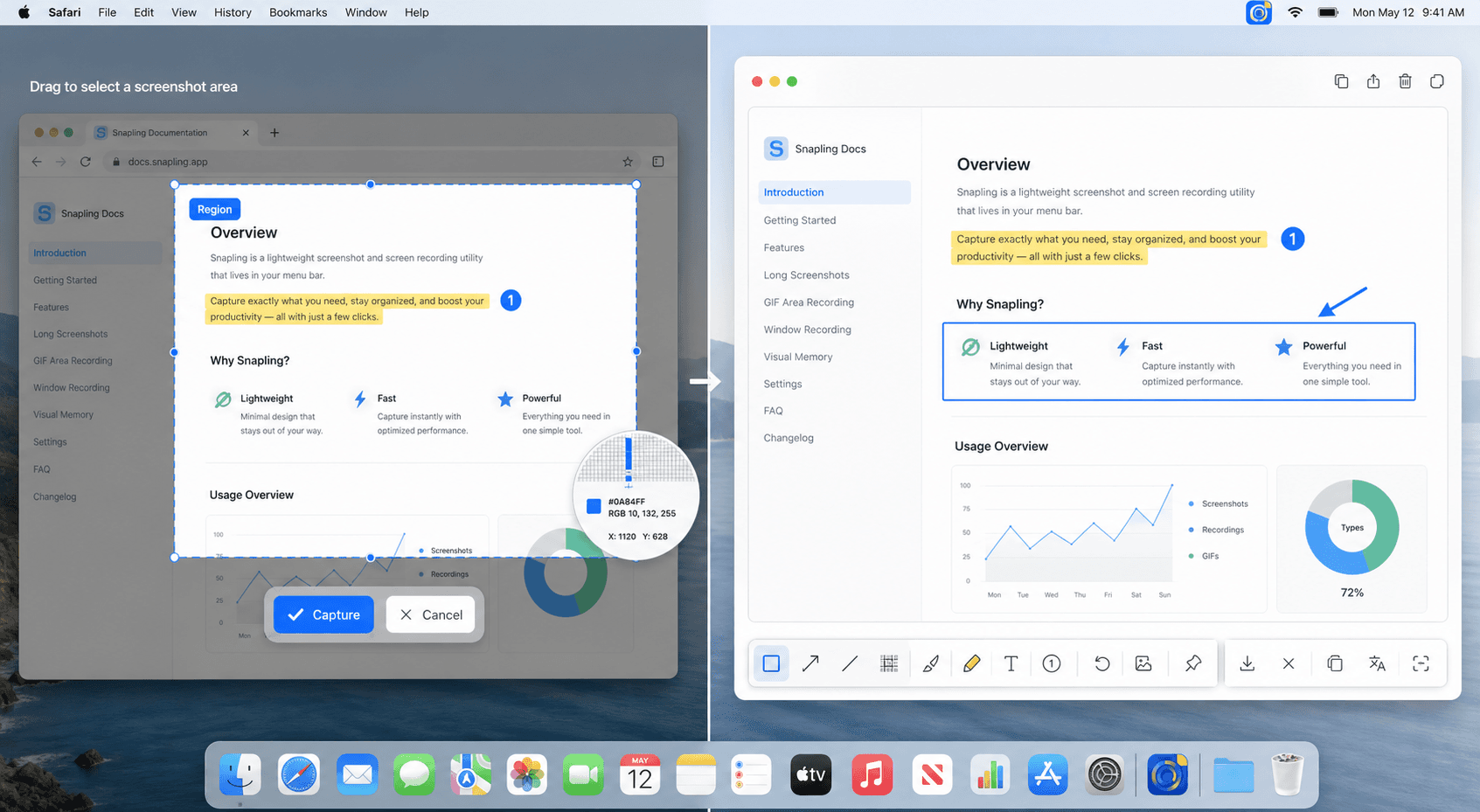
Snapling's pricing page lists standard screenshots, scrolling capture, GIF recording, basic annotation and text recognition in the free tier. Free Visual Memory keeps the latest 50 items, with basic search and two tags per item.
The 30-day full Pro trial lets you evaluate professional features and higher limits. Decide whether to upgrade based on your archive and retrieval needs; check the pricing page for the complete scope.
Check Snapling free and Pro pricing for included features and screenshot history limits.
Snapling free tier and Pro featuresMac screenshot tools comparison| Decision | Flameshot | Shottr | Monosnap | Snapling |
|---|---|---|---|---|
| Free-use model | Free and open-source | Most features free; purchase prompts and paid features | Limited free plan | Free core features; 30-day Pro trial |
| Main use | Region capture and markup | Lightweight annotation, measurements, OCR and scrolling | Capture and sharing | Capture, OCR, GIFs and Visual Memory |
| What to evaluate | macOS permissions and shortcuts | Activation requirements for your features | Free-plan and commercial-use limits | History, search and tag limits |
| Before upgrading | Test your actual annotation tasks | Check current license options | Check usage and sharing allowances | Free history: latest 50 items and two tags per item |
A few clear answers before you leave.
What free snipping tools are available for Mac?
macOS includes Screenshot for free. Third-party choices include open-source Flameshot, Shottr's free features, Monosnap's free plan and Snapling's free tier. Their included features and limits differ.
Is Shottr free?
Shottr says most features can be used free indefinitely, with occasional purchase prompts and a more complete activated experience. It is not simply donation-only software.
How is Snapling's free tier different from the Pro trial?
The free tier retains core capture features, the latest 50 Visual Memory items, basic search and two tags per item. The 30-day Pro trial evaluates professional features. Check pricing for the full scope.
What is free Flameshot best suited for?
Flameshot is an open-source option for region capture and annotation such as arrows and text labels. Compare dedicated tools if you also need OCR, scrolling screenshots or a searchable capture library.
Can I use only the built-in Mac screenshot tools?
Yes. Screenshot includes selected-area and window capture, a timer and thumbnail Markup; Preview offers Live Text. A separate tool is useful when you need additional capture modes or centralized screenshot organization.
Related guides
Snipping Tool Mac: The Easy Guide to Daily Captures, Copy-Paste, and Better Tools
Looking for a snipping tool Mac solution? Discover how to use the snip tool on Mac and MacBook, master copy and paste workflows, and explore modern alternatives.
How to Screenshot on Mac: Shortcuts, Snips, and Section Captures (2026)
Learn the Mac screenshot shortcuts for full screen, windows and selected areas, then see when to use a snipping tool with OCR and history.
Best Mac screenshot apps in 2026
Compare the best Mac screenshot apps in 2026 by capture speed, OCR, GIFs, long screenshots, clipboard capture, screenshot history, privacy and team workflows.
How to copy text from screenshots on Mac
Use OCR on Mac screenshots to copy text from images and keep your screenshot workflow fast and reusable.
Sources
- Take a screenshot on Mac — Apple Support
- Shottr features and free-use FAQ — Shottr
- Install Flameshot on macOS — Flameshot
- Monosnap pricing — Monosnap
- Snapling free tier and Pro limits — Snapling
Try a real screenshot workflow first.
Capture, annotate and retrieve a few everyday screenshots in Snapling before deciding whether you need Pro.