Skip to content
Back to blog
Flameshot alternative macMac screenshot toolOCR for Macscreenshot annotationfree screenshot app

Best Flameshot Alternative for Mac: Capture, Annotate, Search with Snapling

Flameshot not available on Mac? Get Snapling – a free, Mac-native screenshot tool that captures, annotates, OCR text, scrolls, records GIFs, and keeps your screenshots searchable. Replace Flameshot on macOS today.

TL;DR

Flameshot is not natively available on Mac, making Snapling the ideal free alternative. Snapling matches Flameshot's annotation and capture modes while adding OCR, searchable history, GIF recording, and scrolling screenshots—all in a Mac-native app.

Definition

A Flameshot alternative for Mac is a screenshot tool that replicates Flameshot's annotation and capture features on macOS, often adding capabilities like OCR, searchable history, and GIF recording that Flameshot lacks.

Why Flameshot Users Need a Dedicated Mac Alternative

Flameshot is a popular open-source screenshot tool on Linux, but there is no official macOS version. Users who switch to a Mac or need cross-platform consistency often find themselves searching for a tool that matches Flameshot’s annotation and capture modes without the hassle of unofficial ports or limited functionality.

screenshot
screenshot

Even if you manage to compile Flameshot from source on Mac, you miss out on macOS-native features—like Retina display support, system-wide shortcuts, and integration with Apple’s share sheet. More importantly, Flameshot lacks OCR, searchable history, GIF recording, and scrolling capture, which are productivity boosters for modern screenshot workflows. That’s why a dedicated Mac alternative like Snapling is a better fit.

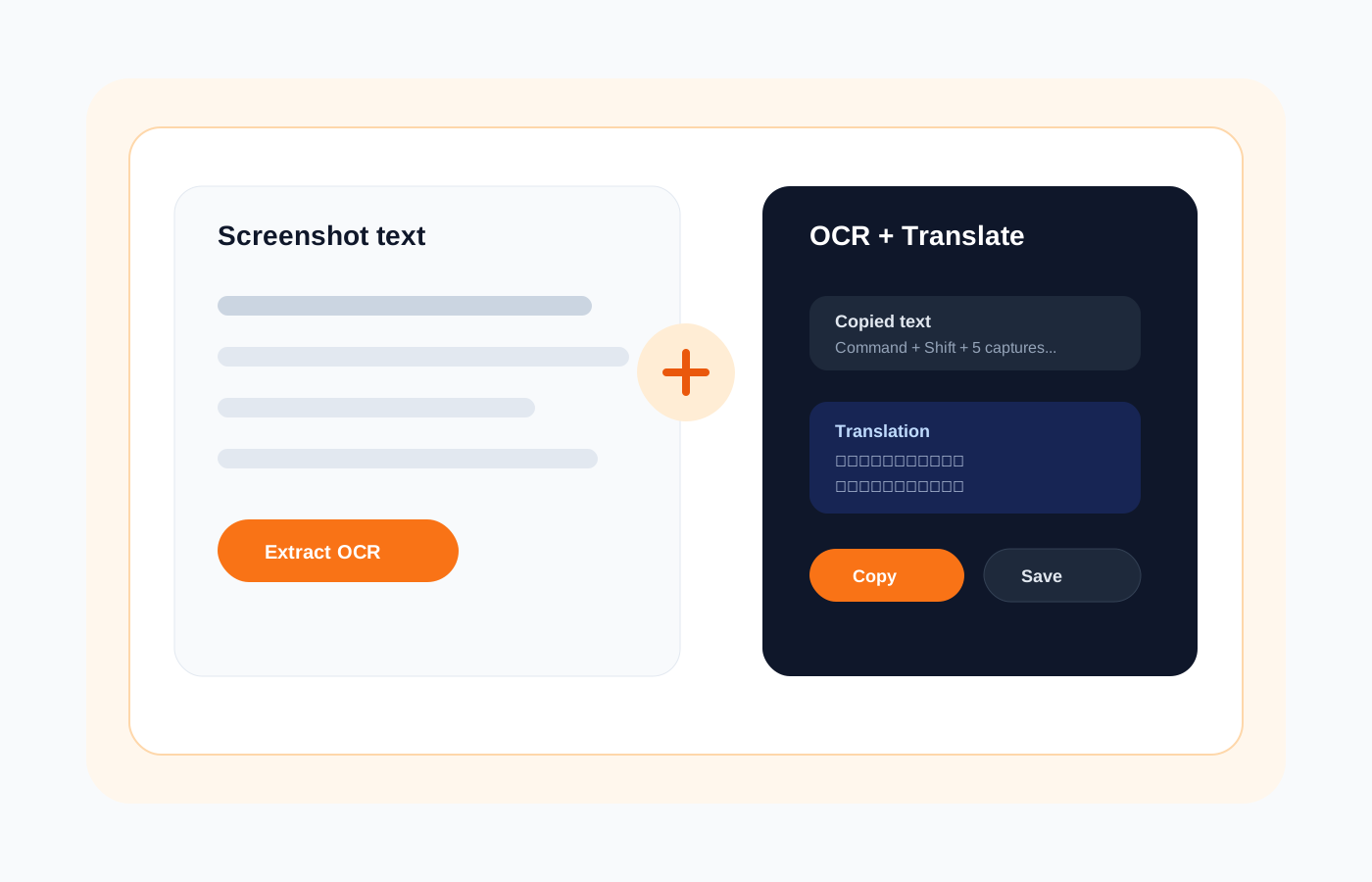
OCR and translation workflow in Snapling
Snapling adds OCR, searchable history, and GIF recording that Flameshot lacks on Mac.

What to Look for in a Flameshot Replacement on Mac

When evaluating a Flameshot alternative, start with the essentials: region, window, and full-screen capture; an intuitive annotation toolbar with arrows, highlights, text, and blur; and quick clipboard integration. But the best replacements go further.

Look for a tool that offers OCR to extract text from screenshots, a searchable history library so you never lose a capture, and support for scrolling screenshots and GIF recording. Privacy also matters—choose a local-first tool that doesn’t upload your screenshots to the cloud by default. Snapling checks all these boxes while remaining free for core features.

How Snapling Matches Flameshot’s Core Features—and Goes Beyond

Snapling provides the same immediate capture experience Flameshot users love: press a hotkey, select a region, and annotate with arrows, rectangles, text, and blur. It also supports full-screen and window capture, plus auto-copy to clipboard. For Flameshot users, the learning curve is near zero.

Snapling screenshot workflow
Download Snapling free to get a Flameshot-like experience with modern extras.

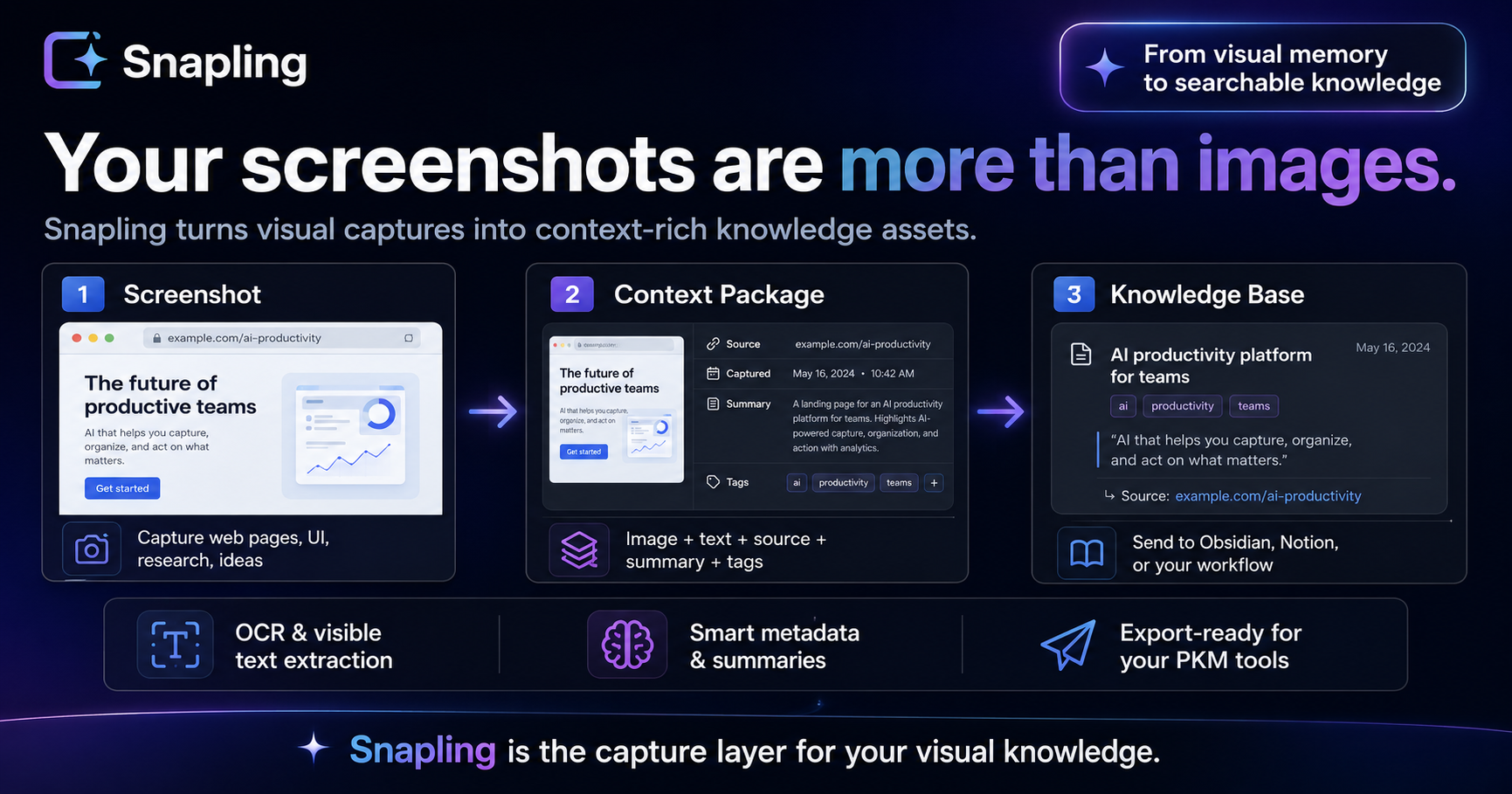
But Snapling adds capabilities Flameshot can’t match: built-in OCR that makes text in screenshots searchable, a visual memory library that stores every capture with tags and full-text search, scrolling capture for webpages and documents, and GIF recording for quick animations. All processing stays local on your Mac—no internet required.

Getting Started with Snapling as a Flameshot Alternative

Switching to Snapling is simple. First, download the free app from the official website or Mac App Store. Once installed, set your preferred global shortcut (e.g., Cmd+Shift+4) and start capturing. The annotation toolbar appears immediately after capture, mirroring Flameshot’s workflow.

After annotating, you can copy to clipboard, save, or drag into any app. Your screenshot is automatically saved to the history panel, where you can search by text (thanks to OCR) or tag it for later. For advanced captures, choose the scrolling capture or GIF mode from the menu bar icon. Watch your Mac screenshot workflow become more powerful without leaving Flameshot’s simplicity.

Flameshot vs Snapling: Feature Comparison

Both tools offer region, window, and full-screen capture with annotation (arrows, shapes, text, blur, highlight). However, Flameshot is open-source and cross-platform (Linux, Windows, macOS via unofficial builds), while Snapling is Mac-only but natively optimized. The key differences lie in extras: Snapling includes OCR, searchable history, GIF recording, and scrolling capture—all missing in Flameshot.

Additionally, Snapling is local-first and respects privacy; Flameshot also runs locally. But Snapling’s visual memory library turns every screenshot into a searchable asset, something Flameshot users often wish they had. For Mac-focused users, Snapling is clearly the superior choice.

When to Keep Flameshot vs. When Snapling Is Better

If you need a cross-platform screenshot tool that works on Linux, Windows, and Mac, Flameshot (via unofficial builds or Linux native) remains a solid option. However, on Mac, the experience is subpar due to lack of official support, Retina issues, and missing features like OCR and searchable history.

If you’re a Mac user looking for a tool that does everything Flameshot does plus more—OCR, search, GIFs, scrolling capture—Snapling is the better fit. It’s free, Mac-native, and respects your privacy. Plus, it integrates seamlessly with macOS shortcuts and sharing. Give it a try and see how it transforms your screenshot workflow.

Recommended next steps

Use these related Snapling guides when you want to go deeper into one part of the workflow.

Snipping Tool for Mac with OCR, GIFs & Screenshot History — Learn how Snapling serves as a complete snipping tool replacement for Flameshot users on Mac.

Best Mac screenshot apps in 2026: CleanShot, Shottr, Snagit and Snapling — Compare Snapling with other top Mac screenshot tools to see how it stacks up against Flameshot alternatives.

FAQ

Is Flameshot available on Mac?

Flameshot does not have an official macOS release. While you can try to compile it from source or use an unofficial port, these options often lack stability, Retina support, and key features like OCR and searchable history. For a reliable Mac-native experience, consider a dedicated alternative like Snapling.

What is the best free alternative to Flameshot on Mac?

Snapling is the best free alternative to Flameshot on Mac. It offers similar annotation and capture capabilities, plus OCR, searchable history, scrolling screenshots, and GIF recording—all for free with no cloud dependency.

Does Snapling have OCR like Flameshot?

Yes, Snapling includes built-in OCR that automatically extracts text from your screenshots, making them searchable. This is a feature Flameshot lacks even on its native platforms.

Can I use Snapling offline on my Mac?

Yes, Snapling works entirely offline. All captures, OCR, and search are processed locally on your Mac. No internet connection is required, ensuring your data privacy.

Does Snapling support annotation like Flameshot?

Absolutely. Snapling provides a full annotation toolbar with arrows, rectangles, circles, text, highlights, blur, and more. It mirrors Flameshot's annotation experience and is intuitive for users switching over.

How do I capture scrolling screenshots with Snapling?

Open the Snapling menu bar app, select 'Scrolling Capture' or use the assigned shortcut. Then choose the window or region you want to capture and scroll. Snapling automatically stitches the content into a long screenshot.

Try the full workflow in Snapling

If you want this Flameshot alternative mac workflow in one Mac workspace, download Snapling for Mac and try it with a screenshot you would normally need to find, copy, explain, or reuse.

Try the full workflow in Snapling

Capture the screenshot, keep the useful context, search it later, and reuse it when the work comes back.