
Best Greenshot Alternative for Mac: Why Snapling is the Snipping Tool You Need
Need a Greenshot alternative for Mac? Snapling replaces Greenshot's Windows-only workflow with Mac-native capture, annotation, OCR, scrollshots, and a private searchable screenshot history. Download free.
TL;DR
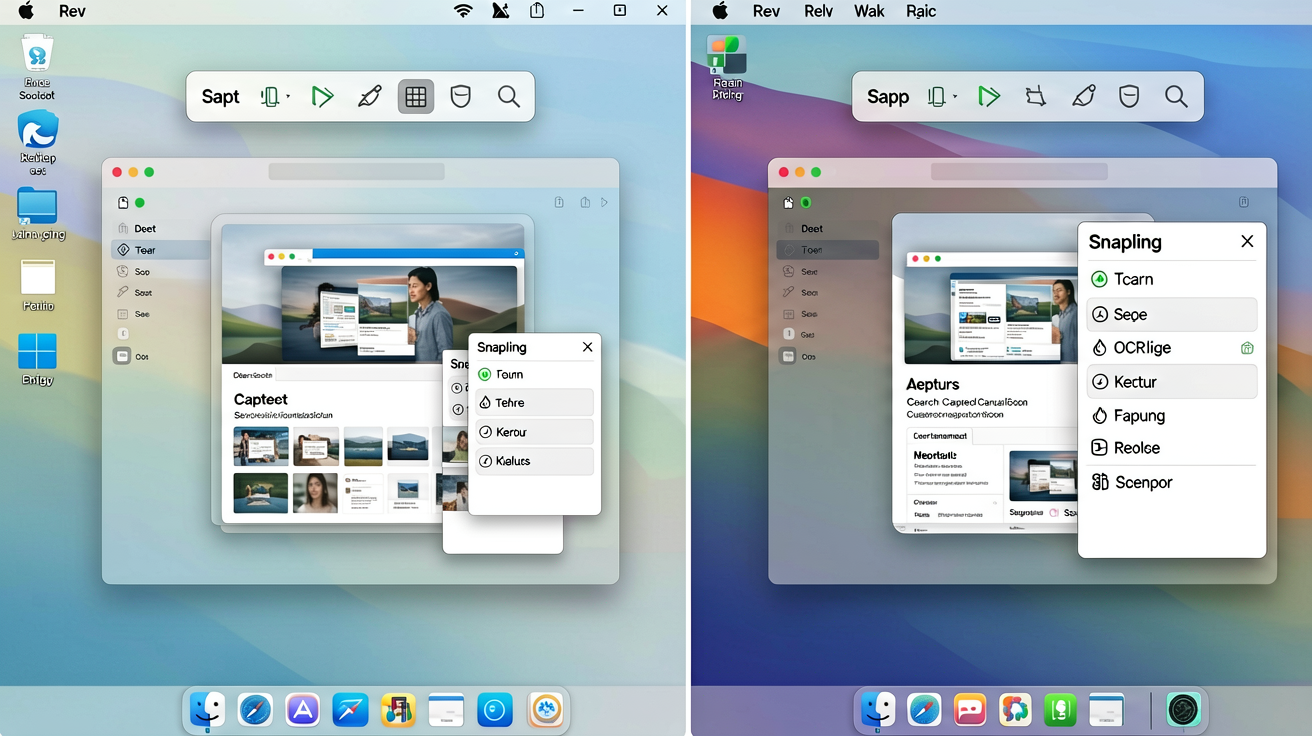
Snapling is the closest thing to a Greenshot equivalent for Mac, offering similar capture modes, annotation, and export options, while adding OCR search, a searchable screenshot history, and long-scroll capture. It’s free to start and runs entirely locally for privacy.
Definition
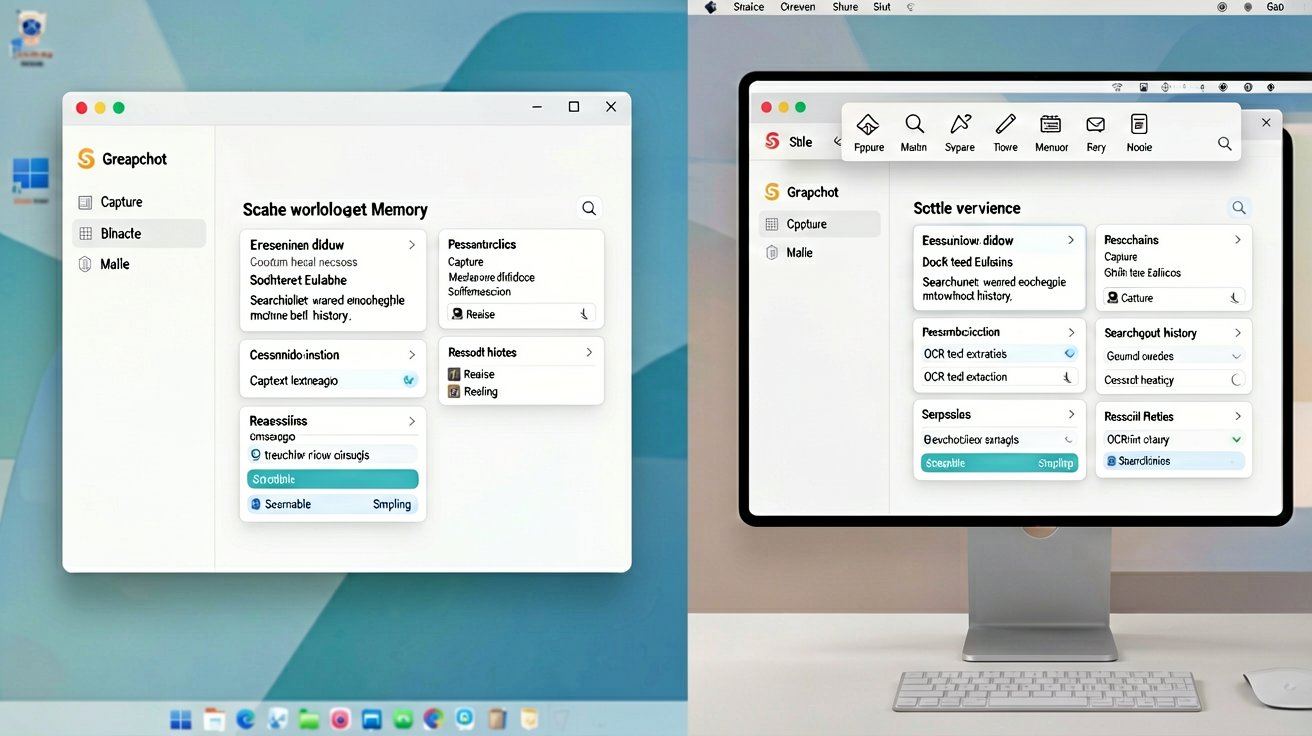
Greenshot Mac equivalent refers to a screenshot tool for macOS that provides the same core functionality as Greenshot on Windows: quick region capture, annotation, and export to clipboard, file, or sharing services. Snapling is the best Greenshot equivalent for Mac, adding features like OCR, screenshot history, and scrolling capture.
Why Mac Users Need a Greenshot Alternative
Greenshot has long been the go-to screenshot tool for Windows users, loved for its lightweight capture, intuitive annotation, and quick export. But Mac users have been left without a native equivalent, forced to rely on macOS’s basic screenshot utility or third-party tools that don’t quite match the workflow. If you’ve ever searched 'Greenshot for Mac' or 'best Greenshot alternative for Mac,' you’re not alone—it’s one of the most common requests in the Mac screenshot community.
Enter Snapling: a Mac-first screenshot workspace that not only replicates Greenshot’s core functionality but also modernizes the screenshot experience with OCR, searchable history, and scrollshot capture. In this article, we’ll compare Snapling to Greenshot and show you exactly why it’s the best Greenshot equivalent for Mac.
What Greenshot Offers and What Mac Users Miss
Greenshot’s popularity stems from its simplicity and speed. With a single hotkey, you can capture a region, window, or full screen, instantly open the built-in annotation editor to add arrows, text, highlights, and blur effects, then export the result to clipboard, file, printer, or email. It also supports uploading to Imgur, a feature many power users rely on. All of this happens without overwhelming menus or bloated interfaces.
On Mac, the closest built-in option is the screenshot toolbar (Command-Shift-5), which lacks annotation and export customization. Third-party tools like Skitch and Monosnap have faded, leaving a gap for a dedicated Greenshot-like utility. Mac users need a tool that offers Greenshot’s annotation richness, snappy performance, and flexible export—but in a native macOS design.
Introducing Snapling: The Greenshot Equivalent for Mac
Snapling is purpose-built for Mac users who want a Greenshot-like experience with modern upgrades. It offers the same instant capture modes: region, window, full screen, and even scrolling capture (something Greenshot doesn’t do natively). After capture, you’re dropped into a clean, floating annotation toolbar where you can add shapes, arrows, text, blur, and even draw freehand—exactly like Greenshot, but with a Mac-native aesthetic.
Export options include clipboard, file, email, and sharing—plus a clipboard history that auto-saves every screenshot you take. Unlike Greenshot, Snapling goes further: every screenshot is OCR-scanned at capture, making text in your images searchable. You can browse a chronological history of all your screenshots, search by keyword, and reuse them weeks later. It’s a workspace, not just a snipping tool.
Feature Comparison: Greenshot (Windows) vs Snapling (Mac)
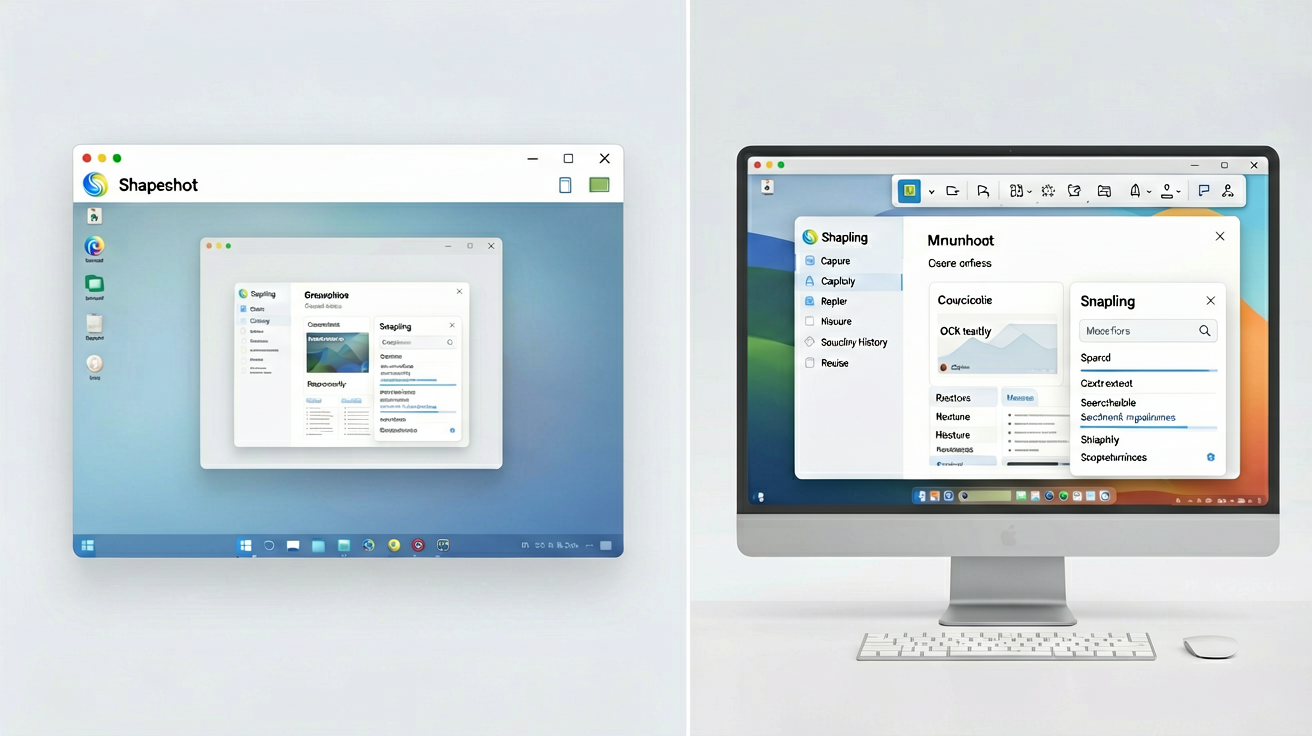
Here’s a quick rundown of how Snapling stacks up against Greenshot on the features that matter most to users. Region capture: both offer it. Window capture: both. Full-screen capture: both. Scrolling capture: Snapling offers it; Greenshot doesn’t. Built-in annotation: both, with similar tools. Export to clipboard/file/email: both. Upload to cloud: Greenshot supports Imgur; Snapling supports clipboard, file, and shares, with future cloud uploads.
Where Snapling pulls ahead: OCR search (make your screenshots text-searchable), screenshot history (view and revisit any past capture), clipboard manager (access recently copied items), local-first storage (privacy-focused, no mandatory cloud), and a modern Mac interface. Greenshot wins in extensibility via plugins, but Snapling’s built-in features address the most common workflows out of the box.
How Snapling Goes Beyond Greenshot with OCR and History
While Greenshot treats each screenshot as a one-off capture-annotate-export cycle, Snapling treats screenshots as reusable assets. The moment you capture, the image is saved locally and its text is extracted via OCR. This means you can later find that screenshot of a pricing table by searching for a specific price, or locate a bug report screenshot by searching for the error message. No more digging through folders or desktop clutter.
The screenshot history panel in Snapling is a game-changer for anyone who takes multiple screenshots during a session. You can quickly scroll through all captures, open any one in the annotation editor, or export it again with a single click. It’s like having a visual clipboard that never forgets. For tech writers, project managers, and QA testers, this transforms the screenshot workflow from reactive to proactive.
Getting Started with Snapling as Your Greenshot Replacement
Replacing Greenshot with Snapling is straightforward. Download Snapling from the official website, launch it, and you’ll see a floating toolbar or a menu bar icon. The default hotkeys are similar: Command-Shift-4 for region capture, Command-Shift-5 for window/full-screen (but customizable). The annotation editor opens automatically after each capture, just like Greenshot, and you can map your preferred export behavior.
Snapling is free to start with basic features, and a premium tier unlocks unlimited history and advanced export options. Since it runs completely on your Mac, your screenshots never leave your machine unless you choose to share them. It’s the most faithful Greenshot equivalent for Mac, with a set of enhancements that make it feel like the next generation.
Recommended next steps
Use these related Snapling guides when you want to go deeper into one part of the workflow.
Snipping Tool for Mac with OCR, GIFs & Screenshot History
Mac Snipping Tool Alternatives
FAQ
Is Greenshot available for Mac?
No, Greenshot is a Windows-only application and does not have a native Mac version. Some users have tried running it via compatibility layers like Wine, but performance and feature support are unreliable. The best alternative is to use a Mac-native tool like Snapling, which offers a similar workflow and additional features.
What is the best free Greenshot alternative for Mac?
Snapling is the best free Greenshot alternative for Mac. It offers a free tier with region capture, annotation, OCR search, and screenshot history. The free version includes basic export options and a limited history, while the premium plan unlocks unlimited history and advanced export. Unlike other alternatives, Snapling runs locally, ensuring your screenshots remain private.
Does Snapling have all the features of Greenshot?
Snapling covers all core Greenshot features: region/window/full-screen capture, annotation (arrows, shapes, text, blur, highlight), and export to clipboard, file, email, and sharing services. It also introduces features Greenshot lacks, such as scrolling capture, OCR text search, screenshot history, and a clipboard manager. Snapling does not have a plugin system like Greenshot, but its built-in tools handle most needs without extra configuration.
Can I use Snapling to replace Greenshot for bug reporting and documentation?
Absolutely. Snapling is ideal for bug reporting and documentation. You can capture specific regions, annotate with arrows and text to highlight issues, and export directly to clipboard or file. The screenshot history ensures you can revisit past captures, and the OCR search makes it easy to find screenshots containing specific text, such as error messages or version numbers.
Is Snapling private like Greenshot?
Yes, Snapling is local-first and privacy-focused. All screenshots are stored on your Mac, and no images are uploaded to the cloud unless you explicitly share them. Greenshot also runs locally, but its Imgur upload feature sends data to third parties. Snapling’s design ensures your screen content stays under your control, making it a secure choice for sensitive information.
How does Snapling compare to other Greenshot alternatives like Shottr or CleanShot?
Snapling differentiates itself from Shottr and CleanShot by combining Greenshot’s simplicity with advanced search and history. Shottr focuses on pixel-level accuracy and rulers, while CleanShot offers a polished overlay. Snapling’s unique value is its OCR searchable history—something neither competitor provides. For users who need to reuse and revisit screenshots, Snapling is the best fit. It also offers a free tier, unlike CleanShot which is paid.
Try the full workflow in Snapling
If you want this Greenshot alternative Mac workflow in one Mac workspace, download Snapling for Mac and try it with a screenshot you would normally need to find, copy, explain, or reuse.
Try the full workflow in Snapling
Capture the screenshot, keep the useful context, search it later, and reuse it when the work comes back.