
Snipping Tool for Mac
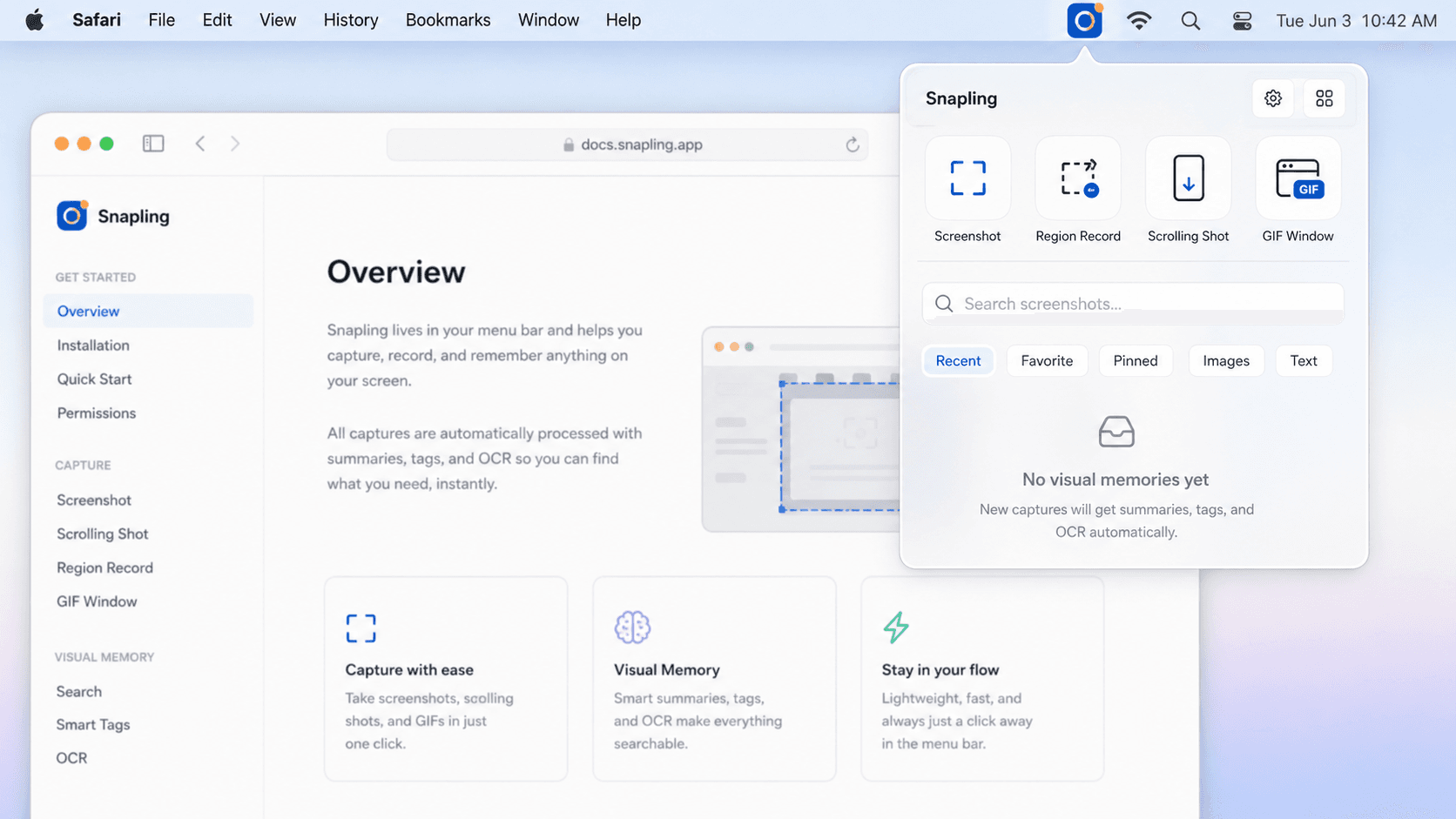
Capture and organize your visual memory on Mac. Snapling helps you capture screenshots, scrolling pages, GIFs and clipboard content, then annotate, translate, search and organize everything privately on your Mac.
Snapling is a snipping tool for Mac built for the work that happens after capture. It combines screenshots, scrolling captures, GIF recording, OCR, translation, clipboard content and screenshot history in a private local-first workflow.
A snipping tool for Mac is a screen capture workflow for saving, editing, finding and reusing visual content from macOS.
Use Snapling as a snipping tool for Mac to capture screenshots, scrolling pages, GIFs and clipboard content with OCR, annotation and private history.
What is a snipping tool for Mac?
A snipping tool for Mac lets you capture part of the screen, a window, a full page or a short motion sequence without turning every capture into a manual file-management task.
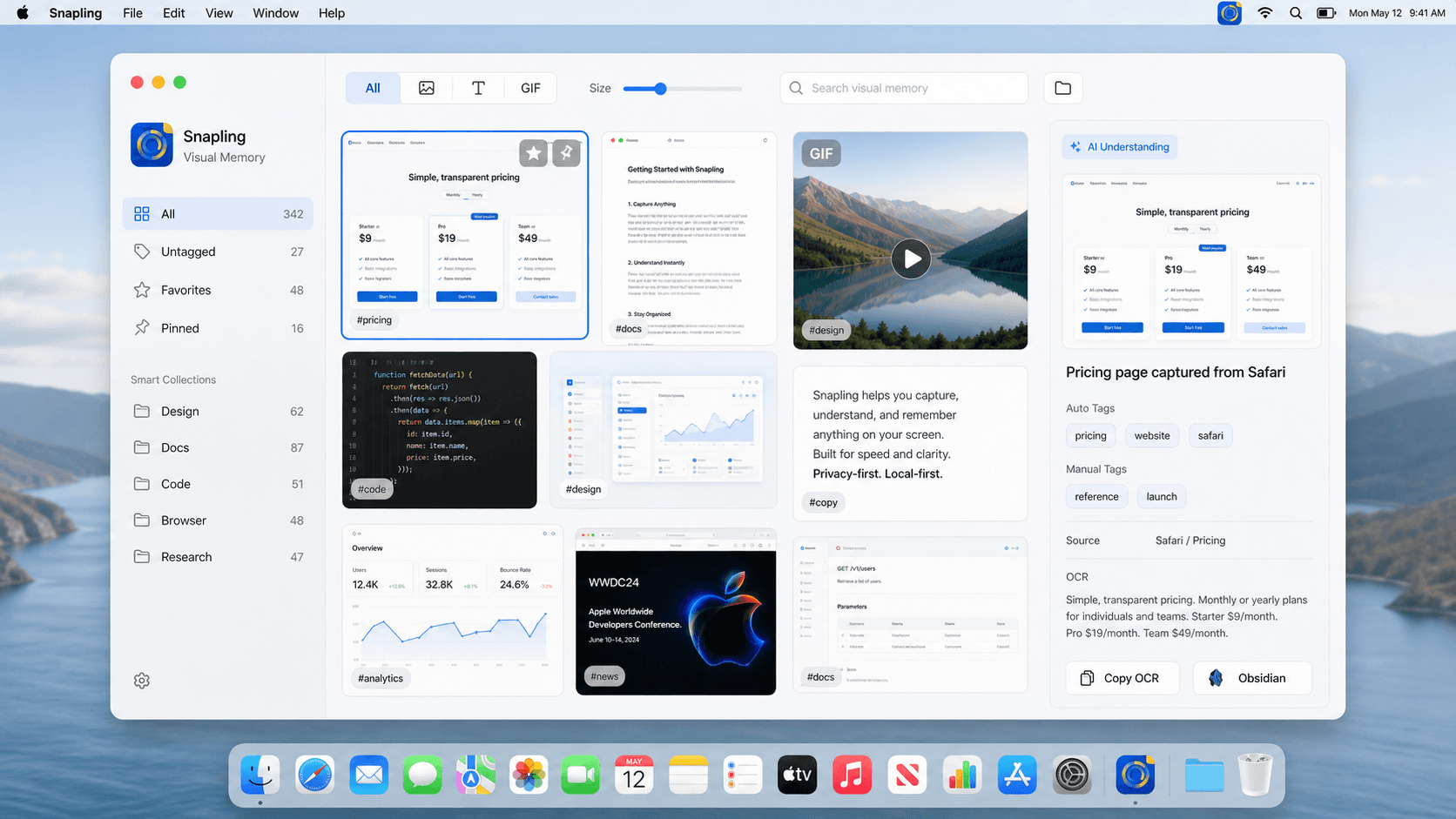
The better version of that workflow does not stop at saving an image. It keeps the captured content searchable, reusable and organized so screenshots become part of your visual memory.
Why basic screenshots are not enough
macOS screenshot shortcuts are useful for one-off captures, but they do not handle every modern workflow cleanly. Scrolling pages, GIF tutorials, copied clipboard content, OCR and translation usually require extra tools or extra steps.
That friction matters when screenshots are part of product feedback, research, documentation, support or content creation. The capture needs to stay fast, but the follow-up work needs to stay close.
Is there a Snipping Tool on Mac?
Mac does not use the same app name as the Windows Snipping Tool. The closest built-in options are the macOS screenshot shortcuts and the Shift-Command-5 screenshot toolbar.
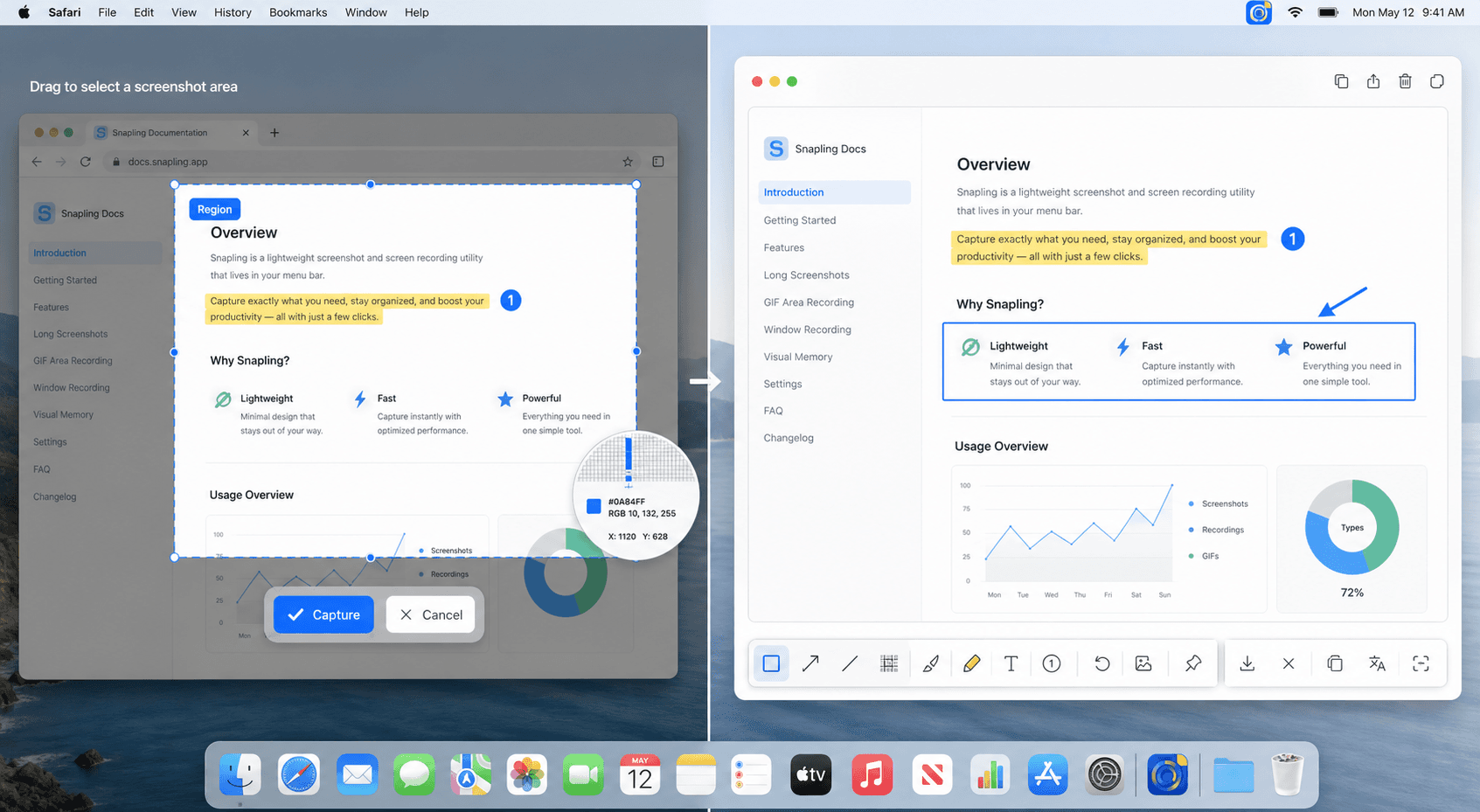
Those built-in tools are good for quick screen grabs. People usually start searching for a snipping tool for Mac when they want the next layer: selected-area capture plus annotation, scrolling screenshots, OCR, GIF recording, clipboard capture or a searchable screenshot history.
Built-in Mac screenshots vs a dedicated snipping tool
Use the built-in shortcuts when the screenshot is disposable: capture, paste, move on. Use a dedicated Mac snipping tool when the capture is part of a workflow you need to explain, search, translate, save or reuse later.
That difference matters for product teams, researchers, support work, documentation and creator workflows. In those cases, the best tool is not only the fastest way to snip a rectangle; it is the one that keeps the captured context useful after the first paste.
How Snapling keeps capture and memory together
Snapling brings screenshots, scrolling captures, GIF recording and clipboard content into one Mac workflow. After capture, you can annotate, extract text, translate content and keep the result in a searchable local history.
That makes Snapling useful as more than a quick snip utility. It becomes a private visual memory layer for the screen details you may need again later.
When to use Snapling
Use Snapling when a screenshot needs to explain something, preserve context or become useful again later. Common examples include bug reports, UI reviews, tutorial assets, research notes, multilingual references and product documentation.
If you regularly lose useful screenshots in folders or need to copy text from images, a local-first snipping tool with OCR and history can shorten the whole loop.
| Need | Built-in Mac screenshot tools | Snapling snipping workflow |
|---|---|---|
| Selected-area snip | Fast with Shift-Command-4 | Fast capture plus annotation, OCR and history |
| Screenshot toolbar | Available with Shift-Command-5 | Keeps screenshots, GIFs and follow-up actions in one workflow |
| Scrolling screenshots | No complete built-in long page workflow | Captures long pages and keeps them with the rest of your visual memory |
| Copy text from screenshots | Depends on separate OCR or Live Text behavior | Keeps OCR text connected to the original screenshot |
| Find old captures | Usually relies on files and folders | Searchable local history with visual memory, tags and OCR text |
| Clipboard context | Separate from screenshot capture | Copied text and images can stay connected to screenshot work |
A few clear answers before you leave.
Is there a Snipping Tool for Mac?
Mac does not have the Windows Snipping Tool by that name. The built-in equivalents are screenshot shortcuts and the Shift-Command-5 toolbar, while apps like Snapling add OCR, GIFs, scrolling capture, clipboard content and searchable history.
What is the best snipping tool for Mac?
The best snipping tool for Mac depends on whether you only need quick screenshots or also need OCR, GIFs, scrolling capture, translation and searchable screenshot history.
Can a Mac snipping tool capture scrolling pages?
Yes. A workflow-focused Mac snipping tool can capture scrolling pages so long content stays in one continuous screenshot instead of several manual pieces.
Does Snapling support OCR for screenshots?
Yes. Snapling is designed to keep OCR close to capture so text inside screenshots can be copied, searched and reused more easily.
Can I record GIFs with a snipping tool on Mac?
Yes. GIF recording is useful when a static screenshot cannot show timing, hover states, product flows or short tutorial steps clearly.
Is Snapling private?
Snapling is built around a local-first Mac workflow, which helps keep screenshots, clipboard content and visual history private by default.
Related guides
How to screenshot on Mac
Learn the Mac screenshot shortcuts for full screen, windows and selected areas, then see when to use a snipping tool with OCR and history.
Best free snipping tool for Mac: built-in vs Shottr vs Snapling
Compare free Mac snipping tools including macOS Screenshot, Shottr, Lightshot, Monosnap and Snapling for OCR, scrolling screenshots, GIFs and history.
Best Mac screenshot apps in 2026
Compare the best Mac screenshot apps in 2026 by capture speed, OCR, GIFs, long screenshots, clipboard capture, screenshot history, privacy and team workflows.
How to copy text from screenshots on Mac
Use OCR on Mac screenshots to copy text from images and keep your screenshot workflow fast and reusable.
Sources
- Take a screenshot on Mac — Apple Support
- CleanShot X for Mac — CleanShot
- Shottr URL schemes and capture features — Shottr
Try the Mac snipping workflow shown above.
Download Snapling to capture screenshots, scrolling shots, GIFs, OCR text and visual memory from the same menu bar workflow.