
Screenshot and Copy Text on Mac
Screenshot and copy text on Mac with a workflow that combines capture, OCR, searchable history, and a direct Snapling download.
Use a screenshot-and-copy workflow when you need both the image and the text behind it to stay useful after the first paste.
Screenshot and copy on Mac is a workflow for capturing an image, copying useful text, and keeping both available for later reuse.
Why 'Screenshot and Copy' Is Really a Two-Step Workflow
Most Mac users take a screenshot, glance at it, and move on. But the real value comes when you can pull text out of that image, copy it to the clipboard, and reuse it later. Without that second step, you end up retyping or re-capturing the same content over and over.
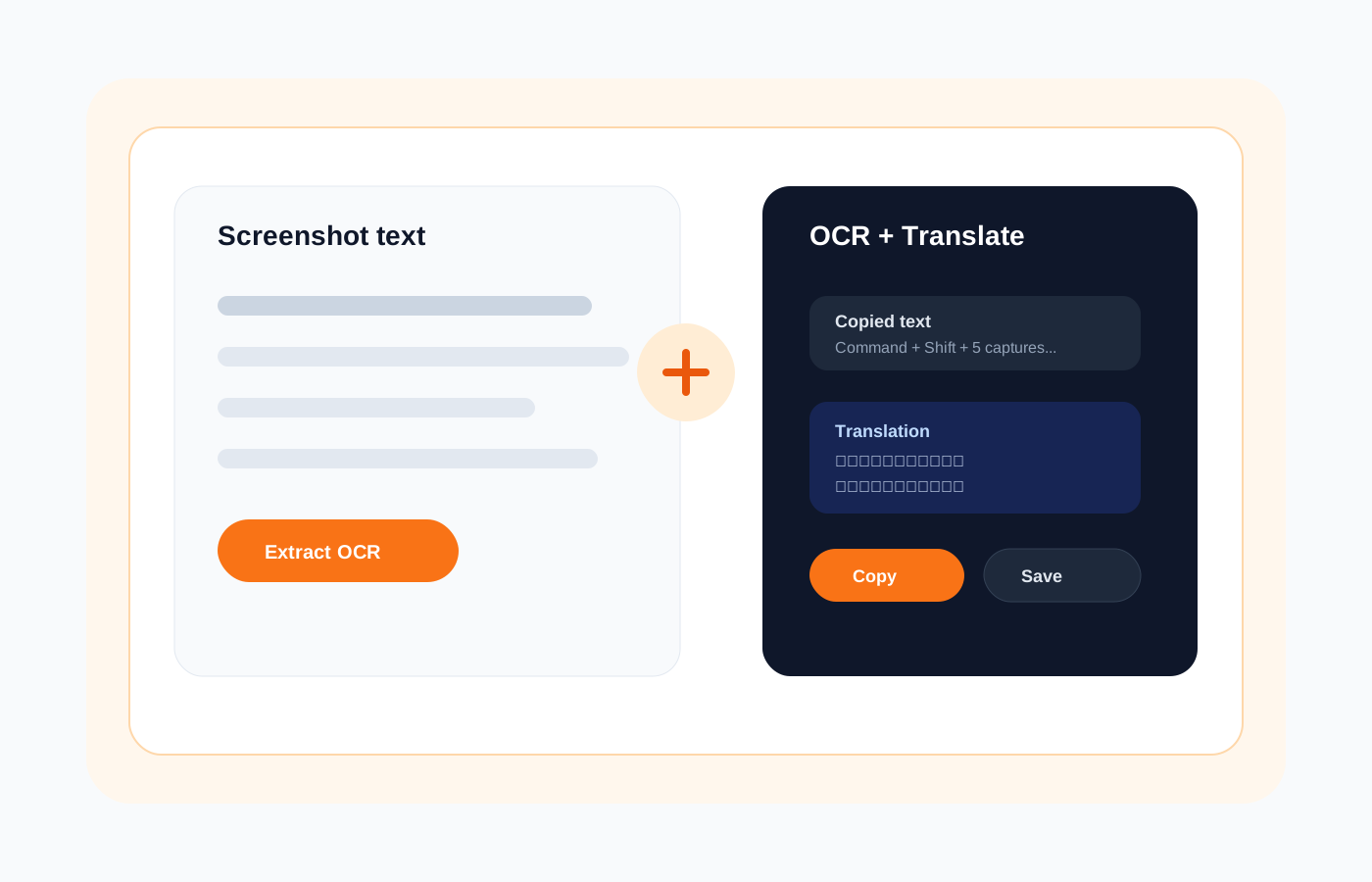
A proper screenshot and copy workflow means capturing once, extracting what matters, and keeping the result searchable. This guide walks through every stage — from keyboard shortcuts to OCR to long-term reuse — so your screenshots actually work for you after you take them.
Part 1: Mac Screenshot Shortcuts for Capture and Clipboard
macOS gives you three core shortcuts: Cmd+Shift+3 for the full screen, Cmd+Shift+4 for a selection, and Cmd+Shift+5 for the Screenshot toolbar with recording options. Each one saves a PNG to your desktop by default, which is fine for one-off captures but leaves files scattered and hard to find later.
To copy a screenshot directly to the clipboard instead of saving a file, hold the Ctrl key with any of those shortcuts — for example, Ctrl+Cmd+Shift+4. This sends the image straight to your clipboard so you can paste it into a document or chat. It is fast, but the image is still just a picture with no searchable text inside it.
Part 2: Copy Text from Screenshots Using OCR
Optical Character Recognition reads the text inside an image and converts it into selectable, copyable characters. On Mac, macOS offers basic OCR through Live Text in Preview and Quick Look, but it works best on clean, high-contrast text and is limited to static viewing — you cannot batch-process or search across captures.
For a faster and more reliable workflow, a dedicated tool like Snapling runs OCR locally on your Mac the moment you capture a screenshot. The extracted text appears alongside your image, ready to copy with a click. Nothing leaves your machine, and the results are indexed so you can search them later.
Part 3: Keep Past Screenshots Searchable So You Can Copy Again
The biggest hidden cost of screenshots is rediscovery. You captured something useful last week — a confirmation number, a recipe step, a code snippet — but now it is buried in a folder or lost in Photos. Without indexing, finding it means scrolling through hundreds of images by date.
When every screenshot is OCR-indexed at capture time, your history becomes a searchable archive. In Snapling, typing a keyword instantly surfaces the screenshot containing that text, even if you only remember a few words. You can then copy the text again without re-capturing or retyping anything.
The Full Workflow: Capture, OCR, Search, Copy in Snapling
Snapling unifies the entire cycle into one local workspace. Capture any region or window with a shortcut, and the screenshot is immediately OCR-processed and added to your searchable history. From there, you can copy the extracted text, annotate the image, or export it when you are ready to share.
This approach treats screenshots as living reference material rather than disposable files. Instead of a capture-and-forget habit, you build a personal visual knowledge base where every image carries its text with it — searchable, reusable, and always available offline on your Mac.
Built-in Mac Shortcuts vs. a Dedicated Screenshot and Copy Tool
macOS built-in shortcuts are excellent for quick, throwaway captures. If you need to grab a full screen once, paste it into an email, and never look at it again, Cmd+Shift+Ctrl+3 does the job in under a second. Live Text handles occasional one-off text extraction reasonably well too.
Where built-in tools fall short is in the reuse cycle. There is no screenshot history, no cross-capture search, and no local OCR pipeline that indexes everything automatically. If you regularly copy text from screenshots, annotate captures, or need to find past images by content, a unified tool like Snapling eliminates the friction that accumulates when you piece together workarounds.
FAQ
How do I copy text from a screenshot on Mac?
Open the screenshot in Preview or Photos, then hover over the text until the cursor changes to a text selection. Click and drag to select the characters, then press Cmd+C to copy. For a faster workflow, Snapling extracts all text automatically via local OCR the moment you capture — no manual selection needed.
Can Mac screenshots be converted to text automatically?
Yes. macOS Live Text can recognize text in images opened in Preview or Quick Look, but it requires manual interaction and does not index your screenshots. Tools like Snapling automate the process: every capture is OCR-processed and indexed at save time, so the text is always ready to copy or search.
How do I take a screenshot and copy it to the clipboard on Mac?
Hold the Control key with any screenshot shortcut. Press Ctrl+Cmd+Shift+3 for a full-screen capture to the clipboard, or Ctrl+Cmd+Shift+4 for a selection. The image goes directly to your clipboard without saving a file to your desktop.
Is there a way to OCR screenshots on Mac without uploading to the cloud?
Yes. Snapling runs all OCR processing locally on your Mac, so your screenshots and extracted text never leave your device. This also means OCR works offline and is faster than cloud-based alternatives because there is no upload or download step.
How do I search for text inside past screenshots on Mac?
macOS does not natively index text inside screenshot images for Spotlight search. With Snapling, every screenshot is OCR-indexed at capture time. You can type any keyword into the search bar and instantly find the screenshot containing that text, even months after you captured it.
Recommended next steps
Try the full workflow in Snapling
Capture the screenshot, keep the useful context, search it later, and reuse it when the work comes back.