
How to record GIFs on Mac for tutorials
Not every explanation needs video editing. Sometimes a short GIF is enough to show a bug, a flow or a quick gesture. The trick is keeping the capture small, readable and easy to share.
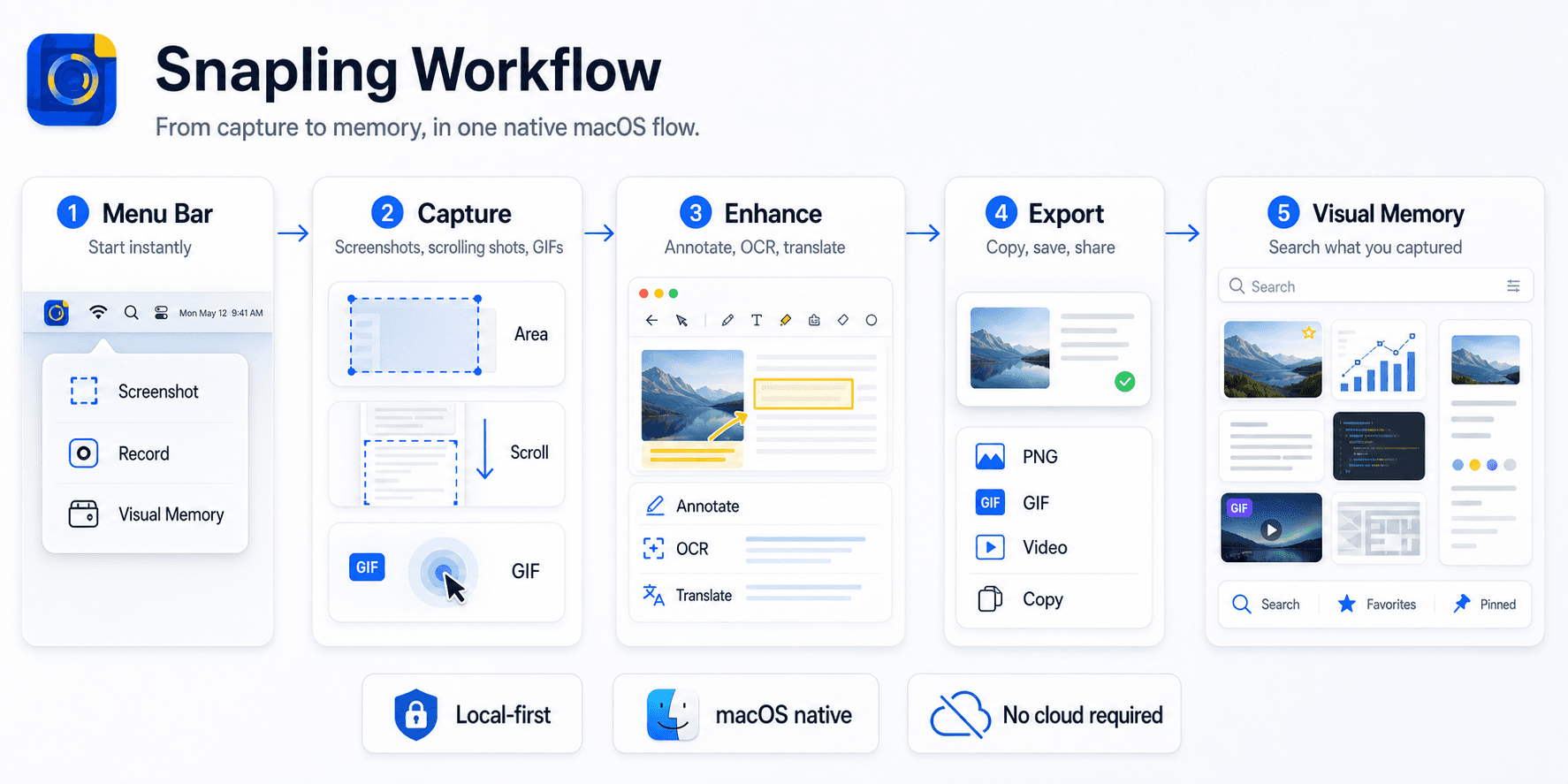
The best way to record GIFs on Mac is to capture a focused region, keep the motion short and save the result next to the screenshots and notes it explains. Snapling combines GIF recording with screenshots, OCR, clipboard capture and Visual Memory.
A GIF screen recorder for Mac captures a short screen action as a looping visual that can be embedded in docs, chats and issue reports.
A lightweight GIF screen recorder Mac workflow for tutorials, demos and short visual explanations.
Why GIFs still work
GIFs are useful because they play instantly in chats, docs and issue threads. They are often faster to review than a full video and more expressive than a still screenshot.
For tutorials and bug reports, a GIF screen recorder Mac workflow can reduce explanation time significantly.
For a related step, see snipping tool for Mac workflow to choose a capture or organization workflow that fits.
What makes a good tutorial GIF
Keep the region tight, the action short and the message obvious. A small, focused recording usually communicates more clearly than a large, noisy one.
The best GIF capture tools help you stay close to the exact area that matters without turning a quick recording into a production task.
For a related step, see Mac screenshot shortcuts to choose a capture or organization workflow that fits.
When to use GIF instead of screenshot
Use a screenshot when one frame says everything. Use a GIF when timing, hover states, transitions or step order actually matter.
The strongest Mac capture workflows let you choose between both without changing tools.
For a related step, see Mac screenshot tools comparison to choose a capture or organization workflow that fits.
Keep GIFs connected to the rest of the evidence
A GIF often explains the action, while screenshots and OCR text explain the surrounding context. Keeping them together makes bug reports and tutorials easier to understand later.
Snapling treats GIFs as part of the same visual memory workflow as screenshots, longshots and clipboard content.
Check Snapling free and Pro pricing for included features and screenshot history limits.
A few clear answers before you leave.
What is the best way to record a GIF on Mac for tutorials?
Use a focused region, keep the recording short and choose a workflow that lets you move from capture to sharing without unnecessary editing overhead.
Why use a GIF instead of a full video?
GIFs are fast to review, easy to embed and often enough for quick tutorial moments, bug reports and product explanations.
Can I record a selected area as a GIF on Mac?
Yes. A focused region recording is usually clearer and easier to share than recording the entire screen.
What should I record as a GIF?
Record short interactions where timing matters, such as hover states, transitions, menu flows, bug reproduction steps or quick tutorials.
Should GIF recordings be saved with screenshot history?
Yes. Keeping GIFs in the same history as screenshots makes visual evidence easier to search, browse and reuse.
Related guides
How to Screenshot on Mac: Shortcuts, Snips, and Section Captures (2026)
Learn the Mac screenshot shortcuts for full screen, windows and selected areas, then see when to use a snipping tool with OCR and history.
Snipping Tool Mac: The Easy Guide to Daily Captures, Copy-Paste, and Better Tools
Looking for a snipping tool Mac solution? Discover how to use the snip tool on Mac and MacBook, master copy and paste workflows, and explore modern alternatives.
Best Mac screenshot apps in 2026
Compare the best Mac screenshot apps in 2026 by capture speed, OCR, GIFs, long screenshots, clipboard capture, screenshot history, privacy and team workflows.
Visual Memory Library for Mac screenshots
Learn how a Visual Memory Library helps Mac users browse, keep and reuse screenshots, GIFs and captured screen content.
Sources
- How to record the screen on Mac — Apple Support
- CleanShot X features — CleanShot
- Snagit screen capture and editing features — TechSmith
Record a focused GIF without changing tools.
Use Snapling when one screenshot is not enough and you need a short motion capture that stays connected to the rest of your visual evidence.