
Copy Screenshot to Clipboard on Mac
Copy a screenshot to clipboard on Mac, extract text with OCR, and keep useful captures searchable in Snapling.
TL;DR
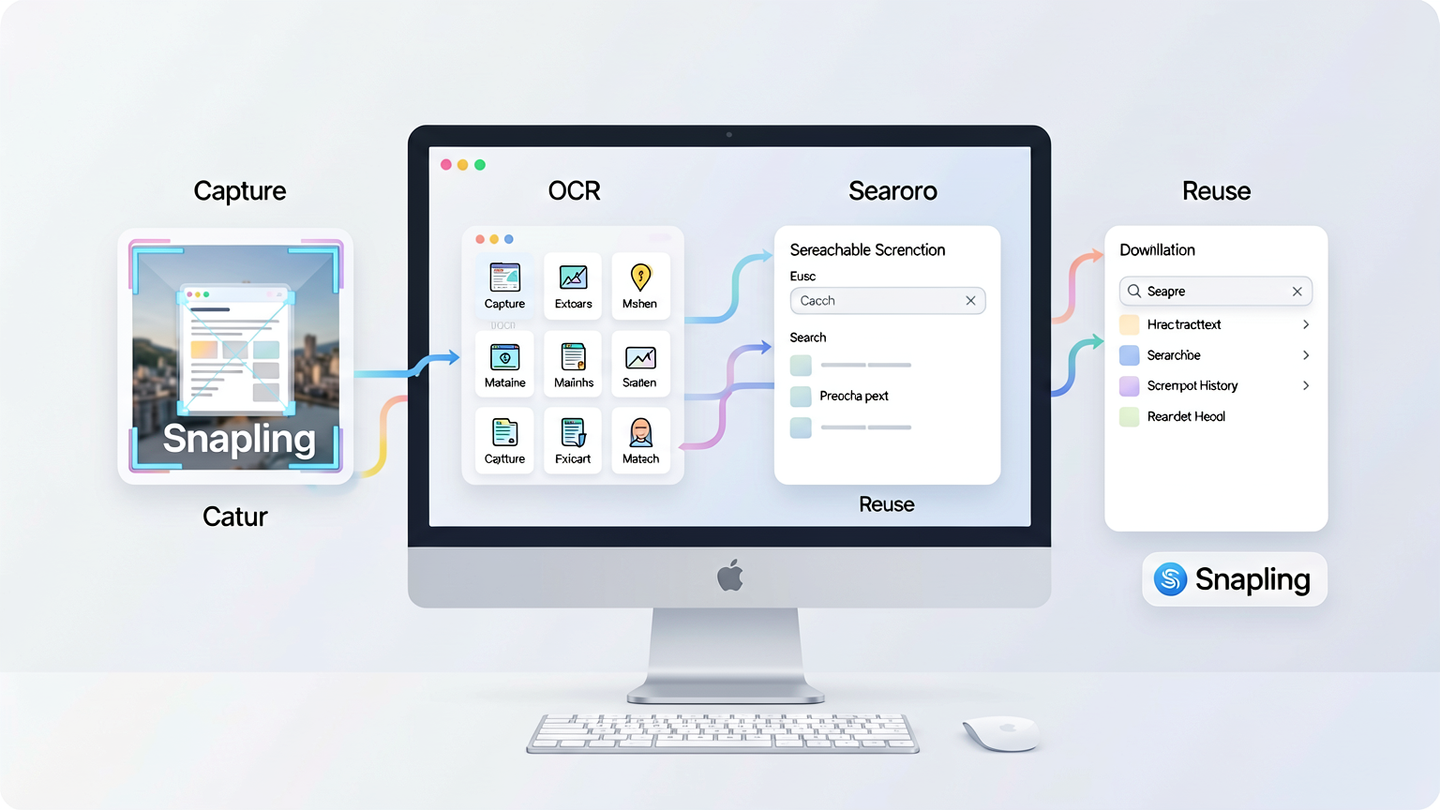
Copying a screenshot on Mac is just the start—real productivity comes from keeping that screen content searchable and reusable after capture. Snapling connects capture, OCR, searchable history, and selective export so your screenshots stay useful long-term.
Definition
A screenshot copy workflow on Mac captures screen content into a persistent, searchable system so that visual information can be retrieved, annotated, and reused instead of lost in a cluttered desktop or clipboard.
What This Workflow Solves for Mac Users
Most Mac users know the keyboard shortcuts for capturing screenshots, but few have a system for what happens after the image lands on their desktop. Screenshots pile up with opaque filenames, text inside images stays unsearchable, and valuable context gets buried.
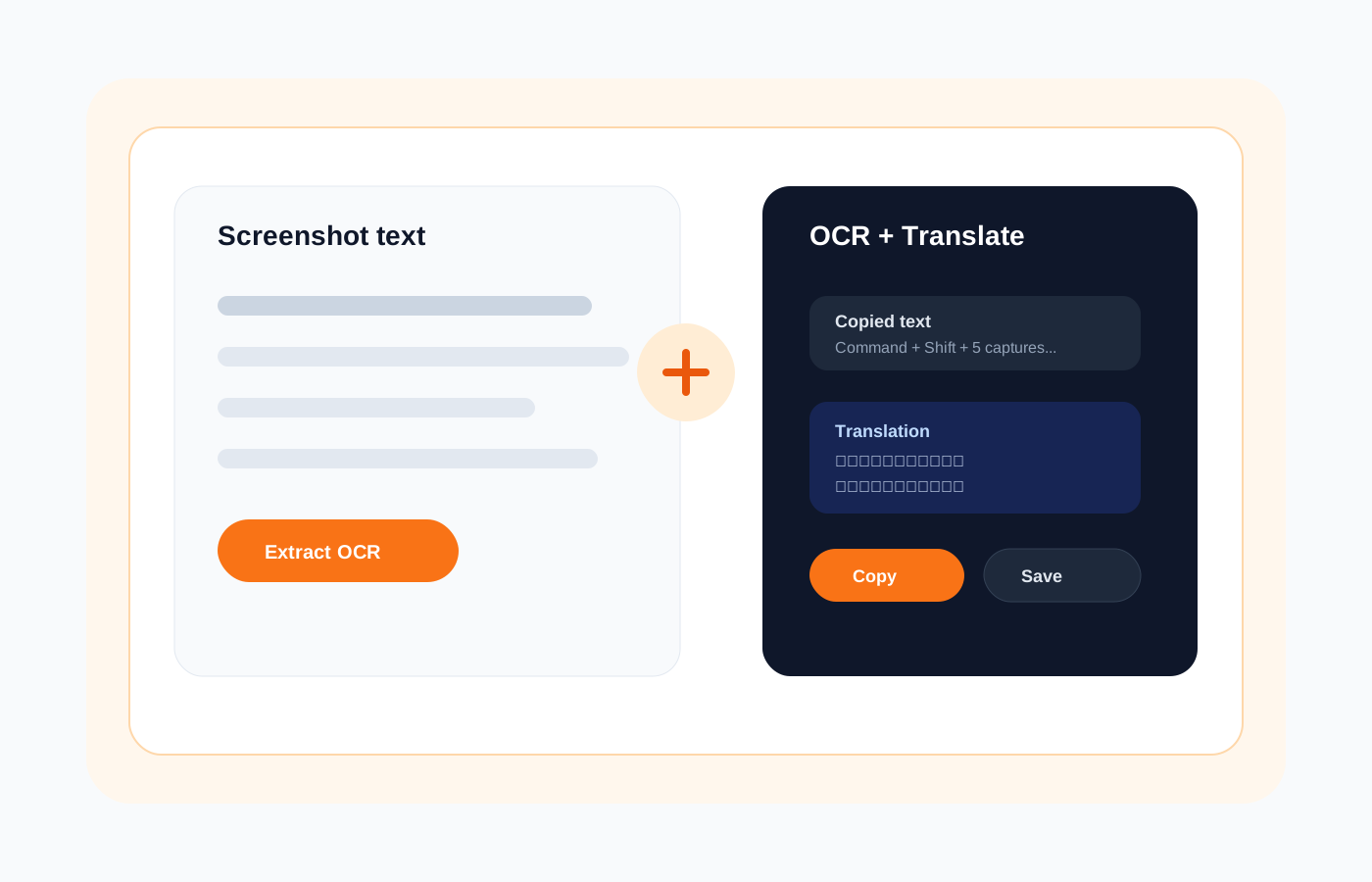
A copy-screenshot workflow solves this by treating each capture as a reusable piece of information, not a disposable image. When your screenshots connect to OCR, search, and history, you stop re-capturing things you already have and start reusing what you already know.
What Does 'Copy Screenshot on Mac' Really Mean?
On a Mac, copying a screenshot typically means pressing Shift-Command-3 for full screen, Shift-Command-4 for a selection, or Shift-Command-5 for the screenshot toolbar. The image lands on your desktop or clipboard as a PNG file.
But copying a screenshot into a file is only step one. A complete workflow means that screenshot becomes findable by text it contains, linked to when and where you took it, and available for reuse without digging through Finder.
Step 1: Capture the Right Screen Context
Start by deciding what level of screen content you need. Full-screen captures are useful for documenting an entire state, while selected-region captures help isolate a single element like an error message, a UI component, or a specific paragraph.
Snapling lets you capture full screens, windows, selected regions, scrolling pages, and even animated GIFs—so you choose the format that matches the context you want to preserve. Clipboard capture also means you can grab content you already copied elsewhere.
Step 2: Keep Screenshots Searchable with OCR and History
The biggest gap in most screenshot workflows is finding content later. A PNG with an unreadable filename like 'Screenshot 2024-03-15 at 10.42.03.png' tells you nothing about what it contains. Without search, you are forced to browse visually or recapture.
Snapling runs OCR on every capture automatically, extracting text from images so you can search by words that appeared on screen. Combined with a chronological screenshot history, this means you can type a keyword and find the exact visual context you need, minutes or months later.
Step 3: Reuse Visual Context in Docs, Support, and Team Workflows
Once screenshots are searchable, they become source material rather than dead files. You can pull up a captured error message to reference in a support ticket, grab a UI screenshot for a design spec, or retrieve a clipped table for a report—without retaking anything.
Snapling supports annotations, translations, and selective export so you can prepare captured content for its next use directly inside the tool. Share only the screenshot that matters, with the context you choose to include, instead of dumping your entire desktop.
When to Upgrade Your Screenshot Workflow with Snapling
If you capture screenshots occasionally and share them immediately, the built-in Mac shortcuts may be enough. But if you find yourself recapturing the same screens, searching for text you remember seeing but cannot locate, or struggling to organize hundreds of images, your workflow has outgrown native tools.
Snapling is designed for users who treat screenshots as working information. It keeps visual context usable after capture by connecting OCR, search, history, annotations, and export into a single private Mac workspace. See the full feature set on the Snapling features page or download Snapling to try the workflow yourself.
Recommended next steps
Use these related Snapling guides when you want to go deeper into one part of the workflow.
Snapling - Snipping Tool for Mac with OCR, GIFs & Screenshot History
How to screenshot on Mac: shortcuts, snips and next steps
FAQ
What is the best way to manage screenshot copies on Mac?
The best way is to use a tool that captures screenshots into a searchable library rather than saving individual files to your desktop. Snapling stores every capture with OCR-extracted text and a chronological history, so you can find and reuse any screenshot by searching its content.
Can screenshots be searchable after capture on Mac?
Yes, screenshots become searchable when they are processed with OCR (optical character recognition) to extract the text visible in the image. Snapling runs OCR automatically on every capture, letting you search by keywords that appeared on screen—even inside images, PDFs, or app interfaces.
How does Snapling help reuse screenshot context?
Snapling keeps captured screen content in a persistent workspace where you can annotate, translate, and selectively export screenshots. Instead of treating each capture as a one-off image file, it maintains a searchable history so you can retrieve and reuse any visual context you previously captured.
What is the difference between Mac's built-in screenshot tools and Snapling?
Mac's built-in shortcuts save screenshots as individual image files with no built-in search, OCR, or history management. Snapling adds a full capture-to-reuse layer including OCR, searchable screenshot history, annotations, scrolling capture, GIF recording, and selective export—so your screenshots stay useful after the initial capture.
Try the full workflow in Snapling
If you want this how to copy screenshot on mac workflow in one Mac workspace, download Snapling for Mac and try it with a screenshot you would normally need to find, copy, explain, or reuse.
Recommended next steps
Try the full workflow in Snapling
Capture the screenshot, keep the useful context, search it later, and reuse it when the work comes back.