
How to Screenshot on Mac: Shortcuts, Snips, and Section Captures (2026)
Three keyboard shortcuts cover almost every Mac screenshot need. Shift-Command-3 captures the full screen. Shift-Command-4 lets you snip any selected area. Shift-Command-5 opens the screenshot toolbar with extra options. Read on to see which shortcut fits each task, and when a dedicated snipping tool handles what the defaults cannot.
Shift-Command-3 = full screen. Shift-Command-4 = snip a selected area. Shift-Command-5 = screenshot toolbar. Add Control to Shift-Command-3 or Shift-Command-4 to copy the image to the clipboard, then paste with Command-V.
A Mac screenshot is a captured image of your full screen, a selected area, a window or a longer visual context from macOS.
Learn the Mac screenshot shortcuts for full screen, windows and selected areas, then see when to use a snipping tool with OCR and history.
Shortcut for screenshot on Mac: full screen, window, or clipboard
Three shortcuts cover most Mac screenshot needs: Shift-Command-3 captures the full screen. Shift-Command-4 lets you drag a selection over any part of the screen. Shift-Command-5 opens the screenshot toolbar with extra options including timer, save location and screen recording.
To copy a capture to the clipboard instead of saving a file, use Control-Shift-Command-3 or Control-Shift-Command-4. Press Command-V to paste it.
For a related step, see snipping tool for Mac workflow to choose a capture or organization workflow that fits.
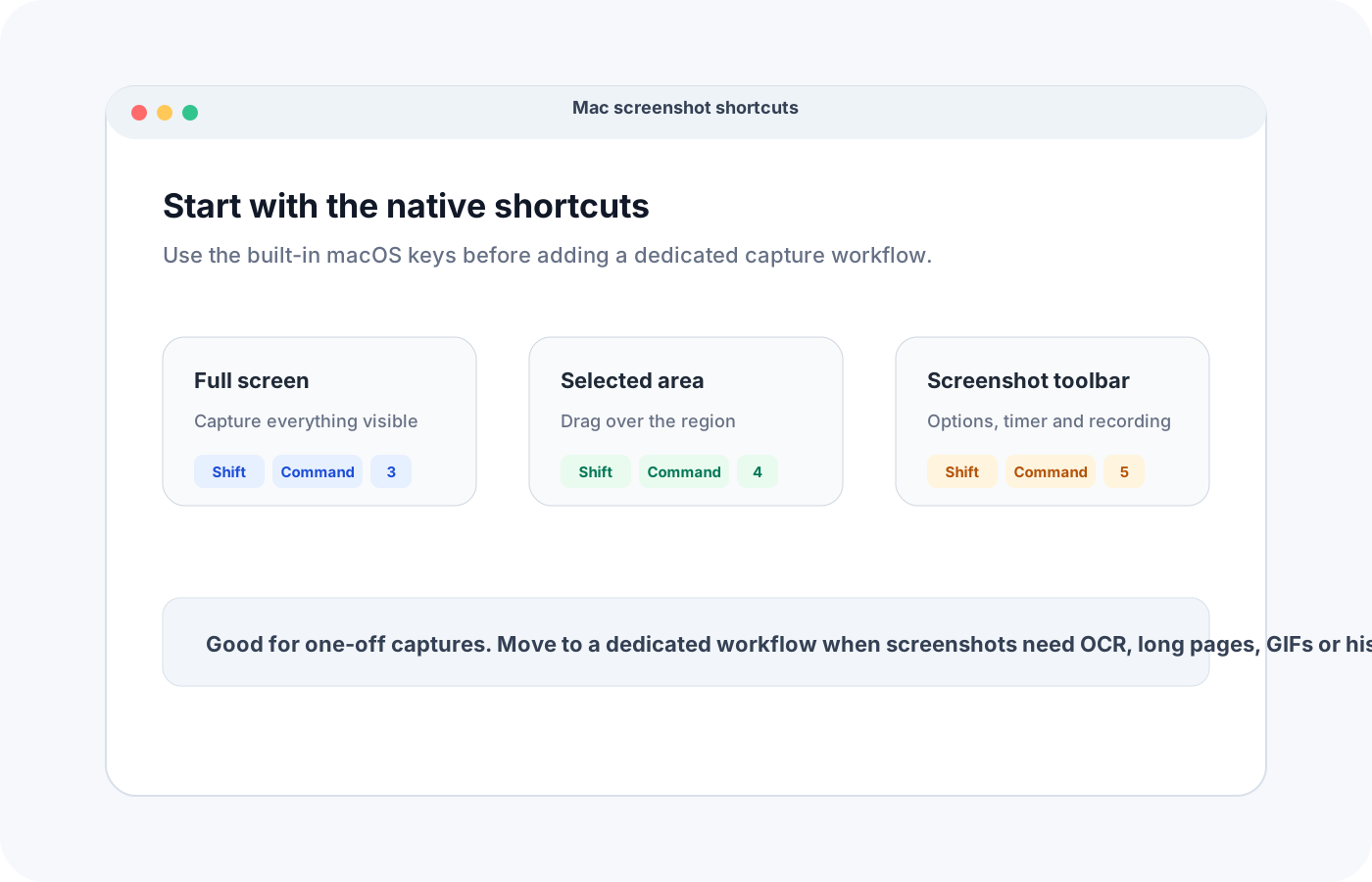
MacBook screenshot command: which keys should you press?
Use selected-area capture (Shift-Command-4) when you only need a small part of the interface. Use window capture when the app frame matters — press Shift-Command-4, then Space and click the window. Use the screenshot toolbar (Shift-Command-5) when you want a timer, a save location or a screen recording option.
Keep the capture focused. A tighter screenshot usually communicates more than a full desktop with extra visual noise.
For a related step, see free snipping tool features and limits to choose a capture or organization workflow that fits.
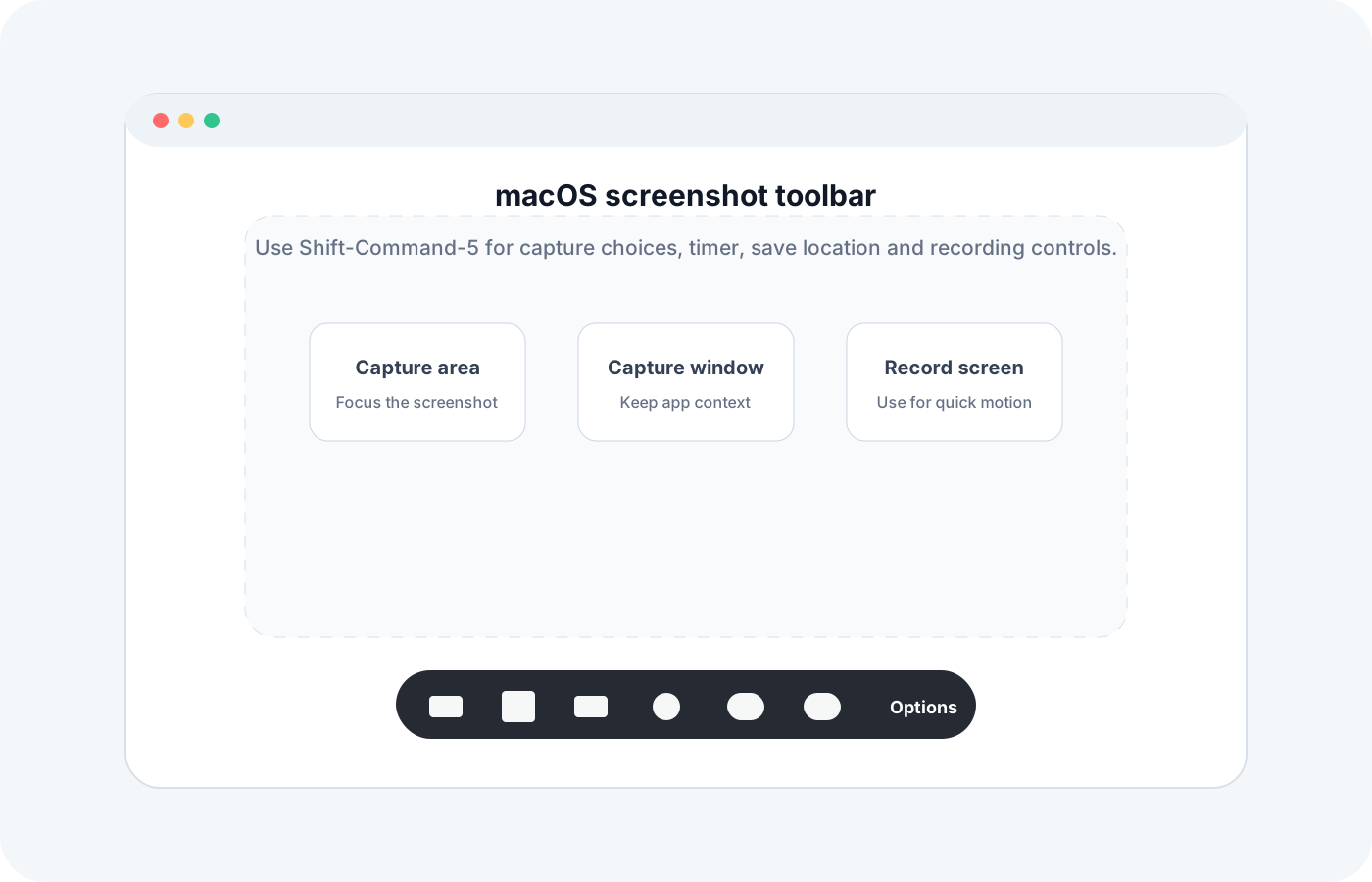
How to screenshot a section on Mac
Press Shift-Command-4, drag across the section you need and release to capture it. Hold Space while dragging to move the selection without resizing it, or press Escape to cancel.
To copy the selected section instead of saving a file, press Control-Shift-Command-4, select the area and paste with Command-V. For a whole window, press Shift-Command-4, then Space and click the window.
For a related step, see copying text from screenshots to choose a capture or organization workflow that fits.
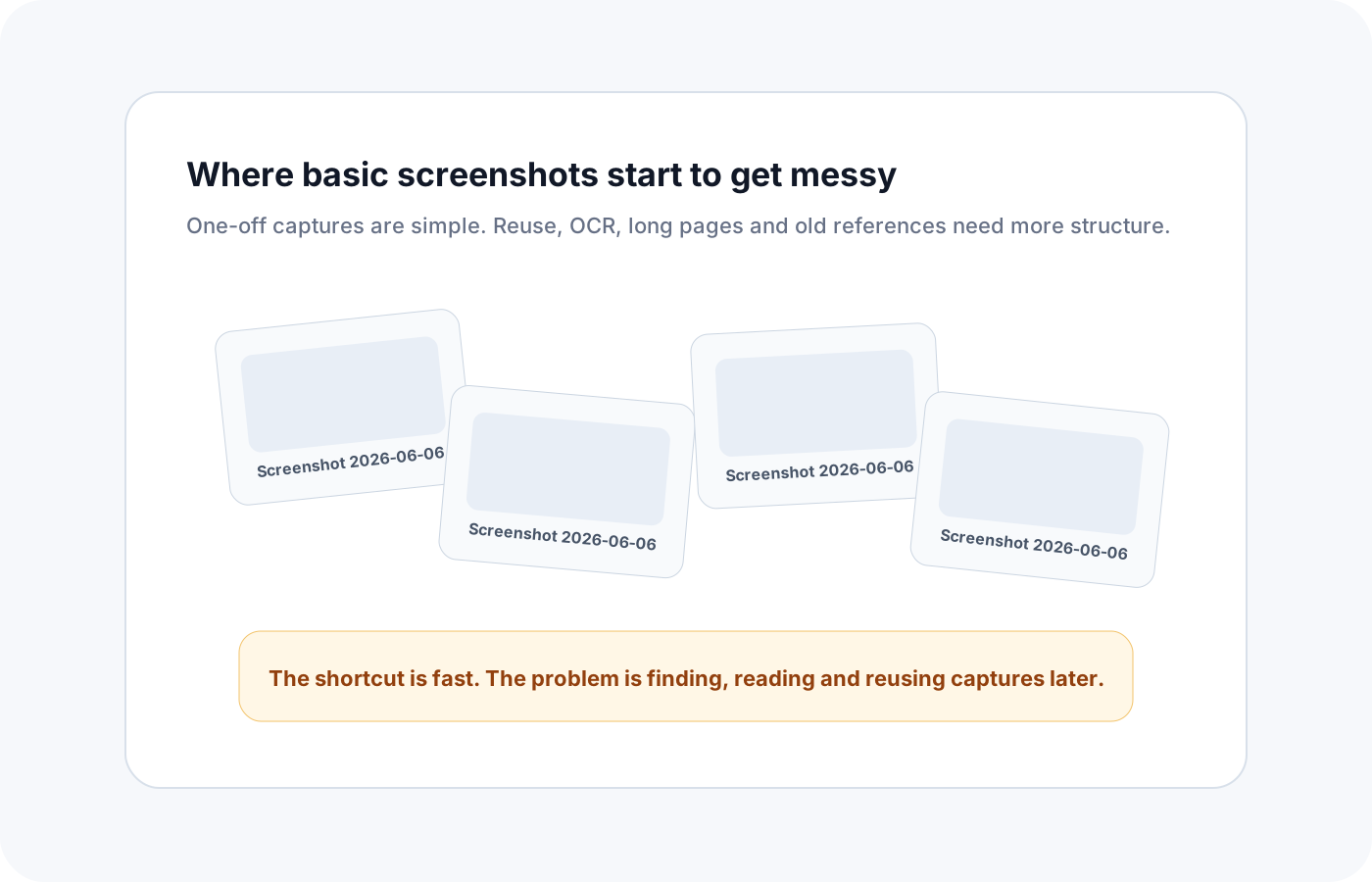
What the built-in Mac tools cannot do
Screenshot includes a timer, save-location options and Markup through the floating thumbnail. Preview and Photos can extract supported image text with Live Text. The Screenshot app itself does not provide scrolling capture, direct GIF recording or a dedicated searchable screenshot library.
That is why screenshots often get lost. They start as useful context, then become files with vague names in a folder you rarely revisit.
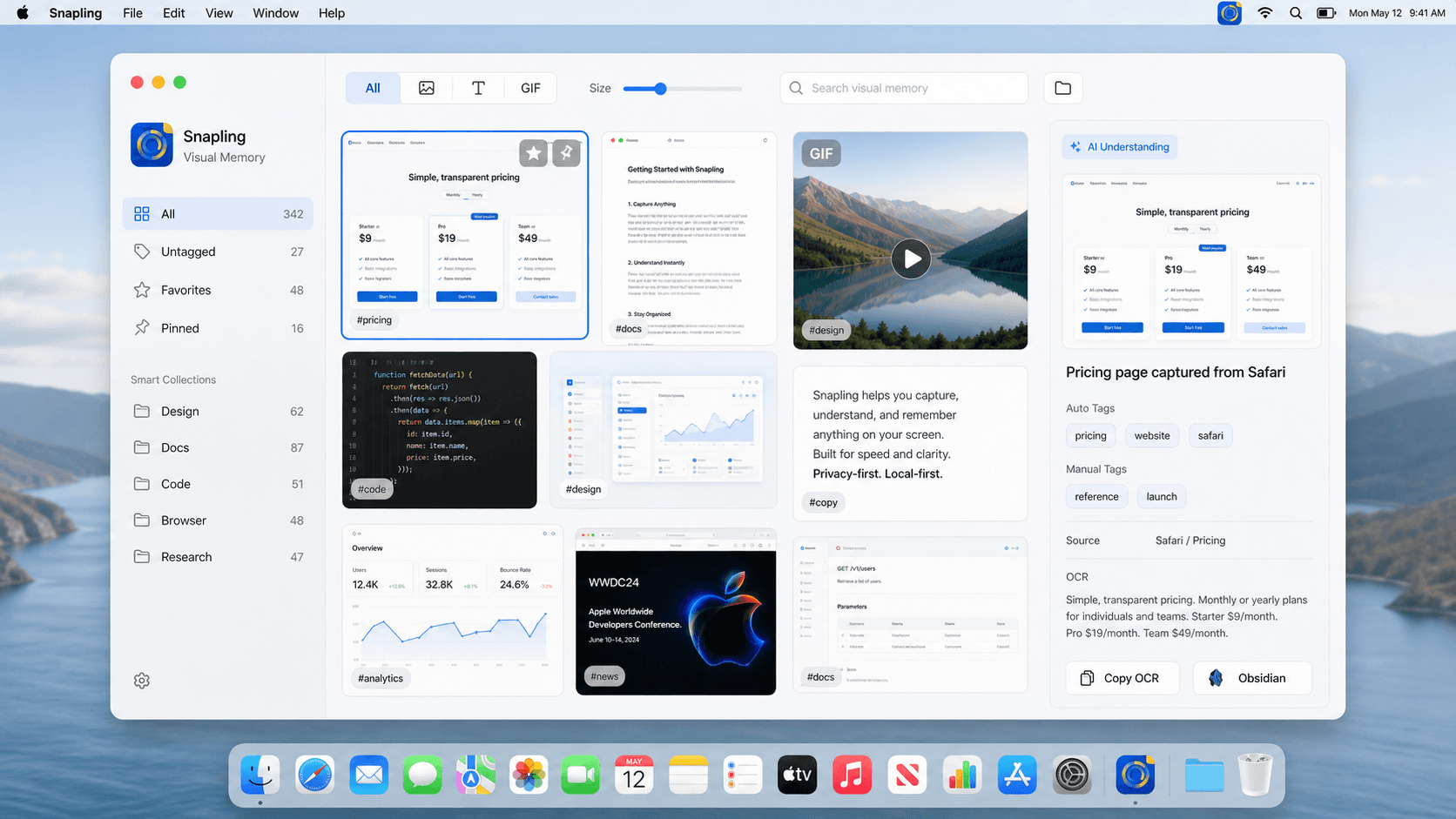
When to move to a dedicated snipping tool
Snapling is the right next step when screenshots become part of product feedback, bug reports, support, research, tutorials or documentation. In those workflows, the capture is only the first step.
Use Snapling when you need to copy text from a screenshot (OCR), capture a scrolling page, record a short GIF, annotate a product issue or search old visual references — all from the same local-first Mac workflow.
Check Snapling free and Pro pricing for included features and screenshot history limits.
| Task | Best default shortcut | When Snapling helps |
|---|---|---|
| Full-screen screenshot | Shift-Command-3 | When you need to annotate, tag or find it later |
| Snip a selected area | Shift-Command-4 | When the selected area needs OCR, translation or export |
| Open screenshot options | Shift-Command-5 | When screenshots, GIFs and history should live together |
| Copy text from an image | Use Live Text when available | When OCR should stay connected to the screenshot history |
| Capture a long page | No complete built-in shortcut | Use scrolling capture to keep the page in one visual record |
A few clear answers before you leave.
What is the shortcut to screenshot on Mac?
Shift-Command-3 captures the full screen. Shift-Command-4 snips a selected area. Shift-Command-5 opens the macOS screenshot toolbar with additional options.
How do I screenshot a section on Mac?
Press Shift-Command-4, drag over the area you want to capture and release. Add Control to copy directly to the clipboard instead of saving a file.
Where do Mac screenshots go?
By default, macOS saves screenshots to the Desktop. You can change the destination from the Shift-Command-5 screenshot toolbar under Options.
Can I copy text from a Mac screenshot?
macOS Live Text works on some images, but for reliable OCR that stays connected to your screenshot history, Snapling keeps the extracted text searchable alongside the original capture.
What can the built-in Mac screenshot tool not do?
The Screenshot app does not offer scrolling capture, direct GIF recording or a dedicated searchable capture library. It does support timers and Markup; Preview and Photos provide Live Text for supported images. Snapling combines additional capture modes with local OCR and history.
Related guides
Snipping Tool Mac: The Easy Guide to Daily Captures, Copy-Paste, and Better Tools
Looking for a snipping tool Mac solution? Discover how to use the snip tool on Mac and MacBook, master copy and paste workflows, and explore modern alternatives.
Best free snipping tool for Mac: free tiers and trials compared
Compare Flameshot, Shottr, Monosnap and Snapling by free features, OCR, scrolling capture and limits. Separate ongoing free tiers from Pro trials.
How to copy text from screenshots on Mac
Use OCR on Mac screenshots to copy text from images and keep your screenshot workflow fast and reusable.
How to take long screenshots on Mac without messy stitching
Learn a cleaner longshot stitching Mac workflow and avoid piecing together scrolling screenshots by hand.
Sources
- Take a screenshot on Mac — Apple Support
- How to record the screen on Mac — Apple Support
- Use Live Text to interact with text in a photo on Mac — Apple Support
Go beyond the shortcut when the screenshot matters.
Snapling keeps Mac screenshots, OCR text, GIFs and old visual references in one local-first workflow.