
How to Document Dashboard Bugs With Screenshots and GIFs on Mac
Document dashboard bugs with screenshots and GIFs on Mac so product teams can reproduce issues with visual evidence.
TL;DR
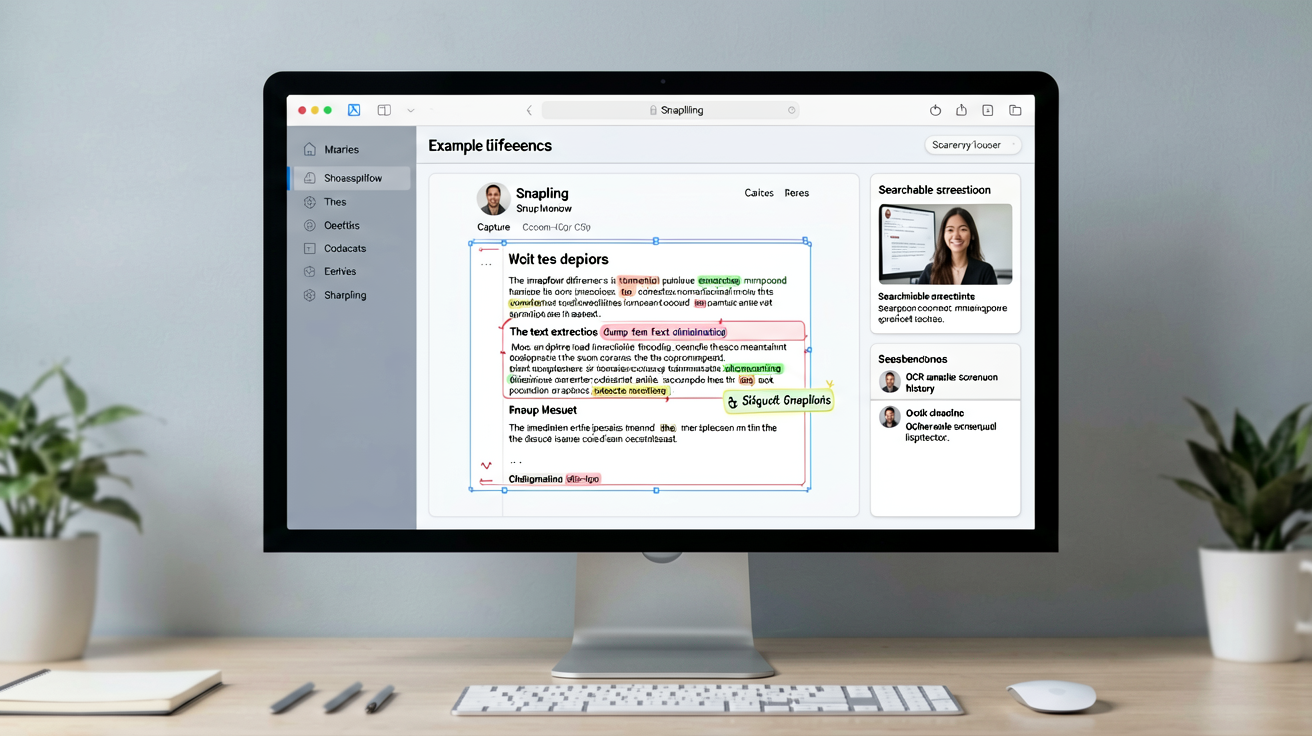
Use Snapling to capture screenshots and GIFs of dashboard bugs on Mac, then annotate and organize them with OCR for easy reuse and sharing. This local-first workflow keeps your bug documentation searchable and private.
Definition
Documenting dashboard bugs with screenshots and GIFs on Mac involves capturing visual evidence, adding annotations for clarity, and organizing files to enable efficient reuse and collaboration in bug reporting.
Direct Answer: Streamlining Dashboard Bug Documentation
To document dashboard bugs on Mac, capture screenshots for static UI issues and GIFs for dynamic problems using Snapling. Annotate with markers and text, then leverage OCR for searchable history, making reports reusable.
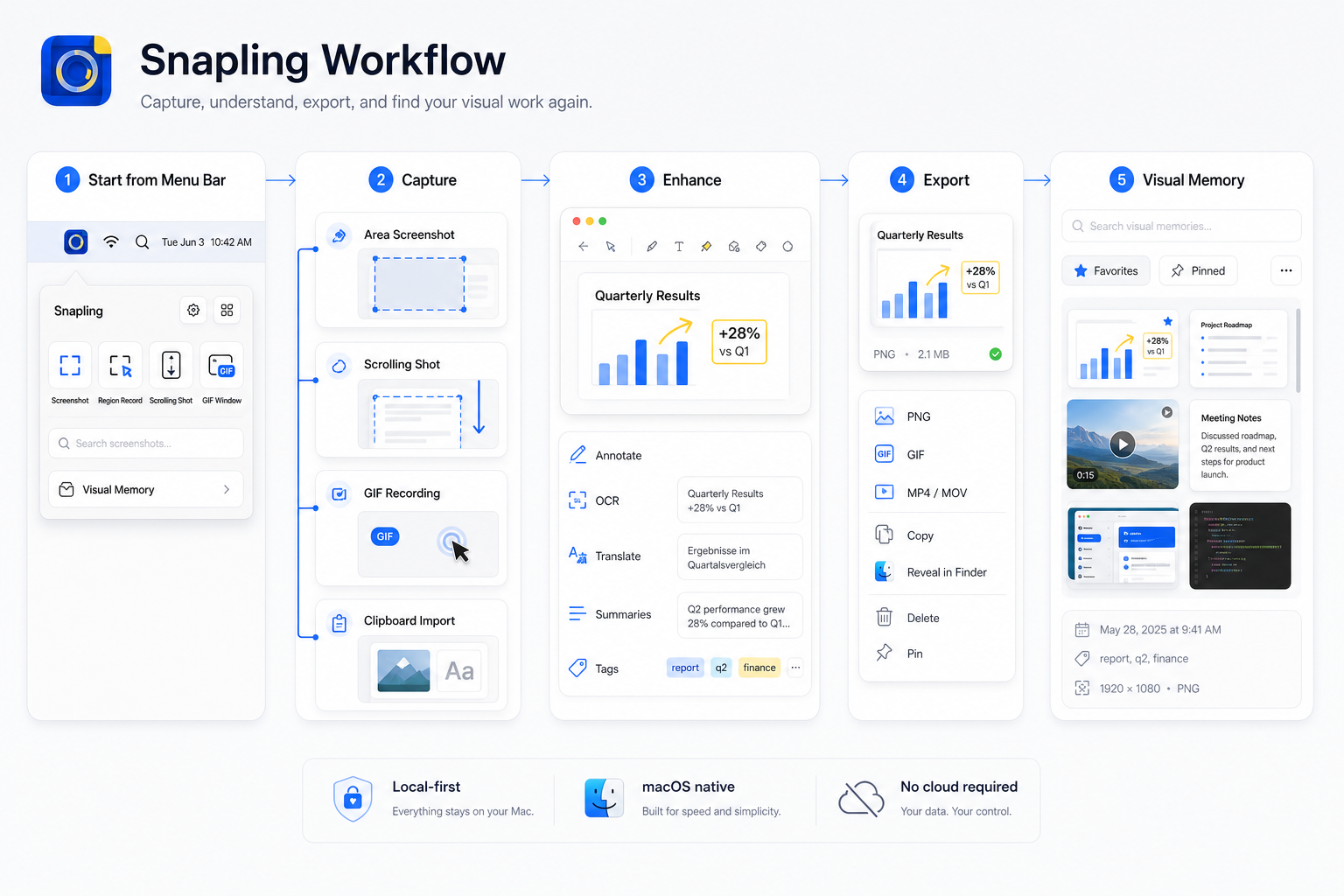
Snapling’s local-first workflow moves beyond one-off captures, preserving visual context after capture for ongoing bug tracking. This approach ensures efficiency and privacy in your documentation process.
Capture Techniques: Screenshots and GIFs for Bugs
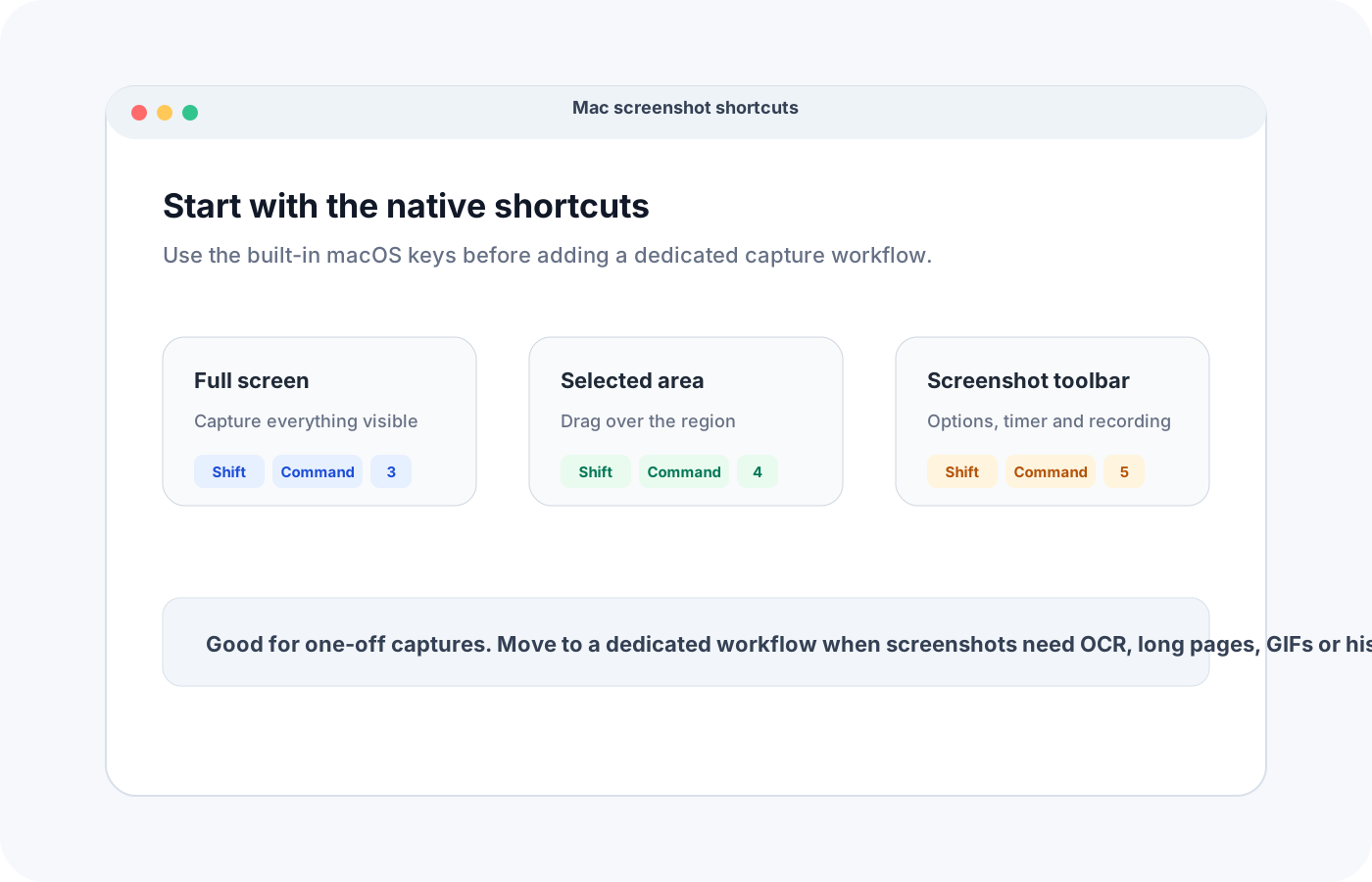
For static bugs like layout errors, use Snapling’s quick screenshot feature to capture the dashboard state. This preserves the issue in context, ready for annotation and sharing. Learn more in our bug report screenshot guide.
Record GIFs with Snapling to demonstrate intermittent or animated bugs without external tools. This captures motion clearly, essential for effective communication in bug reports. See our GIF recording tutorial.
Annotate and Add Context to Captures
Mark up screenshots and GIFs using Snapling’s annotation tools—add arrows, text boxes, and highlights to pinpoint bug locations and details. This clarifies issues for developers and reduces misunderstandings.
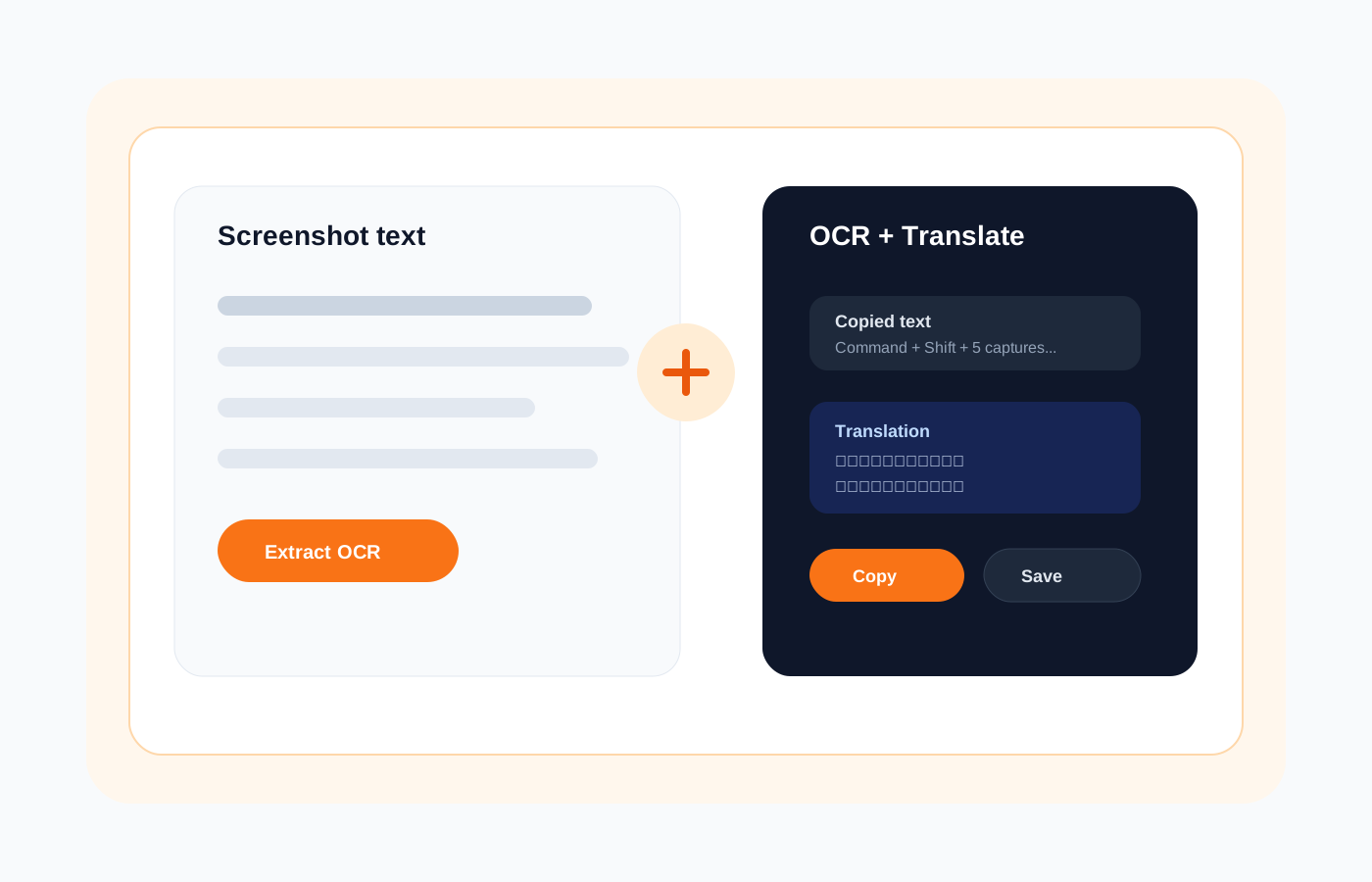
Annotations are saved directly with the capture, ensuring context is preserved. This makes bug documentation self-contained and reusable, streamlining the reporting workflow without losing critical information.
Organize and Search Bug Documentation Efficiently
Organize bug screenshots in Snapling using folders, tags, and visual history. Group captures by project or severity for quick access, keeping your documentation tidy and manageable. Explore organization strategies here.
Leverage Snapling’s OCR to search text within screenshots, finding specific bugs instantly. This reusability saves time when tracking recurring issues or referencing past reports, enhancing your workflow.
Share and Export for Team Collaboration
When ready to report, share annotated screenshots or GIFs directly from Snapling. Export in formats compatible with bug tracking tools or team chats, facilitating seamless collaboration.
Integrate bug documentation into team workflows using Snapling’s features for shared access and context retention. This supports product teams in maintaining efficient communication and issue resolution. Read about team workflows.
Why Snapling’s Workflow Excels for Bug Documentation
Snapling’s local-first approach ensures your bug documentation stays private and secure on your Mac, unlike cloud-dependent tools. It focuses on preserving context for reuse, not just one-off sharing.
For a streamlined bug reporting experience on Mac, try Snapling. Its integrated capture, annotation, and search features make documenting dashboard bugs efficient and reusable. Download Snapling to get started.
Recommended next steps
Use these related Snapling guides when you want to go deeper into one part of the workflow.
How to take better bug report screenshots on Mac
How to record GIFs on Mac for tutorials
Screenshot workflow for product teams on Mac
How to search and organize screenshots on Mac
FAQ
What is the best way to document a dashboard bug on Mac?
Use a tool like Snapling to capture screenshots or GIFs, annotate with details such as arrows and text, and organize using tags and OCR for searchable history. This creates clear, reusable bug reports efficiently.
How do I create a GIF for a bug report on Mac without external tools?
Snapling includes a built-in GIF recorder. Select the screen area, record the dynamic bug, and then save or annotate the GIF directly within the app, eliminating the need for additional software.
Can I search through my bug screenshots by text or annotations?
Yes, Snapling offers OCR search to find text within screenshots, and you can also filter by annotations or tags. This allows for quick retrieval of specific bug documentation from your visual history.
Why use Snapling for bug documentation instead of standard screenshot tools?
Snapling provides a local-first workflow with integrated annotations, OCR, and history, making bug documentation reusable and private. Standard tools often lack these features, focusing only on capture without context preservation.
How to keep bug report screenshots organized and private?
Snapling stores captures locally on your Mac, ensuring privacy without cloud dependencies. Use its folder system, tags, and search capabilities to maintain organization and easily access your bug documentation.
Try the full workflow in Snapling
If you want this How to Document Dashboard Bugs With Screenshots and GIFs workflow in one Mac workspace, download Snapling for Mac and try it with a screenshot you would normally need to find, copy, explain, or reuse.
Recommended next steps
Try the full workflow in Snapling
Capture the screenshot, keep the useful context, search it later, and reuse it when the work comes back.