
How to Copy a Screenshot on Mac: A Shortcut Guide for Product Researchers
Copy a screenshot on Mac with keyboard shortcuts, then use Snapling to keep captures searchable and reusable.
To copy a screenshot on Mac, use the Control version of the screenshot shortcut. If the capture may matter later, keep it searchable with OCR and screenshot history instead of leaving it only on the clipboard.
Copy screenshot on Mac is a shortcut workflow for capturing the screen, copying the result, and keeping the useful context available after paste.
Introduction: Why Efficient Screenshot Management Matters for Product Researchers
In the dynamic field of product research, capturing and sharing visual data quickly is essential for documentation, collaboration, and analysis. Screenshots serve as a vital tool for preserving findings and communicating insights.
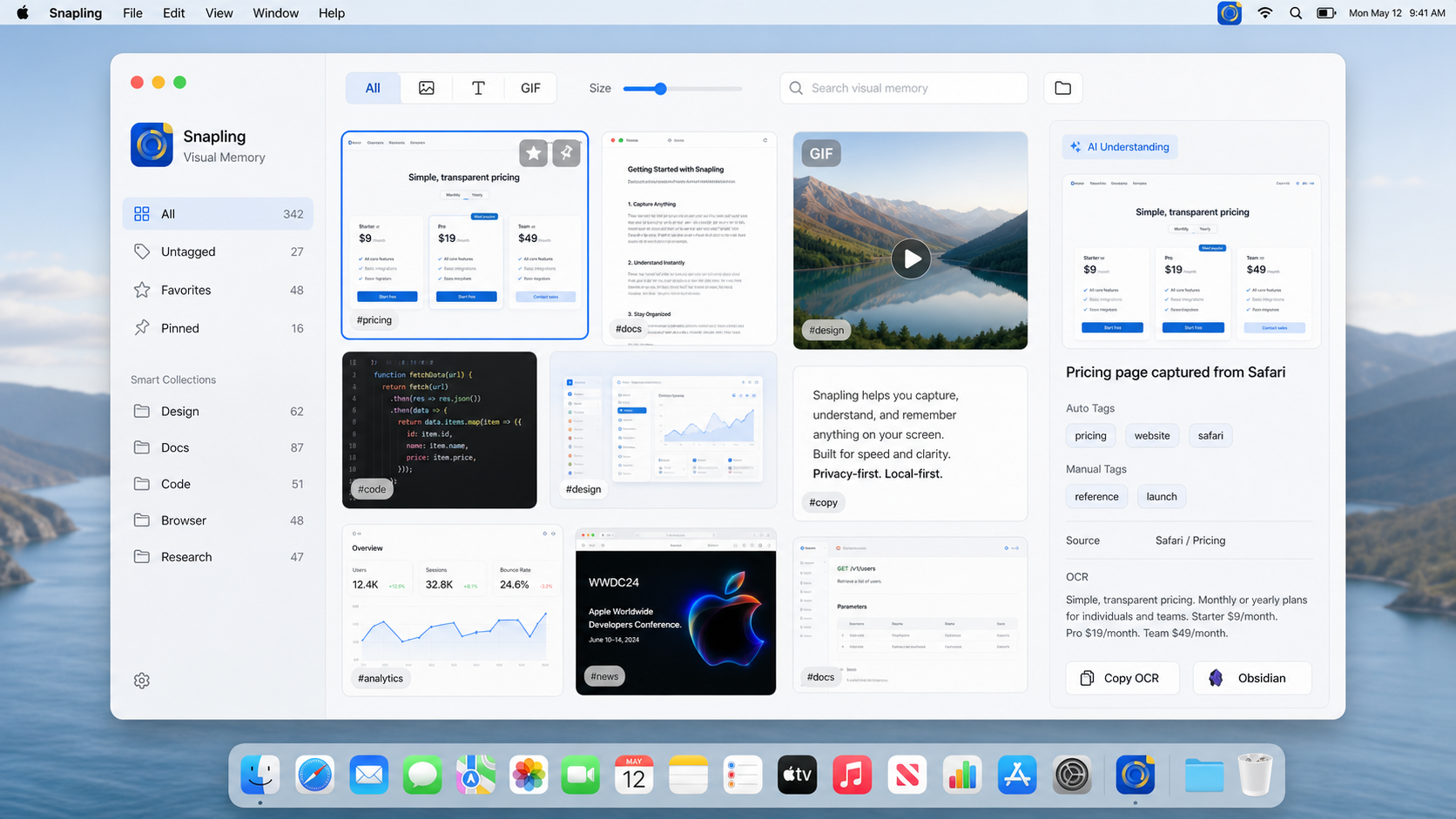
Snapling, a versatile Mac app designed for screenshots, OCR, GIF capture, and private visual memory, streamlines this process. This guide will walk you through how to copy a screenshot to your clipboard on Mac using shortcuts and leverage Snapling for superior efficiency.
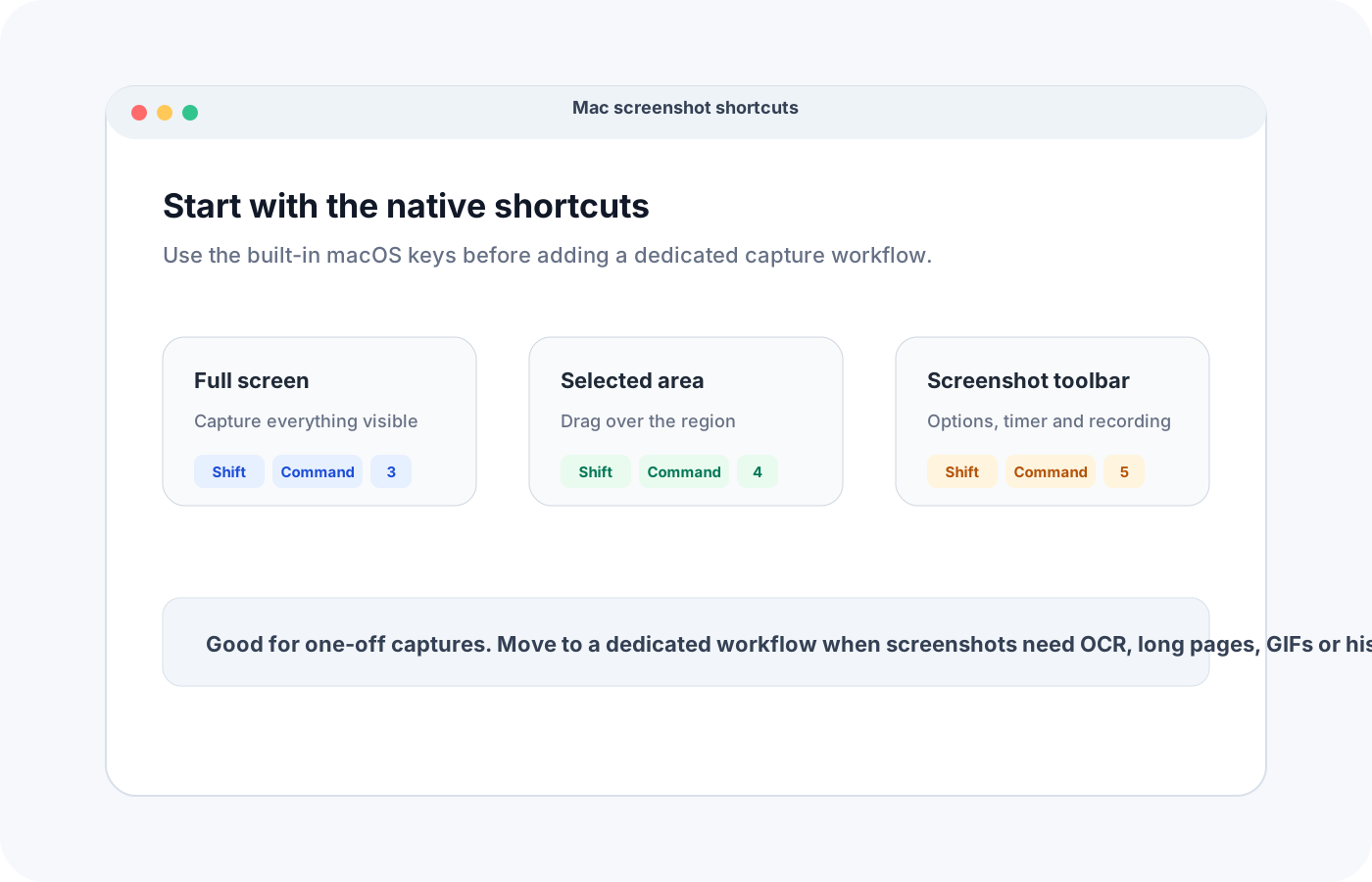
Built-in Mac Shortcuts for Copying Screenshots to Clipboard
Mac provides straightforward keyboard shortcuts to copy screenshots directly to your clipboard. For a full-screen capture, press Command + Control + Shift + 3; for a selected area, use Command + Control + Shift + 4. These combinations save the image to your clipboard without creating a file.
Once copied, you can paste the screenshot instantly into emails, documents, or collaboration tools like Slack or Trello. This method is quick and eliminates the need for manual file handling, saving valuable time during research sessions.
Enhancing Your Workflow with Snapling's Advanced Features
While built-in shortcuts are effective, Snapling offers a comprehensive suite to elevate your screenshot workflow. With Snapling, you can capture screens, extract text using OCR, create animated GIFs, and store images securely in a private library.
For product researchers, Snapling's ability to instantly copy screenshots to the clipboard and organize them with tags or notes boosts productivity. Explore Snapling's full capabilities on our /features page, and see how it compares to basic tools.
Step-by-Step Guide: Using Snapling to Copy Screenshot to Clipboard
Start by downloading and installing Snapling from the official website. After setup, use the shortcut Command + Shift + S to capture a screenshot. Snapling will automatically copy it to your clipboard for immediate use.
Additionally, you can access captured screenshots in Snapling's interface to edit, apply OCR for text extraction, or save them to your private memory. For more on text extraction, check out our blog post: https://getsnapling.com/blog/how-to-extract-text-from-mac-screenshots-privately-with-snapling.
Tips and Best Practices for Product Researchers
To maximize efficiency, combine Mac shortcuts with Snapling's features. For instance, use the clipboard shortcut for quick sharing and Snapling's OCR to extract data from screenshots for analysis or reporting.
Regularly back up your Snapling library to ensure no visual data is lost, and utilize the app's privacy settings to keep sensitive research materials secure. This integrated approach helps maintain a seamless and organized research workflow.
FAQ
What is the keyboard shortcut to copy a screenshot to the clipboard on a Mac?
The default shortcuts are Command + Control + Shift + 3 for a full-screen screenshot and Command + Control + Shift + 4 for a selected area. These copy the screenshot directly to your clipboard without saving a file.
How does Snapling improve the screenshot copying process for Mac users?
Snapling enhances the process by offering one-click capture with automatic clipboard copying, plus additional features like OCR text extraction, GIF creation, and secure private storage, making it ideal for product researchers who need advanced functionality.
Can I use Snapling to extract text from screenshots after copying them to the clipboard?
Yes, Snapling includes OCR technology that allows you to extract text from any screenshot captured or copied to the clipboard. This is useful for converting visual data into editable text for research and documentation.
Recommended next steps
Try the full workflow in Snapling
Capture the screenshot, keep the useful context, search it later, and reuse it when the work comes back.