
How to Extract Text from Mac Screenshots Privately with Snapling
Extract text from Mac screenshots privately with OCR, searchable history, and local-first capture workflows in Snapling.
Use Mac screenshot OCR when the words inside a capture need to be copied, searched or reused. Snapling keeps OCR close to screenshot history so the text and image stay connected.
Mac screenshot OCR turns text inside a screenshot into searchable, copyable content that can be reused after capture.
Why Privacy Matters in Mac Screenshot OCR
Screenshots often capture sensitive information, such as confidential documents, private messages, or proprietary data. Using OCR tools that upload images to the cloud can expose this information to security risks.
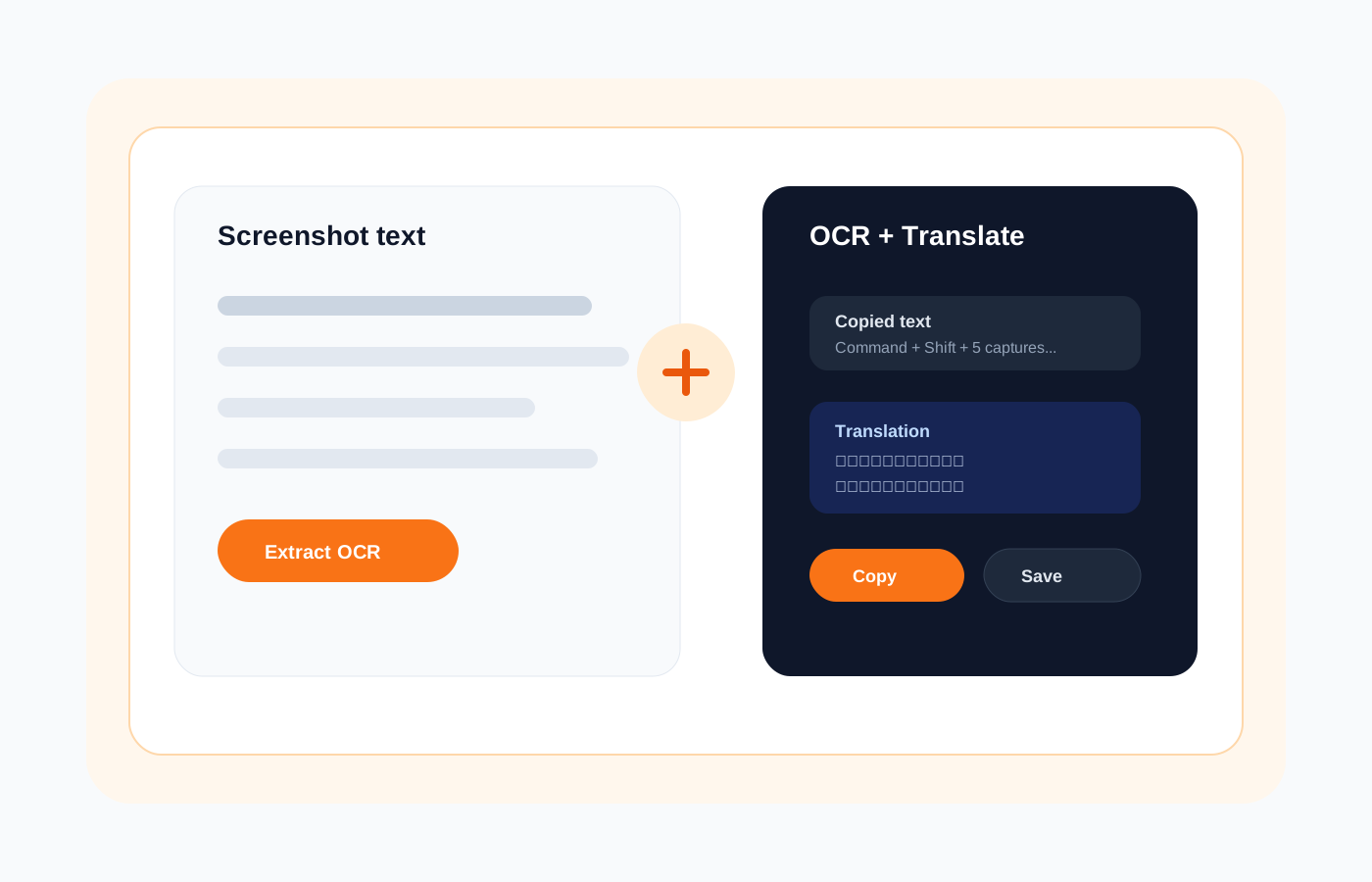
Snapling addresses this by offering a local-first approach, where all text extraction happens directly on your Mac. This ensures your screenshots never leave your device, making it perfect for product researchers handling sensitive content.
Getting Started with Snapling's Local OCR Features
To begin, download and install Snapling from the official website. The app integrates seamlessly with your Mac, allowing you to capture screenshots using built-in tools or import existing images from your library.
Once installed, navigate to the OCR tool within Snapling. The interface is intuitive, with options to select regions, adjust settings, and process images—all without requiring an internet connection for core functionality.
Step-by-Step: Extract Text from Screenshots Without Uploading
Step 1: Open Snapling and use the screenshot capture feature to grab a new image or import one from your files. The app supports various formats like PNG, JPEG, and more.
Step 2: Activate the OCR tool from the toolbar. Snapling will automatically detect text areas and extract the content locally. You can then copy the text, export it to documents, or integrate it into other workflows for analysis.
Organize and Search Your Screenshot Library with Ease
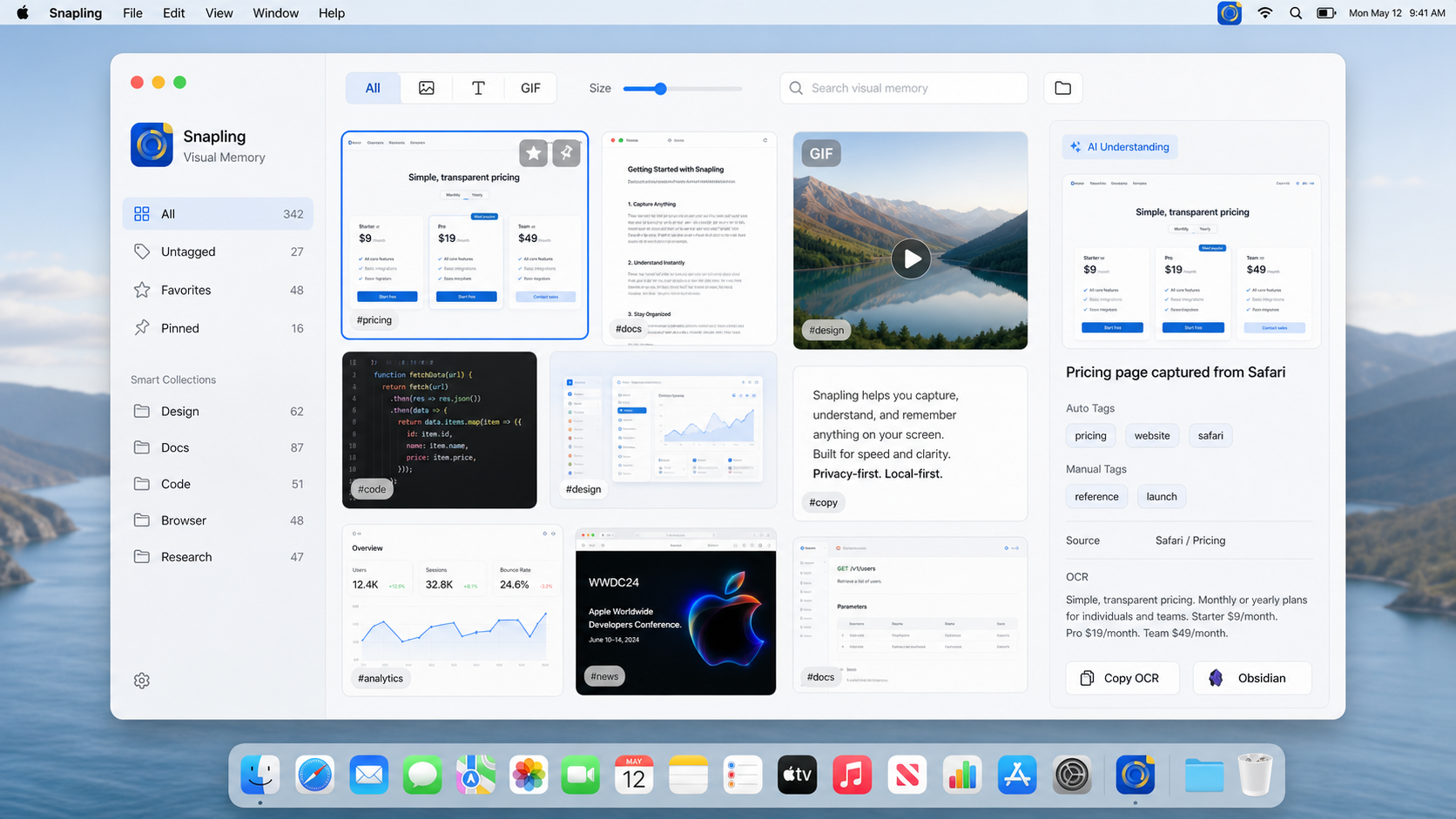
Snapling’s searchable library feature allows you to tag, categorize, and organize all your screenshots. With OCR applied, every piece of extracted text is indexed, enabling keyword searches across your entire collection.
This is particularly useful for product researchers who need to quickly locate specific information, such as user feedback or error messages, from a large set of screenshots, boosting efficiency and productivity.
Translate Screenshot Text Locally for Multilingual Research
For tasks involving multiple languages, Snapling offers a local translation feature. After extracting text from a screenshot, simply select it and choose the target language—translation occurs entirely on your Mac.
This workflow ensures that even translation remains private, without sending data to external services. It’s ideal for global researchers handling multilingual content while maintaining strict data confidentiality.
FAQ
Is Snapling's OCR processing done locally on my Mac?
Yes, all OCR processing in Snapling is performed locally on your device. This means your screenshots and extracted text never leave your Mac, ensuring complete privacy and security.
Can I search for text within my screenshots using Snapling?
Absolutely. Snapling automatically indexes extracted text from your screenshots, making your entire library searchable. You can quickly find specific words or phrases without manually scanning through images.
Does Snapling support multiple languages for OCR and translation?
Yes, Snapling supports a wide range of languages for both text extraction and local translation. This allows you to work with multilingual screenshots seamlessly, all while keeping your data secure on your Mac.
Recommended next steps
Try the full workflow in Snapling
Capture the screenshot, keep the useful context, search it later, and reuse it when the work comes back.