
How to Create Polished Screenshots for Social Media on Mac
Capture polished screenshots for social media on Mac with Snapling. Use background canvas, annotation, and GIF recording to create share-ready visuals without cluttering your desktop.

TL;DR
Use Snapling to capture screenshots for social media, clean backgrounds with a canvas, annotate key points, and export or share directly—all without cluttering your desktop. Your captures remain searchable for reuse.
Definition
A polished screenshot for social media is a captured image that has been cleaned up (background removed or padded), annotated with arrows or text, and optimized for the platform's aspect ratio and format, including GIFs for short animations.
Why your social media screenshots need more than a raw capture
A raw screenshot rarely looks good on social media. You could crop, paste into a design tool, and re-export—but that breaks your workflow and leaves scattered files on your desktop. A polished screenshot for social media needs a clean background, clear annotations, and the right format (static or GIF).
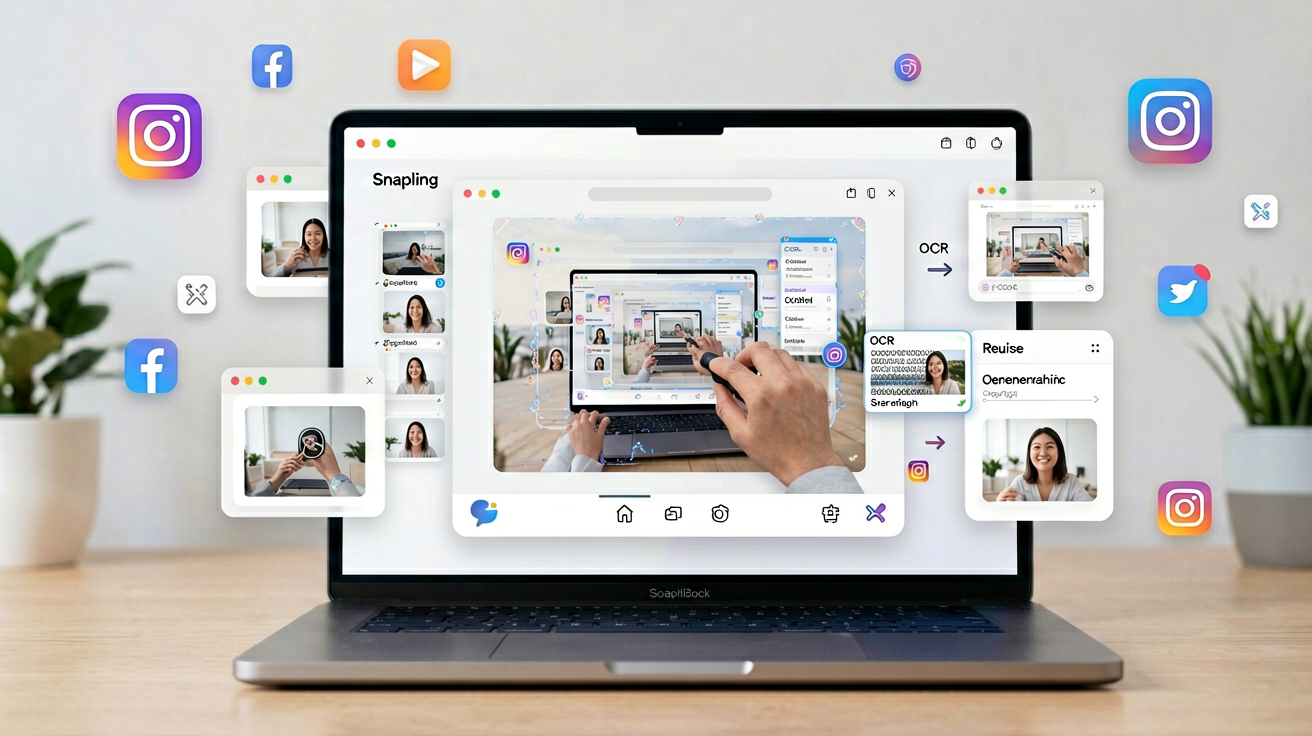
Snapling is built for the full lifecycle of screen content: capture, preserve context, make searchable, reuse, and export only when useful. Instead of fighting with Preview or a separate image editor, you can add a background canvas, annotate with arrows and text, and record GIFs—all within one app. And because Snapling keeps every capture searchable, you can reuse past visuals without digging through folders.

Capture the right screenshot, then clean it up with a canvas
Start by capturing the content you need. Snapling supports full screen, window, selected area, scrolling screenshots, and GIF recording. For social media, you often want a focused shot of a feature or a short demo. Use the selection tool to capture exactly what matters, or record a GIF for step-by-step tutorials.
Once captured, clean up the background. Snapling’s background canvas tool lets you add padding, change colors, or remove clutter. This is especially useful for screenshots that include a messy desktop or irrelevant UI. You can adjust the canvas size to fit Instagram or Twitter aspect ratios. For a deeper walkthrough, see our guide on <a href="/guides/background-canvas-for-screenshots">how to make cleaner screenshot backgrounds on Mac</a>.
After cleaning, your screenshot looks professional and focused. The canvas acts as a non-destructive layer—you can always return to the original capture later.
Annotate to highlight key points, then export or share directly
Next, add annotations to guide your audience. Snapling’s annotation tool includes arrows, text boxes, shapes, and a blur tool for sensitive information. Use arrows to point to a button, text to explain a step, or blur to hide personal data. These annotations are easy to adjust and don’t alter the underlying screenshot.
For a better annotation workflow, see our <a href="/guides/screenshot-annotation-tool-for-mac">screenshot annotation tool guide</a>. You can also record GIFs for social media by capturing a short sequence; learn more in our <a href="/guides/record-gif-on-mac">how to record GIFs on Mac guide</a>.
When your screenshot is ready, export it. Snapling lets you copy to clipboard, save as PNG or GIF, or drag directly to a social media upload tool. No desktop clutter—just a clean share. If you need to save for later, use the history feature to keep it searchable.
Keep your visual content reusable with Snapling’s history and OCR search
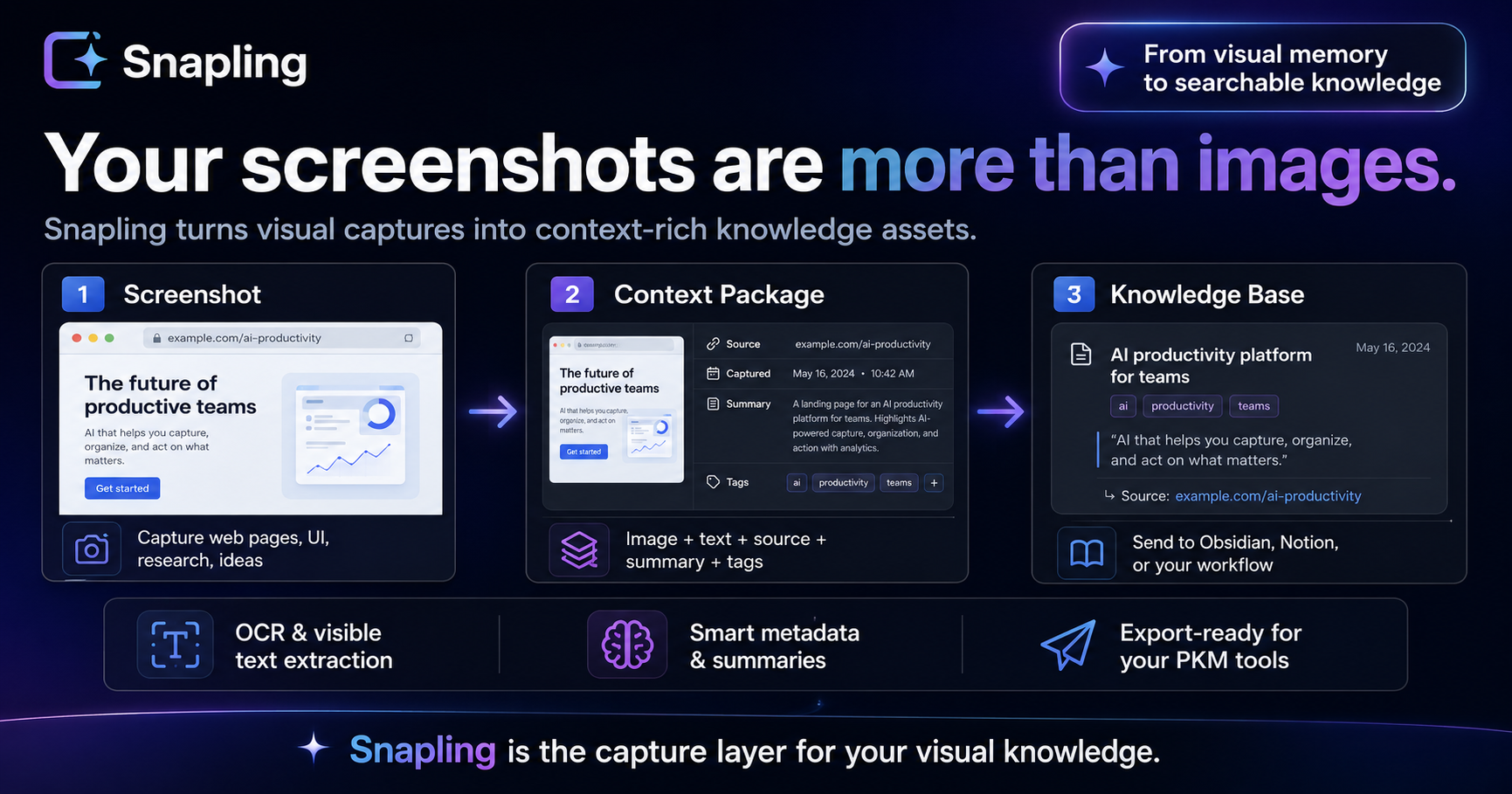
One of the biggest advantages of using Snapling for social media screenshots is reusability. Every capture is automatically saved in your history with OCR text recognition. You can search for old screenshots by text content, even if you forgot to name them. This means last month’s product screenshot can be quickly found and updated for today’s post.
Instead of treating each screenshot as a one-off file, you build a library of visual assets. When you need a similar screenshot for a different platform, you can duplicate and tweak it. This makes Snapling not just a capture tool but a content creation workspace. For exporting to notes or knowledge bases, check our <a href="/guides/export-screenshots-to-notes-knowledge-base">export guide</a>.
Recommended next steps
Use these related Snapling guides when you want to go deeper into one part of the workflow.
How to make cleaner screenshot backgrounds on Mac
Screenshot annotation tool for Mac: mark up captures faster
How to record GIFs on Mac for tutorials
How to export screenshots to notes and knowledge bases
FAQ
How do I take a clean screenshot for Instagram on Mac?
Use Snapling to capture the desired area, then apply a background canvas to add padding and a solid color. Adjust the canvas size to Instagram’s preferred aspect ratio (1:1, 4:5, or 16:9). Annotate if needed, and export as PNG.
Can I make GIFs for social media with Snapling?
Yes. Snapling includes a GIF recording mode. Capture a short sequence (up to 30 seconds) and export it as a GIF. You can trim the recording and adjust frame rate before saving.
What’s the best format for social media screenshots?
For static images, PNG is best because it preserves quality and supports transparency. For animations, use GIF (or consider MP4 for longer videos). Snapling supports both PNG and GIF export.
How do I remove backgrounds from screenshots on Mac?
With Snapling, you can’t remove the background from the screenshot itself, but you can use the background canvas tool to overlay a solid color or padding that effectively hides the original background. This produces a clean look without editing the source image.
Can I search my old social media screenshots?
Yes. Snapling automatically performs OCR on all captures, making their text content searchable. You can search by any text that appeared in the screenshot, even from weeks ago.
Try the full workflow in Snapling
If you want this screenshot for social media workflow in one Mac workspace, download Snapling for Mac and try it with a screenshot you would normally need to find, copy, explain, or reuse.
Try the full workflow in Snapling
Capture the screenshot, keep the useful context, search it later, and reuse it when the work comes back.