
Greenshot Alternative for Mac: What to Check Before Switching
Compare Greenshot alternatives for Mac by capture, OCR, scrolling screenshots and local history. Check what your Mac workflow actually needs.
Greenshot for Mac exists, but Windows parity is a separate question
Greenshot's official launch notes describe a Mac app built separately from its Windows version. A familiar product name does not guarantee identical capture modes, editor tools or export options. Check the current Mac release against the features you actually use.
Start with a small test: capture an application window, add an arrow and a text label, copy the result to another app and save a local file. These everyday actions are a better first comparison than a claim that one tool replaces every feature of another.
Try the built-in Mac tools first
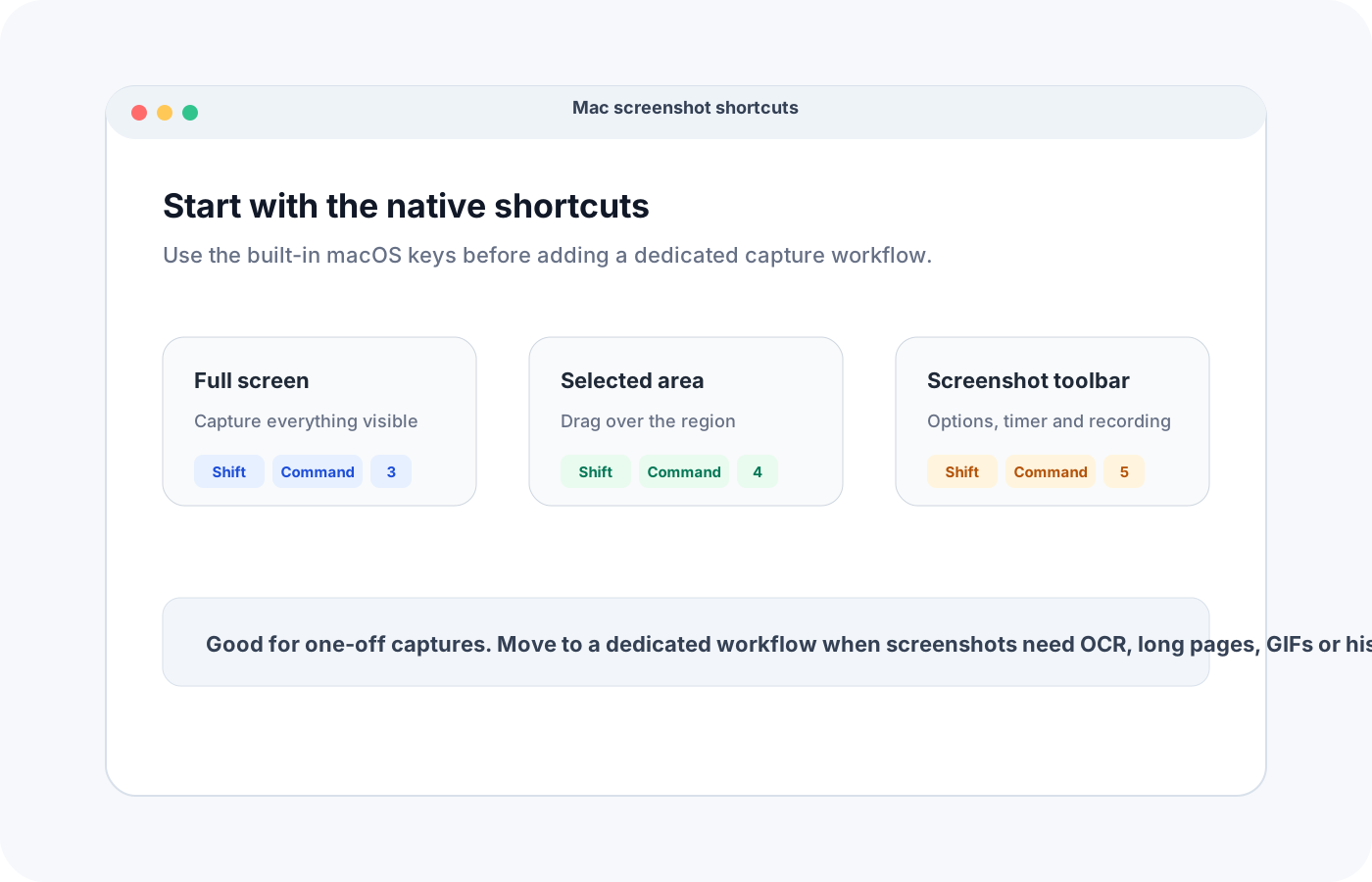
Shift-Command-4 captures a selected area; press Space afterwards to capture a window. Shift-Command-5 opens Screenshot, where Options includes a timer and save location. Click the floating thumbnail to open editing and Markup controls.
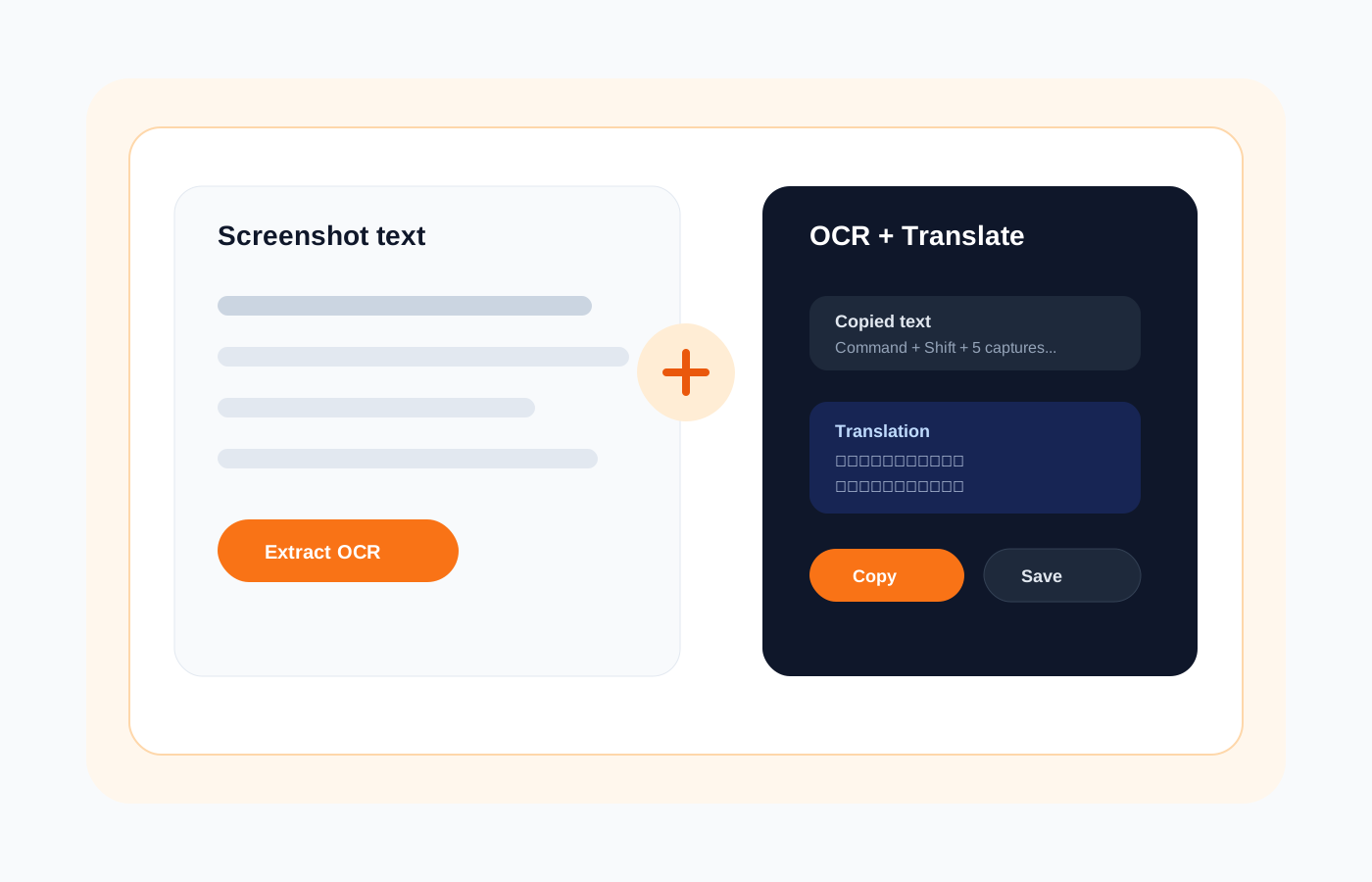
For supported image text, open the screenshot in Preview and try Live Text. These built-in tools may be sufficient for occasional captures. The How to screenshot on Mac guide explains the shortcuts in detail.
Compare the work that follows each screenshot
For bug reports, test whether annotations remain clear after pasting into your issue tracker. For documentation, try a long page and check that the scrolling image contains every line. For research, save several captures and try finding one later using a word inside it.
Use the same sample tasks when evaluating Greenshot, Shottr, CleanShot X or Snapling. The Mac screenshot tools comparison covers a wider set of workflows, including free and paid options.
Where Snapling fits
Snapling combines region capture, annotation, scrolling screenshots, OCR, GIF recording and a local Visual Memory library. It is worth trying when you want to retrieve and reuse screenshots after the initial capture-and-paste step.
Use your actual documents to evaluate OCR and scrolling capture quality. Review the free tier and Pro limits, including history and search limits. Local capture and OCR do not mean that optional online features or sharing can work without a network connection.
Check permissions and shortcuts before switching
Download from the official site and follow the installation guide. macOS requires screen recording permission for third-party capture apps. Choose an available shortcut in the app rather than assuming it replaces Apple's default combinations.
Keep a copy of any existing screenshot archive during evaluation. Choose the tool that handles your capture, editing, export and retrieval tasks consistently on your Mac.
Sources
- Greenshot for Mac: separate development and feature differences — Greenshot
- Greenshot Mac release notes — Greenshot
Recommended next steps
Try the full workflow in Snapling
Capture the screenshot, keep the useful context, search it later, and reuse it when the work comes back.