
How to Translate Screenshots on Mac: Private OCR & Text Translation with Snapling
Learn how to translate a screenshot on Mac with Snapling. OCR extracts text instantly, translates locally, and keeps your data private. No cloud upload needed.
TL;DR
Snapling is the only Mac screenshot tool with built-in translation. Capture, OCR, and translate text directly on your Mac without uploading to the cloud or retyping.
Definition
Screenshot translation is the process of extracting text from an image (via OCR) and converting it into another language, all within the same workflow.
TL;DR: Translate Screenshots on Mac Without Retrying
Snapling is the first Mac screenshot tool to integrate OCR and translation into a single workflow. Capture a screenshot, extract text instantly, and translate it into any language—all without uploading your image to the cloud or switching between apps. This is a feature no other tool like CleanShot, Shottr, or Snagit offers.
Traditional methods require you to manually type text into Google Translate or use cloud-based OCR services that compromise your privacy. Snapling’s local-first approach keeps your data on your Mac while delivering fast, accurate translations.
What Is Screenshot Translation and Why Mac Users Need It
Screenshot translation means extracting text from an image (via optical character recognition) and converting it into another language. It’s essential for professionals who encounter foreign-language interfaces, documents, emails, or error messages on their Mac.
Common scenarios include translating a foreign software menu, reading a PDF excerpt in a screenshot, understanding an error code in a different language, or studying a multilingual article. Without a dedicated tool, this becomes a tedious multi-step process.
How to Translate a Screenshot on Mac: Step-by-Step with Snapling
Step 1: Capture the screenshot using Snapling’s standard capture (Cmd+Shift+2) or select a region. The screenshot opens immediately in the workspace.
Step 2: OCR is applied automatically—text in the image becomes selectable. Click the 'Translate' button in the toolbar. No need to manually select text or open another app.
Step 3: Choose the target language from the dropdown (or let Snapling auto-detect). The translated text appears in a side panel. You can copy it, save it, or use it with a single click—all without leaving Snapling. For more on OCR, refer to our guide on extracting text from screenshots.
Snapling vs. Other Translation Methods: Why Snapling Wins
Method 1: Manual retyping into Google Translate. Takes 2–5 minutes per screenshot, error-prone, and breaks your workflow.
Method 2: Cloud-based OCR and translation tools (e.g., Google Lens, online converters). Upload your screenshot to a server, wait for processing, and hope your data is secure. Risky for sensitive content.
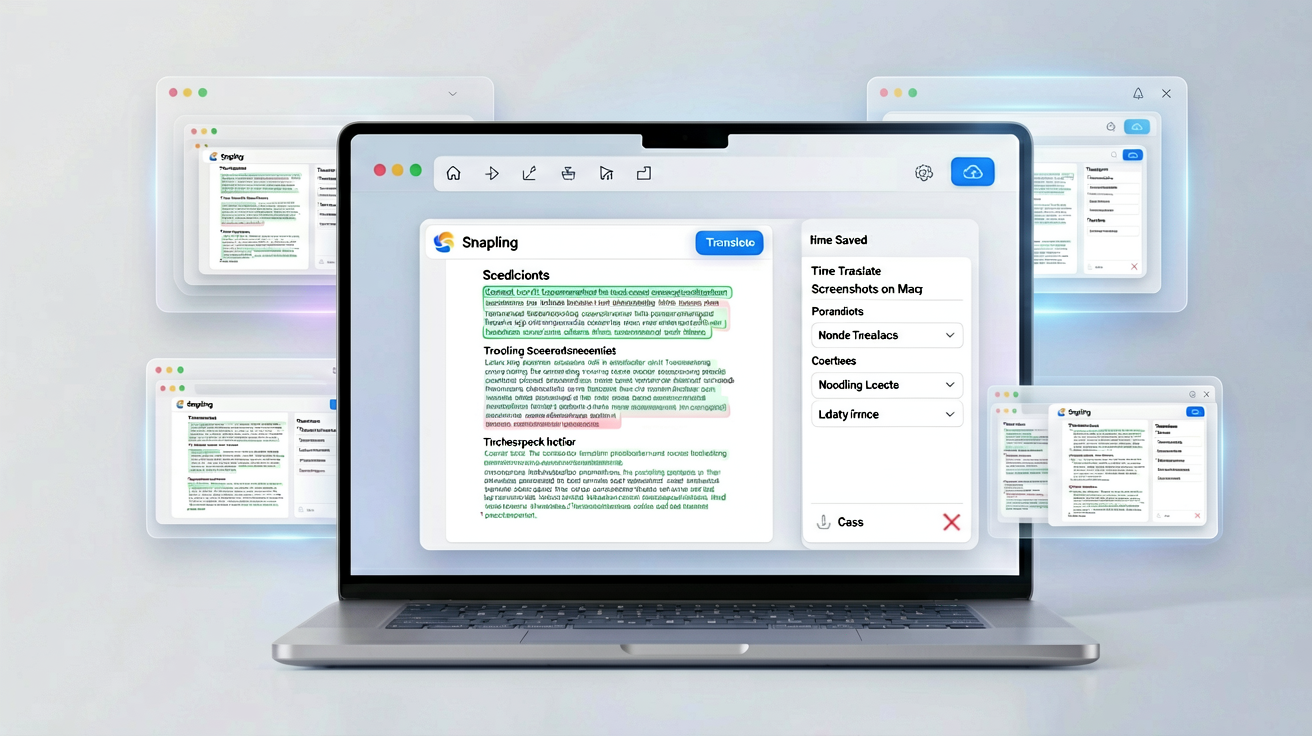
Method 3: Snapling. All processing happens locally on your Mac. OCR extracts text in milliseconds, translation is instant, and your data never leaves your device. Plus, you can reuse the text later via Snapling’s searchable history. See our search by text guide for more.
Privacy and Speed: The Local Advantage
Snapling performs all OCR and translation entirely on your Mac. No image is uploaded to any cloud service. This ensures sensitive data—such as legal documents, internal communications, or personal notes—remains completely private.
Speed is also a benefit. Because there’s no network latency, the translation appears almost instantly. And since Snapling stores your screenshots with their extracted text, you can search and retrieve previous translations anytime. For a full overview, visit the Snapling Features page.
Real-World Applications of Screenshot Translation
Global teams: Translate interface mockups or error messages from colleagues in different languages. Researchers: Capture and translate foreign-language academic papers without retyping. Students: Snap a photo of a whiteboard or slide and translate key terms on the fly.
Developers: Quickly understand error logs or documentation in non-English languages. Content creators: Localize screenshots for international audiences. The versatility makes Snapling an essential tool for anyone working across languages on a Mac. Compare with CleanShot X alternative and Flameshot alternative.
Get Started with Snapling’s Translation Feature
Download Snapling for free today. Once installed, open the app, take a screenshot, and click the translate icon in the toolbar. You’ll have translated text in seconds, with complete privacy and no app switching.
For a complete screenshot management solution, explore our Snipping Tool for Mac guide.
Recommended next steps
Use these related Snapling guides when you want to go deeper into one part of the workflow.
How to Copy Text from Screenshots on Mac
CleanShot X Alternative for Mac
FAQ
How to translate a screenshot on Mac with Snapling?
Capture a screenshot with Snapling (Cmd+Shift+2), click the Translate button in the toolbar, choose a target language, and the translated text appears instantly. All processing happens locally.
Does Snapling translation work offline?
Yes. OCR and translation are performed entirely on your Mac using local machine learning models. No internet connection is required for the core translation functionality.
What languages does Snapling support?
Snapling supports over 50 languages for OCR and translation, including English, Spanish, French, German, Chinese, Japanese, Korean, and many more. The exact list is available in the app.
Is my data private when using Snapling?
Absolutely. All screenshots, OCR, and translation processes run locally on your Mac. No data is sent to external servers, ensuring your content remains confidential.
Try the full workflow in Snapling
If you want this How to Translate Screenshots on Mac workflow in one Mac workspace, download Snapling for Mac and try it with a screenshot you would normally need to find, copy, explain, or reuse.
Recommended next steps
Try the full workflow in Snapling
Capture the screenshot, keep the useful context, search it later, and reuse it when the work comes back.